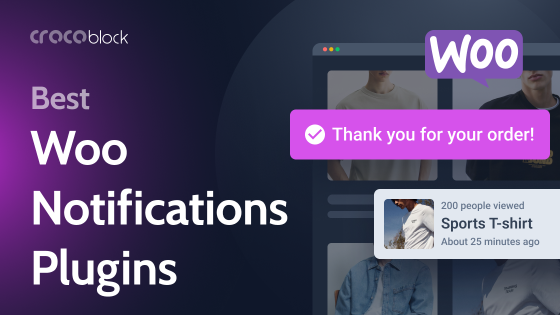
Сommunication matters. Sometimes it is even the most important thing in your eCommerce business. And WooCommerce notifications are the invisible glue that holds your customer journey together: they confirm purchases, alert store admins, drive conversions, and even save abandoned carts.
Need a stylish pop-up for a flash sale? A push notification about a new product drop? Or a dynamic message shown only to returning users?
In this article, we’ll walk you through five ways to add notifications to your WooCommerce store – from simple email alerts to custom pop-ups and automation workflows. Let’s find the best option for you.
Popular Types of WooCommerce Notifications
When you hear “WooCommerce notifications,” your first thought might be the default email that says, “your order has been received.” And sure, that’s part of it. But in reality, WooCommerce notifications can go way beyond that.
Let’s break it down.
The most basic type is, of course, email notifications. These come built-in with WooCommerce: order confirmations, shipping updates, canceled order alerts – that kind of thing. It works. But if you need something more interesting, you’re probably reaching for custom hooks or email customizer plugins.
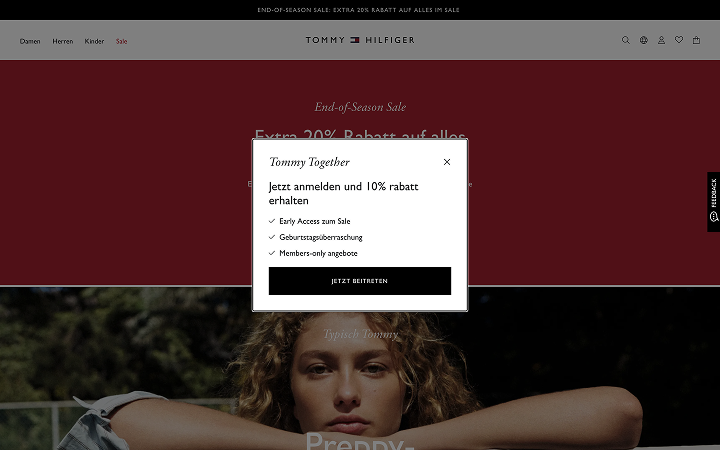
Then there are on-site notifications, and this is where the fun starts. These are things like pop-ups that say “Item added to cart,” or sticky bars showing “Only 2 left in stock!” Or even personalized messages like “Welcome back, here’s 10% off.” They can be subtle or bold, and when done right, they boost conversions.

WooCommerce push notifications are another layer – those little browser alerts that pop up even after users leave the site (if they’ve opted in). Perfect for cart abandonment, sale announcements, or restock alerts. You’ll need a third-party service to make it work, but the engagement potential is solid.
On top of that, there are backend/admin notifications. These don’t face the customer but help your team stay in the loop. For example, a message when someone places a high-value order, or a webhook that sends order data to your database. If you’re building more automated systems, this kind of notification is essential.
And finally, there are SMS, WhatsApp, and Messenger notifications – more advanced and requiring more setup, but they are super useful if your store needs direct, high-open-rate messages. Great for urgent updates, limited-time promos, or customer service automation.
Long story short: notifications aren’t just “nice to have.” They’re part of how a store feels. Whether it’s a customer seeing a real-time pop-up or a store manager getting a ping about low stock – the right notification at the right time makes everything smoother (and often, more profitable).
Top 5 Methods to Implement WooCommerce Notifications
JetWooBuilder and JetPopup plugins
If you want to create sleek, dynamic pop-ups and on-site notifications, this combo is your best bet. You can let customers preview a product or even place an order without leaving the shop grid. Perfect for clients who want a store that does more than just work – it sells. But first, you need to install JetWooBuilder and JetPopup plugins to add this type of notification.
How to do it:
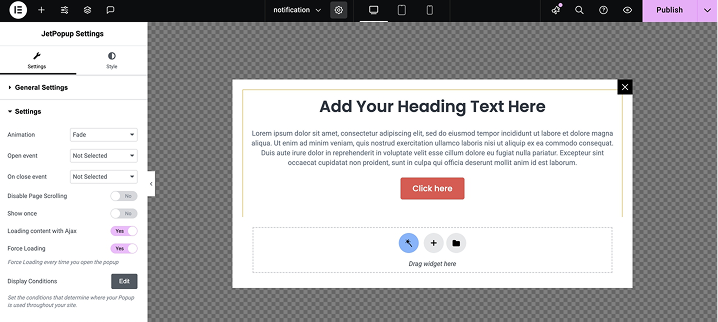
Go to JetPopup > Add New Popup and name it (e.g., “Cart Notification”). In Elementor, add a message like “Product added to cart!”
Go to Settings, where you will:
- enable Loading content with AJAX;
- enable Force Loading.
Go to JetWooBuilder > Add New Template and choose “Single.” Add an image, title, price, Add to Cart button, and keep it minimal.
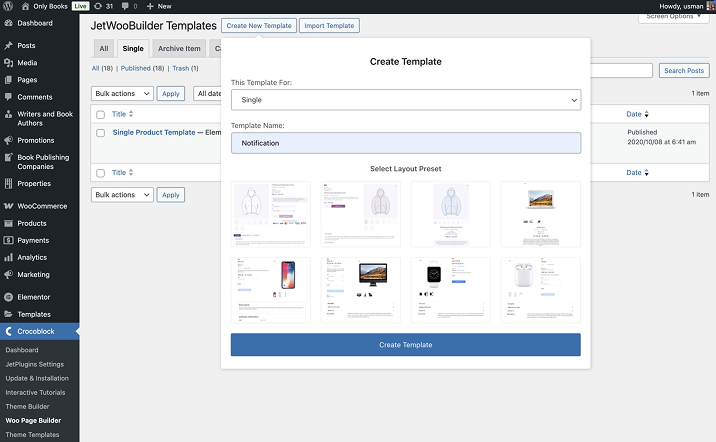
Next, go to JetWooBuilder > Add New Template and choose “Archive Item” this time. Add product info (image, title, price) and a Button for Quick View.
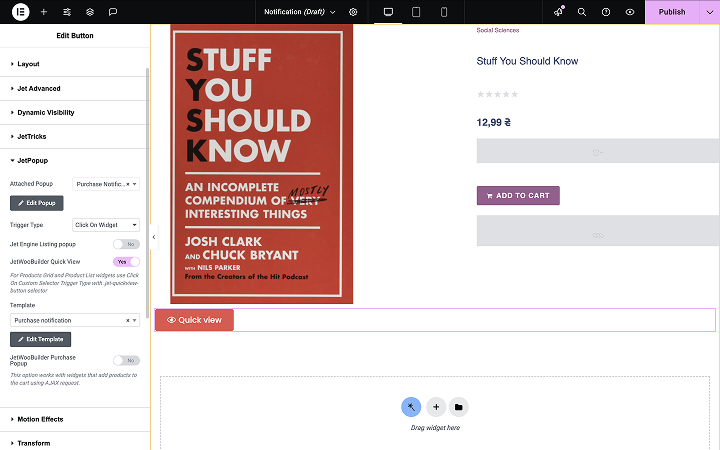
Go to Advanced and choose JetPopup:
- select the pop-up you created;
- turn on JetWooBuilder Quick Preview;
- choose the product template you created;
- set Trigger Type to “Click on Widget.”
Create a New Template and choose Shop. Then add the Products Loop or Grid widget. Assign the Archive Item template from previous steps. Set this Shop template as your main Shop page.
After that, go to Advanced and choose JetPopup. Enable JetWooBuilder Purchase Popup. Select the notification pop-up you’ve created.
This method gives you maximum customization, helps boost conversions, and gives support from our team.
Default WooCommerce email notifications
If you want something simple and fast, WooCommerce already sends standard emails about orders, status updates, refunds, and more. You can tweak these right from the admin and even customize the design with plugins.
How to do it:
- Go to WooCommerce > Settings > Emails.
- Enable and edit the email templates you need.
- Place a test order to check how the emails look.
This is a free, straightforward option, but it’s limited in logic and doesn’t offer on-site notifications.
Custom code snippets
If you love coding and want full control, writing your own PHP hooks is the way to go. You can trigger emails, Slack alerts, or API calls exactly when you want.
How to do it:
- Hook into WooCommerce actions like woocommerce_order_status_completed.
- Write PHP functions to send notifications via email or other services.
- Add your code to your theme’s functions.php or create a small custom plugin.
- Test carefully to avoid bugs or spam.
This method is super flexible but requires PHP knowledge and ongoing maintenance. Here is an example of such a custom code.
WooCommerce notification plugins
There are tons of ready-made plugins designed to add various notifications – from email alerts to pop-ups and push notifications.
How to do it:
- Pick a plugin from a trusted list like Crocoblock’s best notification plugins.
- Install and activate it.
- Follow the plugin’s setup instructions to customize messages and triggers.
- Test everything before going live.
This is a quick way to get rich features, but some plugins can be costly, overlap with others, or limit customization.
External services and integrations
For stores that want to go all-in, using third-party services like Zapier gives you multi-channel notification power.
How to do it:
- Connect WooCommerce to the external service via plugin or API.
- Set up triggers for events like abandoned carts or new orders.
- Customize message templates inside the external service.
- Monitor delivery stats and engagement.
This approach opens the door to additional channels such as web push notifications (via tools like OneSignal or PushEngage) and SMS alerts (using Twilio, ClickSend, etc.), which can significantly improve real-time engagement and drive faster conversions.
It takes more setup and usually costs monthly fees, but the engagement boost can be well worth it.
FAQ
Not necessarily! If you use plugins, you can set up the needed notifications without coding. Custom code snippets do require PHP knowledge.
Yes. Many stores combine WooCommerce email notifications, on-site pop-ups, and push notifications to cover different communication channels and maximize engagement.
Yes. WooCommerce’s default email notifications are free, and some plugins offer free versions with basic features.
Use a staging site or test environment to simulate user actions and verify that notifications trigger and display correctly before pushing changes to production.
Conclusion
Choosing the right notification method for your WooCommerce store depends on your goals, technical skills, and budget.
- If you want fully customizable, on-site pop-ups and dynamic notifications, go with JetWooBuilder and JetPopup – a flexible, powerful combo.
- If you need simple, essential customer communication via email, stick with default WooCommerce email notifications.
- When implementing unique, complex notification logic, write custom PHP snippets hooked into WooCommerce actions.
- If you prefer a plug-and-play solution with multiple notification types, choose one of the popular WooCommerce notification plugins for fast setup and variety.
- When you are ready to scale notifications across multiple channels, such as push, SMS, and automation, integrate external services such as Twilio or Zapier.
If you’re unsure which option suits you best, start small, test, and grow your notification strategy step by step.