
AJAX Search Query Overview
This overview is about the AJAX Search Query and its general settings in Elementor, Gutenberg, and Bricks.
AJAX Search Query Feature in Elementor
The AJAX Search widget can be found by entering its name in the Elementor search bar.
After adding the AJAX Search widget to the page, one should open the AJAX Search Query settings.
The Search by the current query toggle should be activated to search in the current query only.
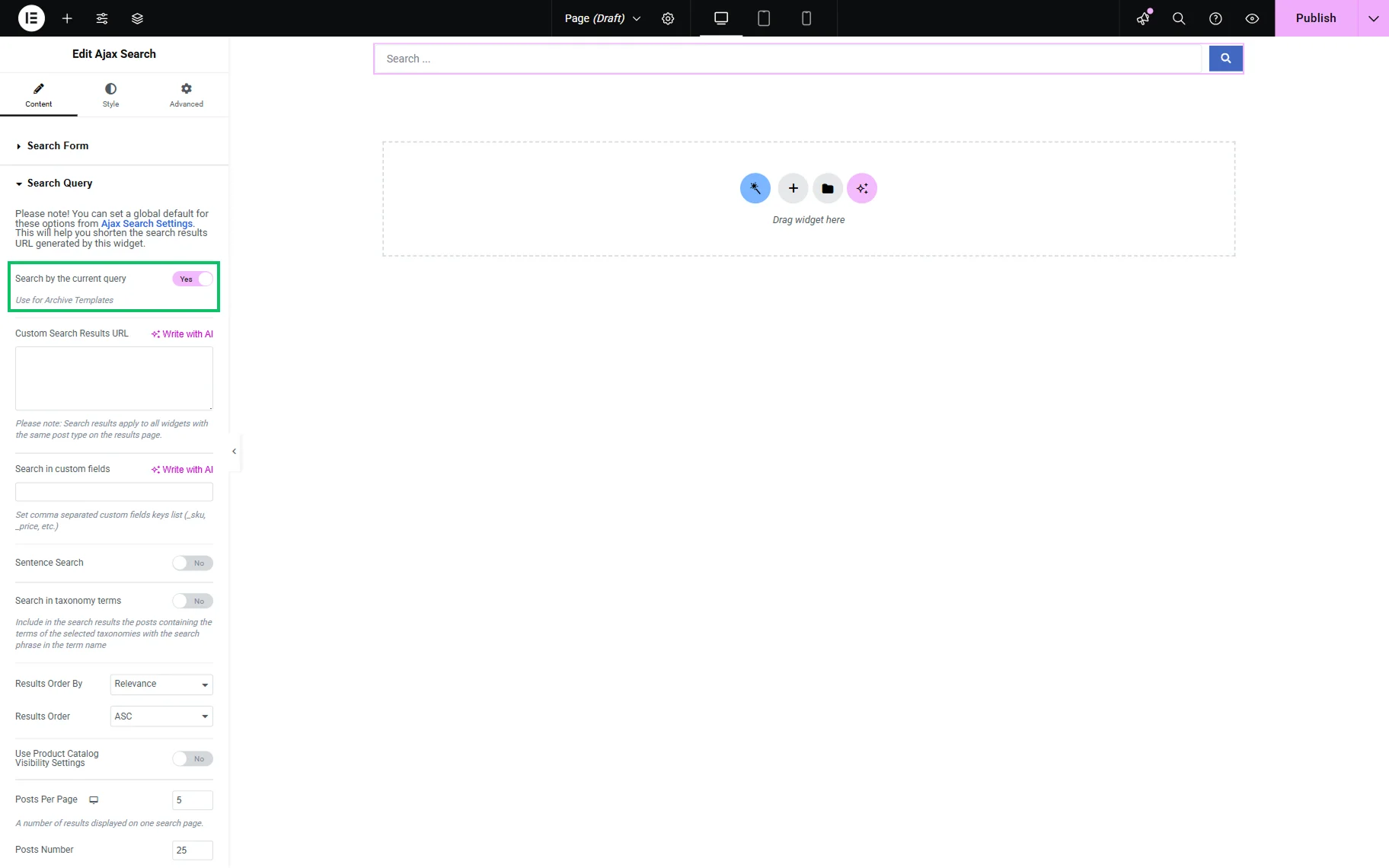
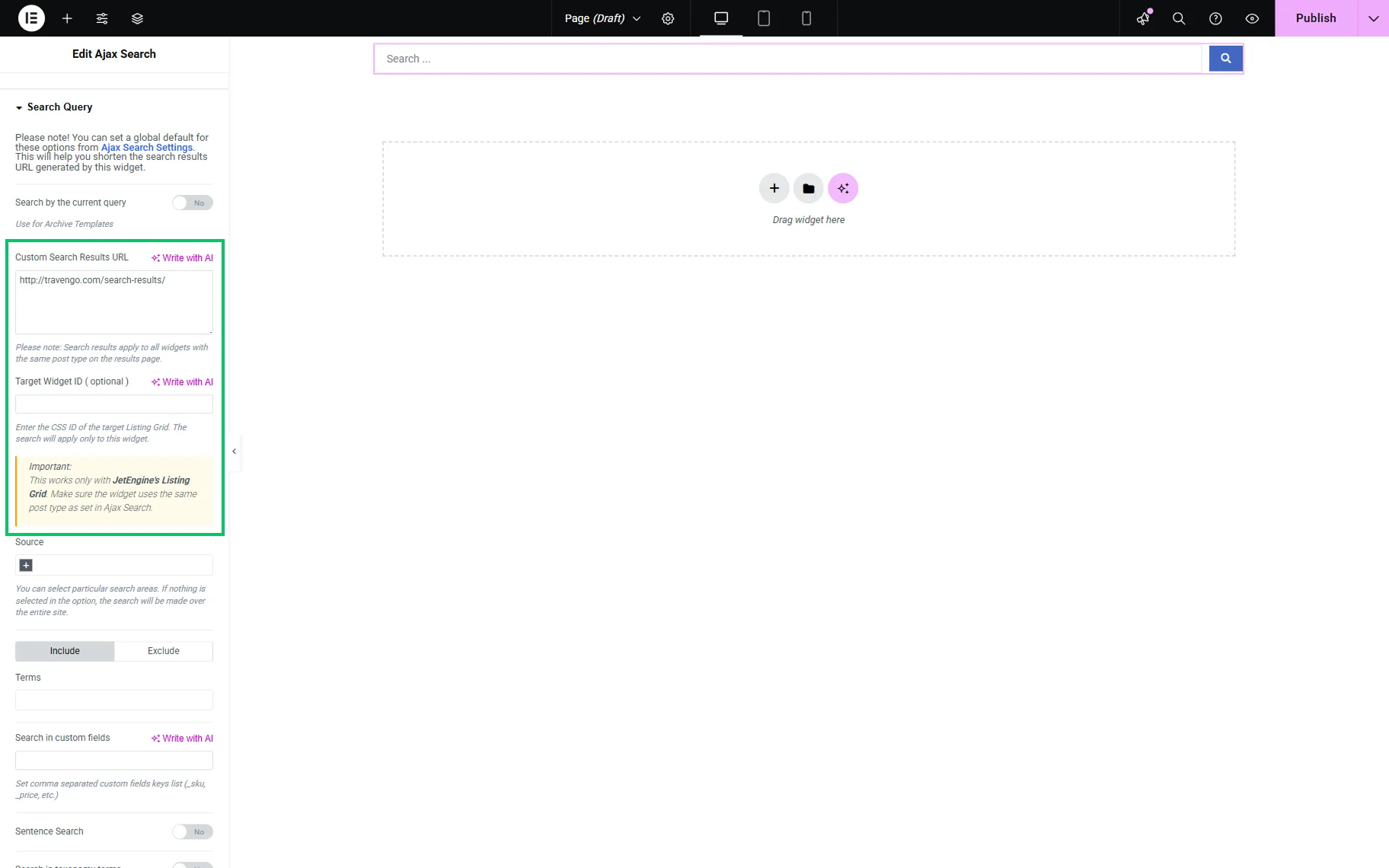
The following Custom Search Results URL field allows pasting a URL that leads to the search results page. Mind that, by default, search results apply to all widgets with the same post type on the results page.
However, one can specify the specific Listing Grid’s CSS ID in the Target Widget ID ( optional ) field so the search results apply only to this Listing Grid. This field appears only if the Custom Search Results URL field is completed.
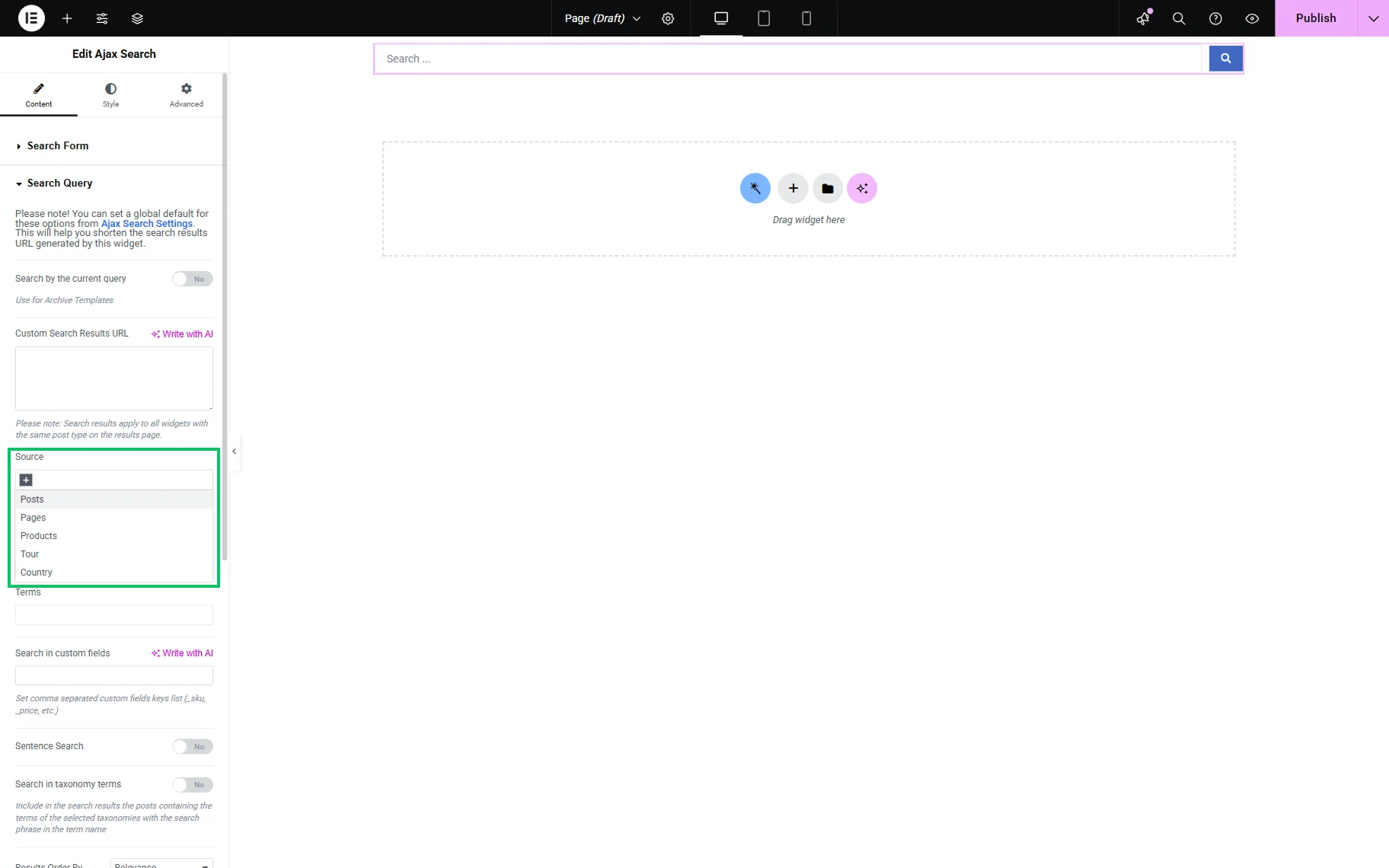
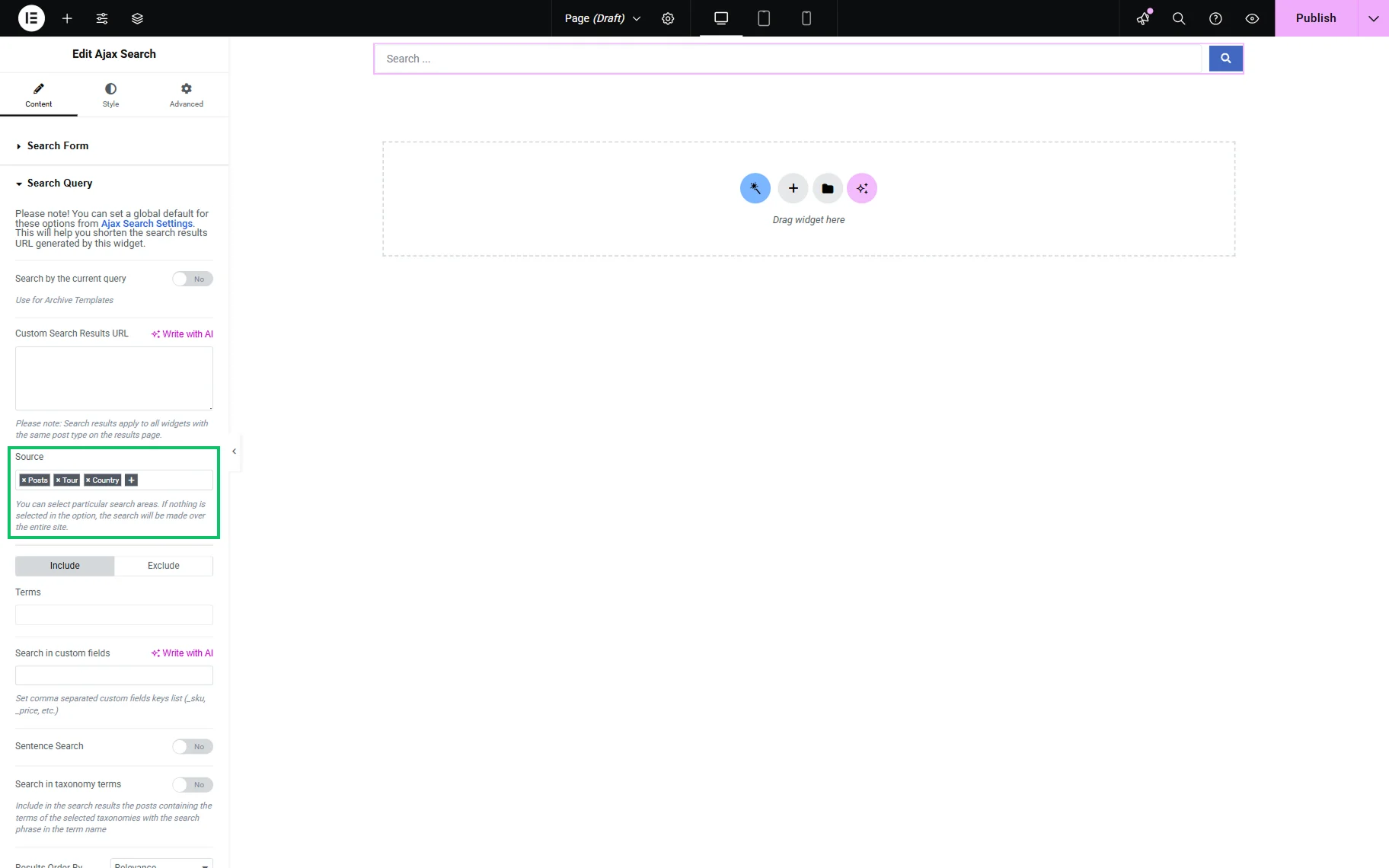
To search in posts, pages, WooCommerce products, and CPTs created with JetEngine, the previously mentioned Search by the current query toggle should be deactivated, and the search scope can be specified in the Source field. The search area will cover the entire website content if this field is empty.
The following tabs are Include and Exclude. Here, certain Terms can be included, and Terms and Posts can be excluded from the search.
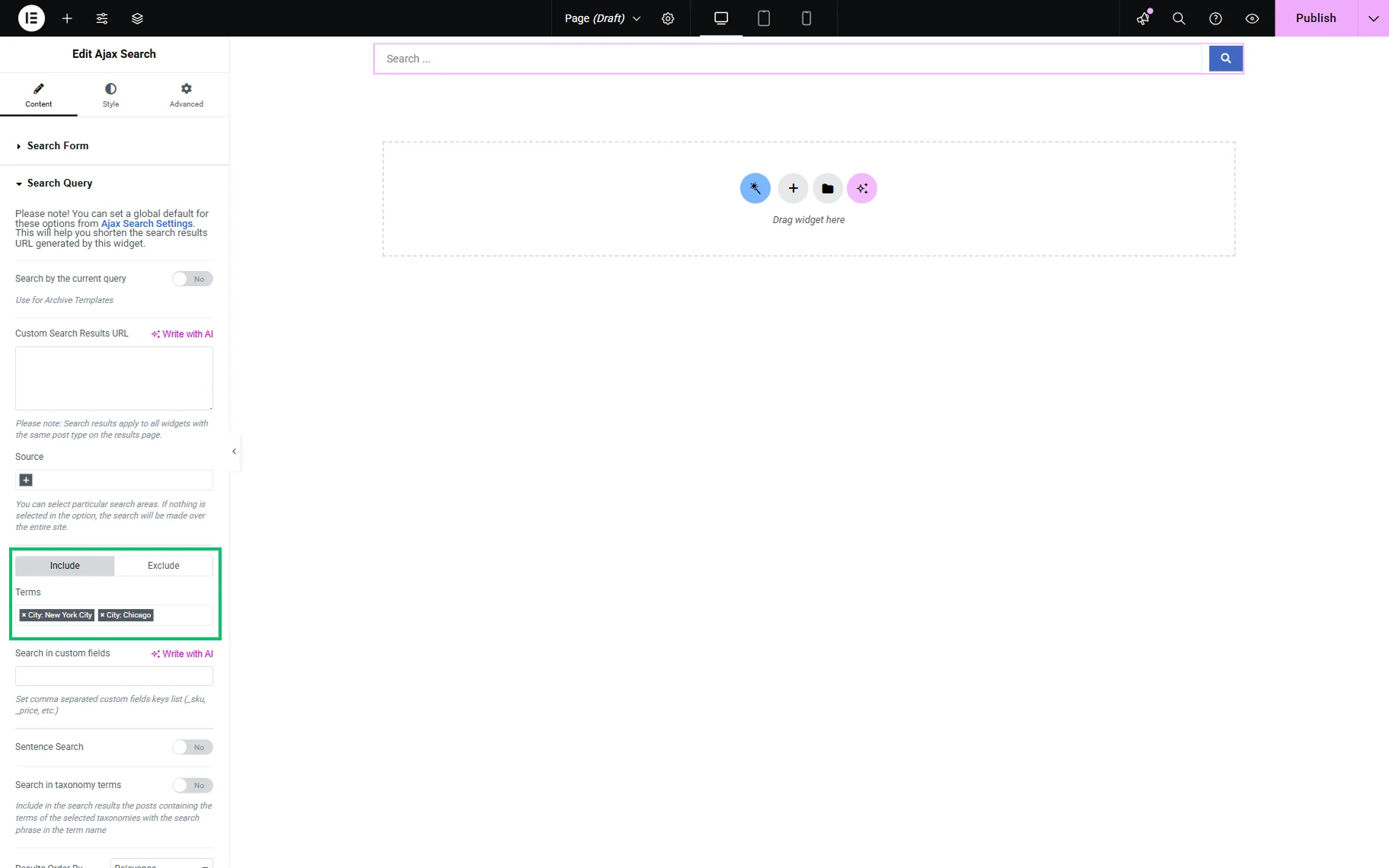
The Search in custom fields field allows searching in the provided meta fields.
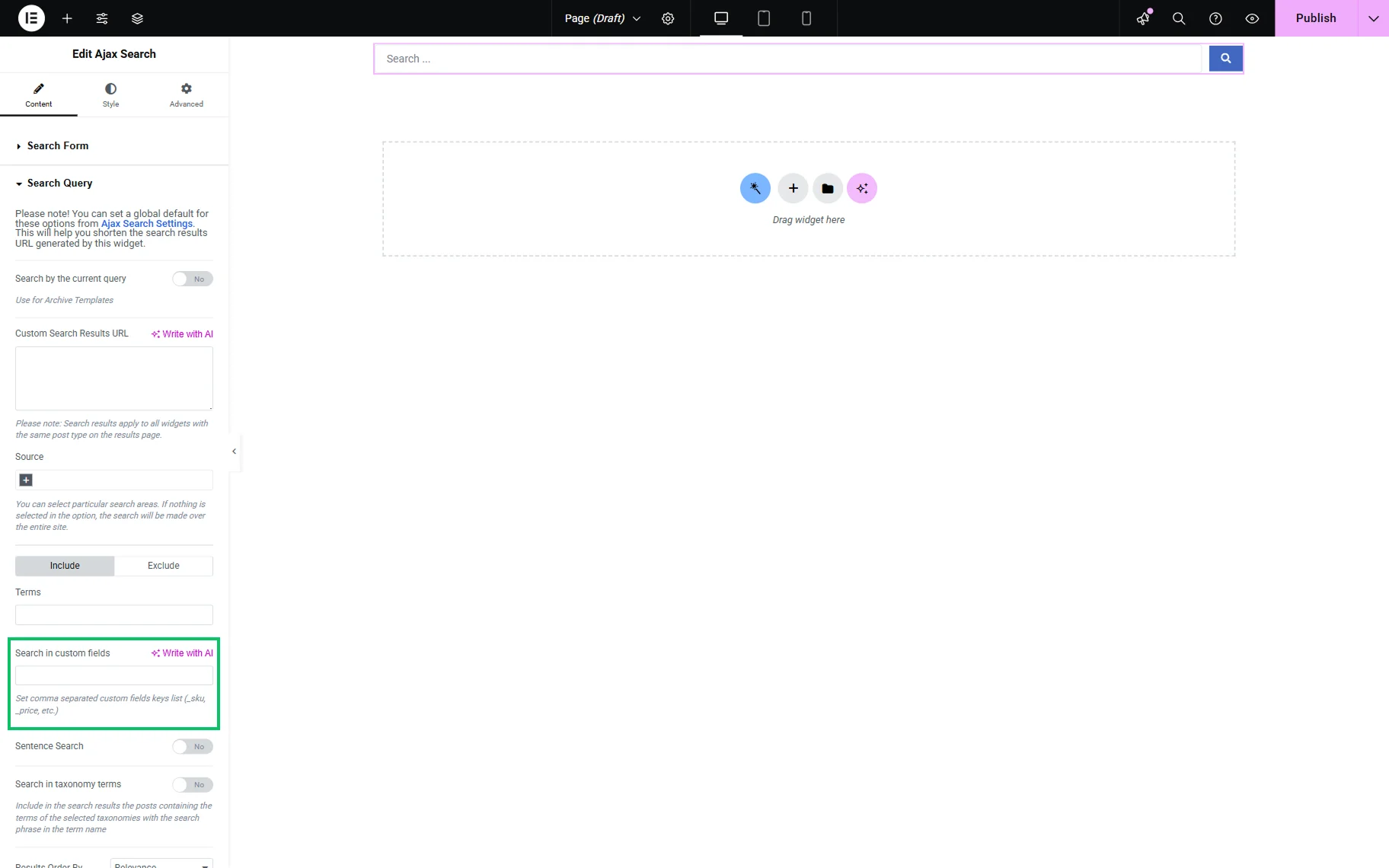
The Sentence Search toggle, if enabled, allows searching in sentences.

Enabling the Search in taxonomy terms toggle allows specifying the search area as categories, tags, formats, etc.
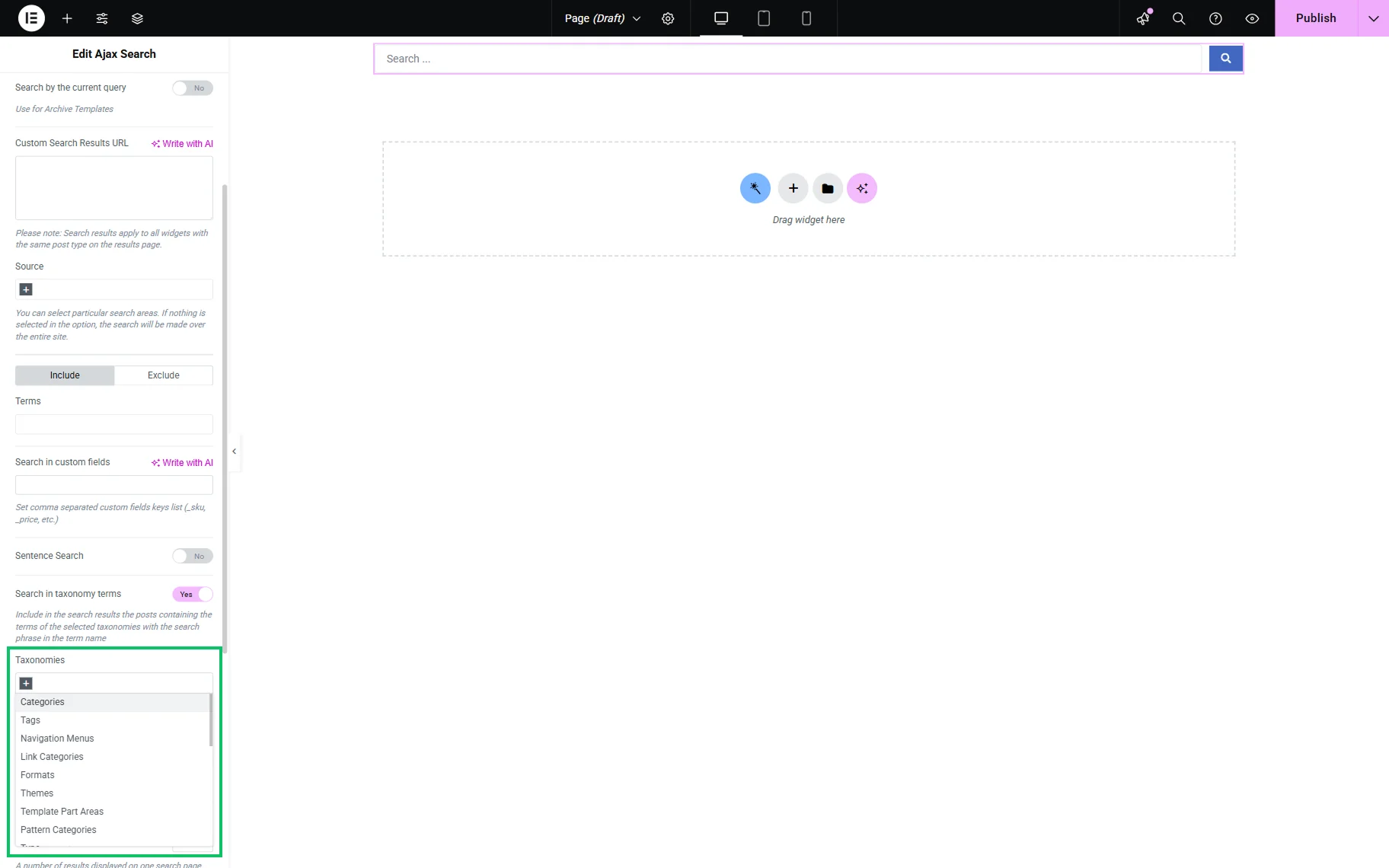
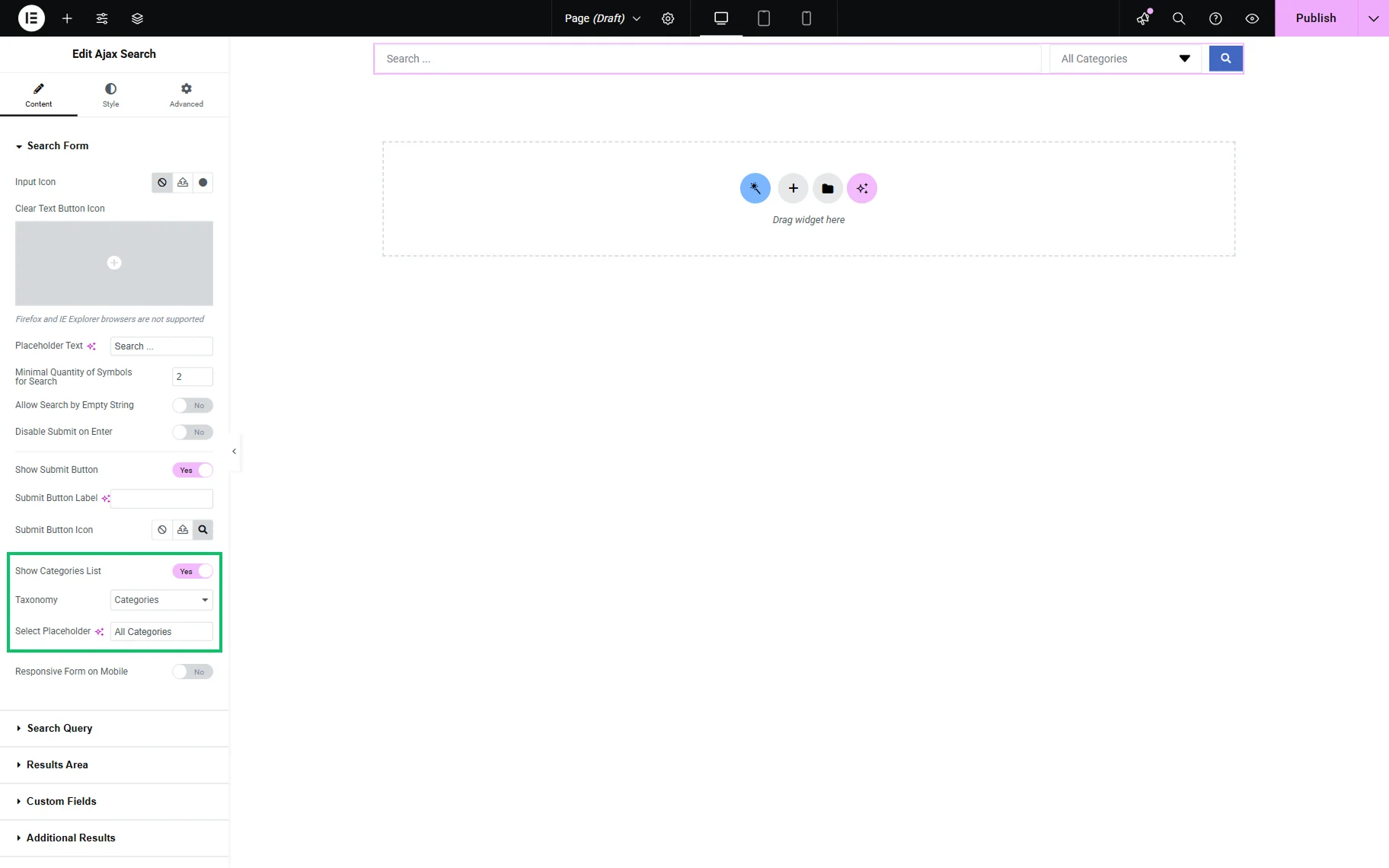
This setting is connected with the Content section of the Search Form settings tab. Therefore, to provide the proper search, one should enable the Show Categories List toggle from the Search Form tab and specify the area for the search (as categories, tags, etc.) from the drop-down menu.
The last settings cover the display of search results:
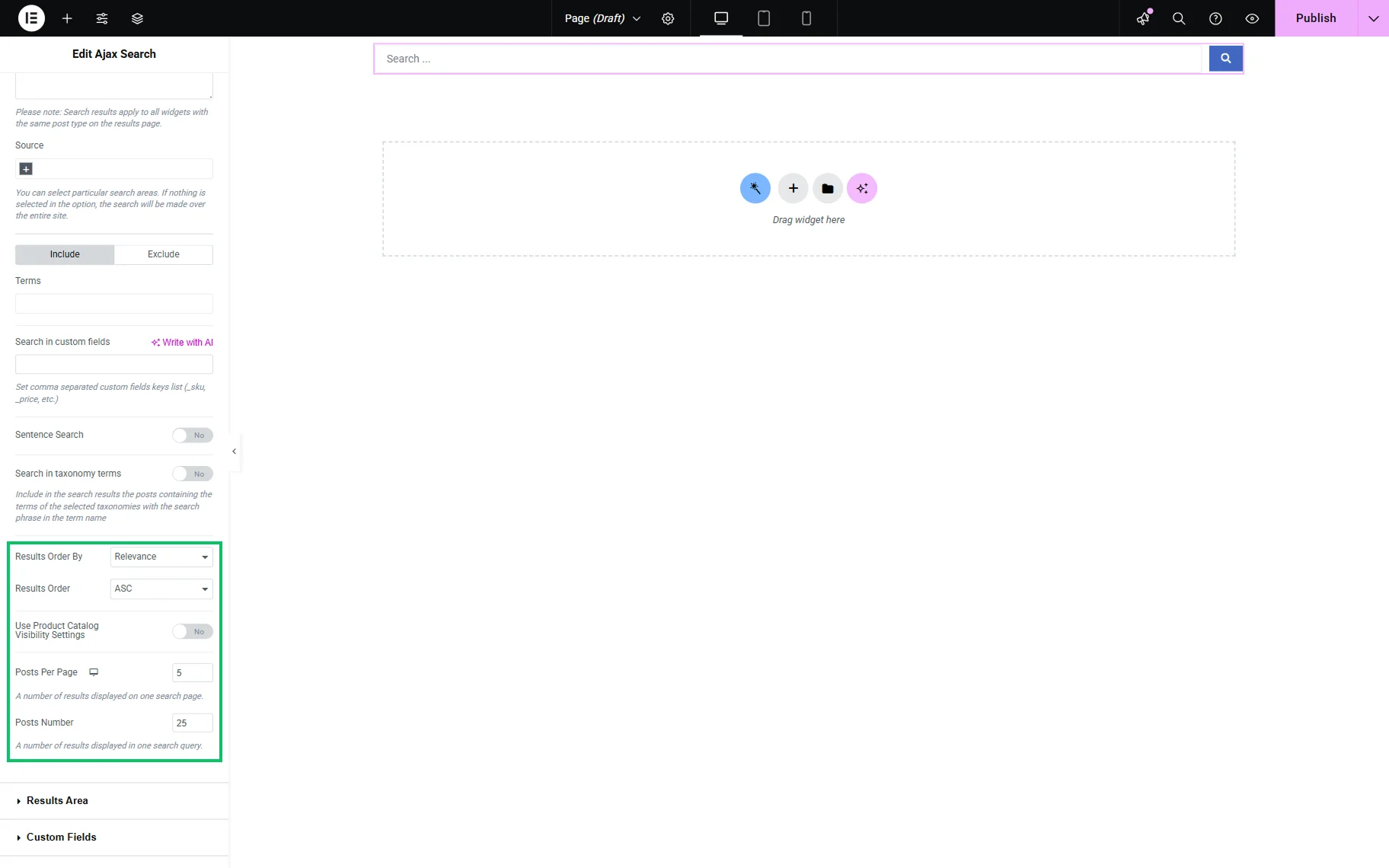
- Results Order By — enables the selection of result order presentation by choosing “Relevance,” “ID,” “Author,” “Title,” “Date,” “Last modified,” “Rand,” “Number of Comments,” and “Menu Order” options from the drop-down menu;
- Results Order — sets the “ASC” (default) or “DESC” order;
- Use Product Catalog Visibility Settings — a toggle that is available only if the WooCommerce plugin is installed and activated. If the toggle is on, WooCommerce product visibility conditions will be used in search;
- Posts Per Page — has a field to type the number of results displayed on one search page;
- Posts Number — specifies the number of results in one search query.
AJAX Search Query Feature in Block Editor
The Ajax Search block can be found in the Block Editor as well.
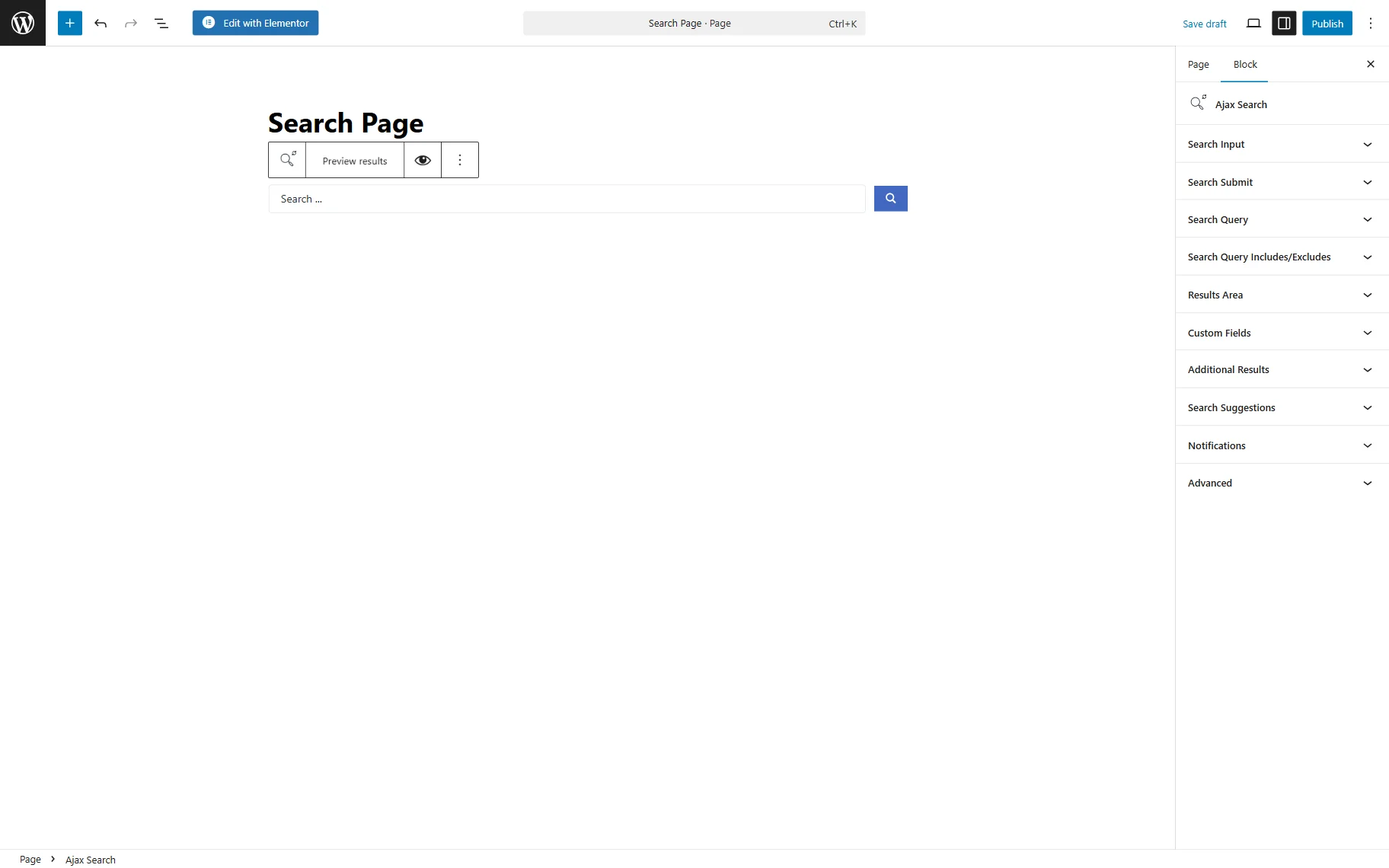
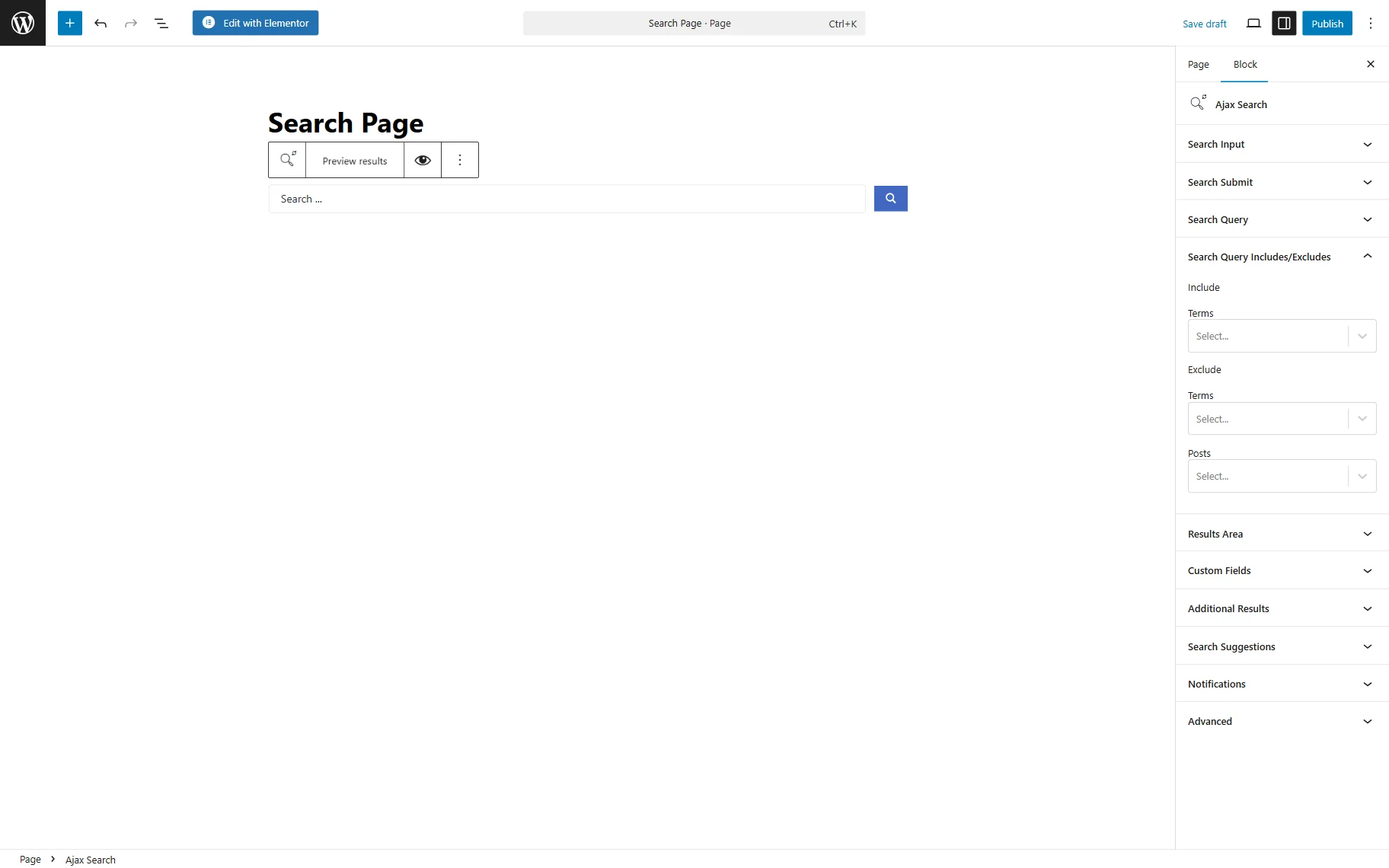
The Search Query is the third setting tab of the AJAX Search block. Initially, the Search by the current query toggle should be activated to conduct a search based on the current page context. This toggle should also be enabled for archive pages.
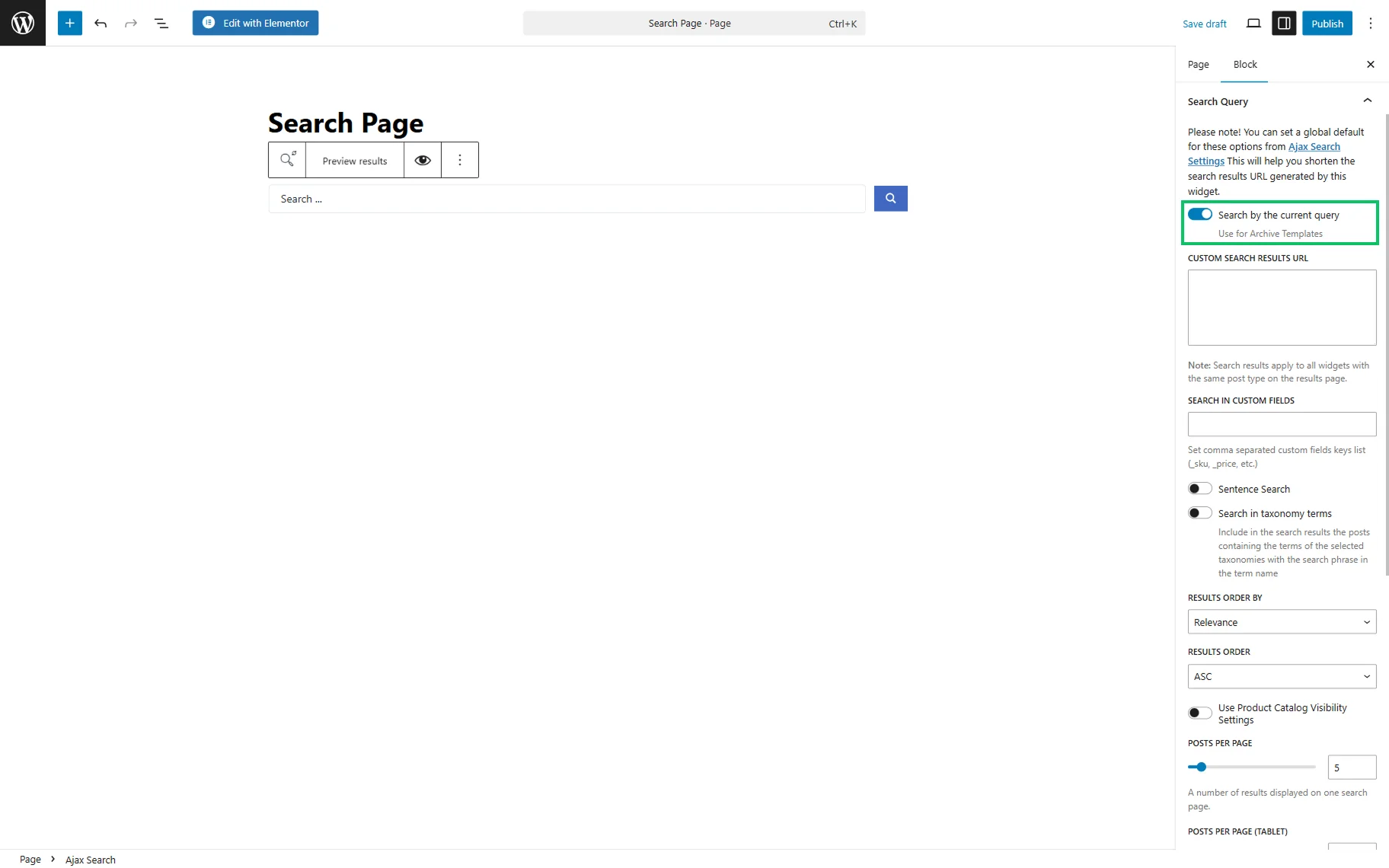
The CUSTOM SEARCH RESULTS URL field allows pasting a search results page URL. Search results apply to all widgets with the same post type on the results page.
The following, TARGET WIDGET ID ( OPTIONAL ) field appears only if the CUSTOM SEARCH RESULTS URL field is completed. Here, one can specify the specific Listing Grid’s CSS ID so the search results apply only to this Listing Grid.
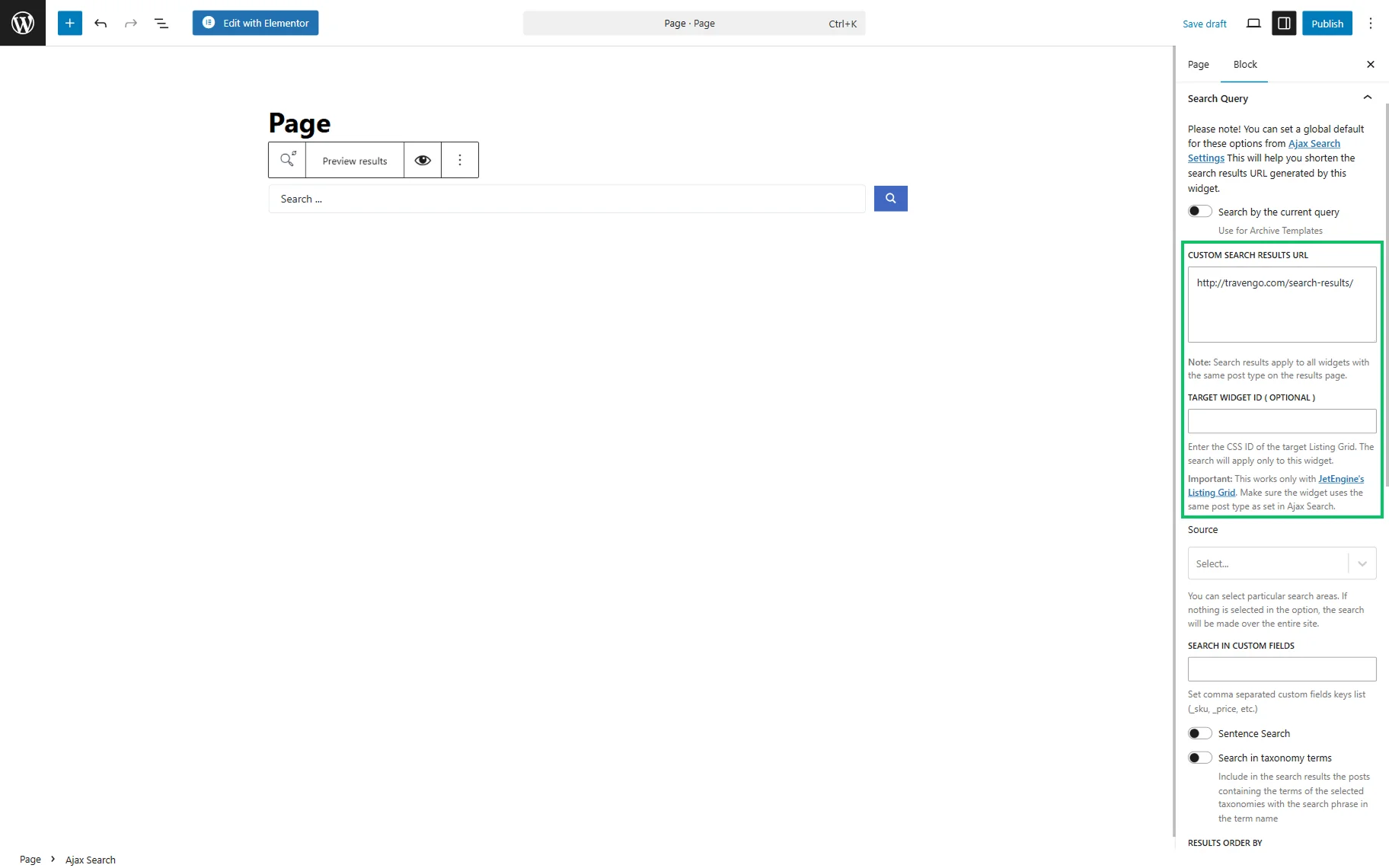
If the Search by the current query toggle is disabled, the specific Source search covers the possibility of searching in particular areas, such as posts, pages, landing pages, and custom posts developed with the JetEngine plugin. If the Source field is empty, the search will be conducted in all site data.
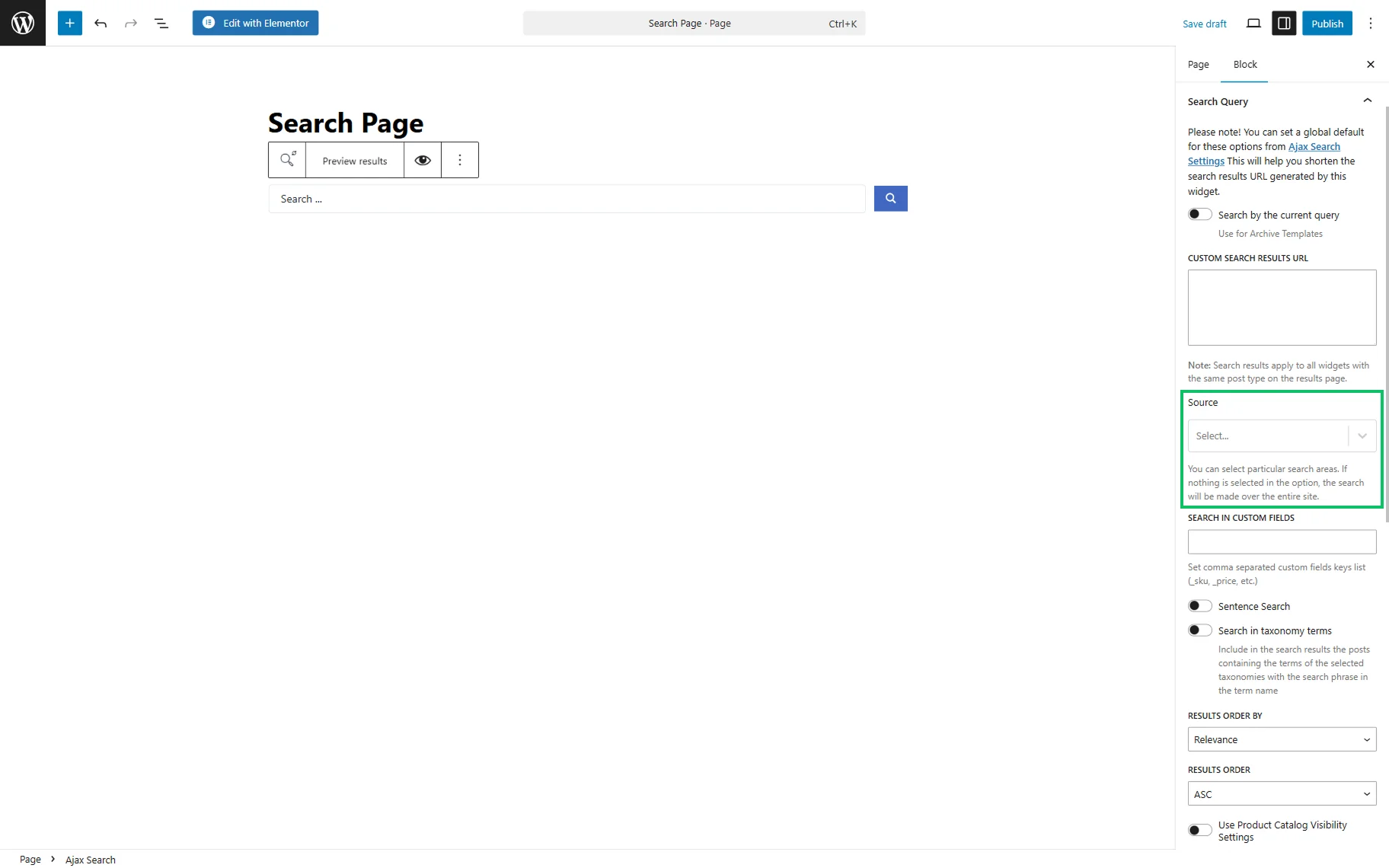
The SEARCH IN CUSTOM FIELDS bar allows setting meta field keys to search for their data with the search bar.
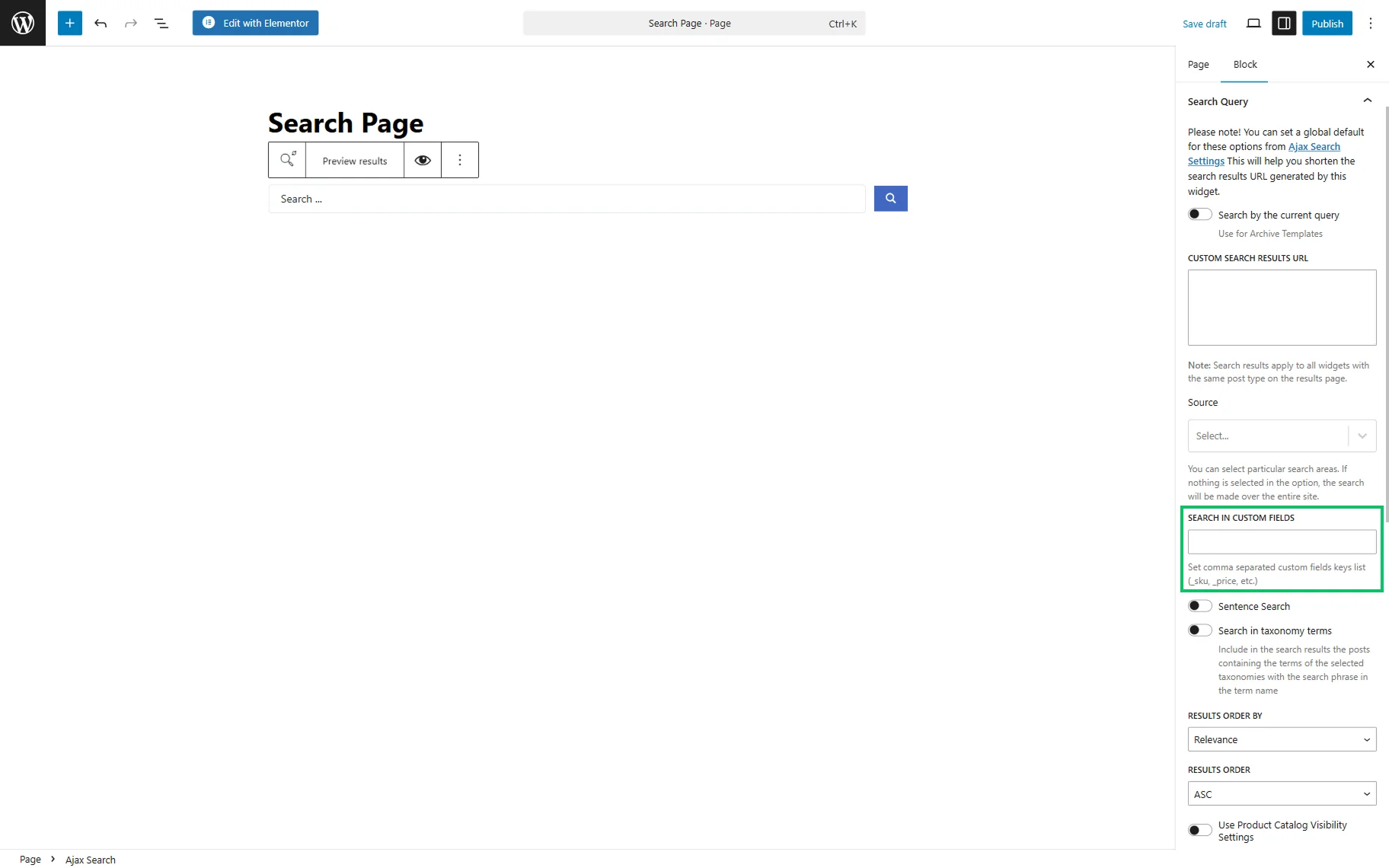
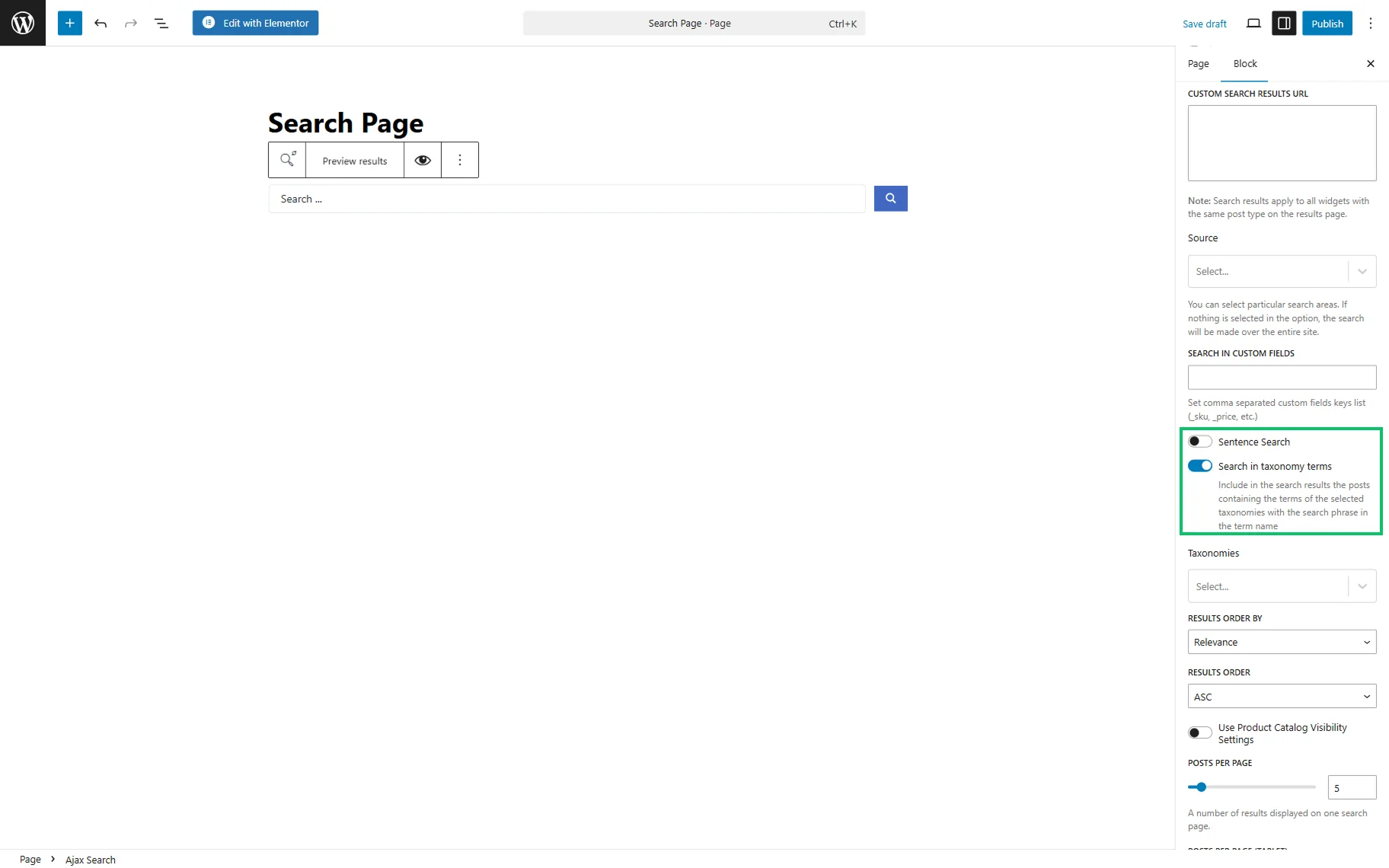
Besides, searching in complete sentences is possible by turning on the Sentence Search toggle.
Enabling the next Search in taxonomy terms toggle allows including the search results in the posts with terms of the selected Taxonomies.
The following settings control the search result appearance:
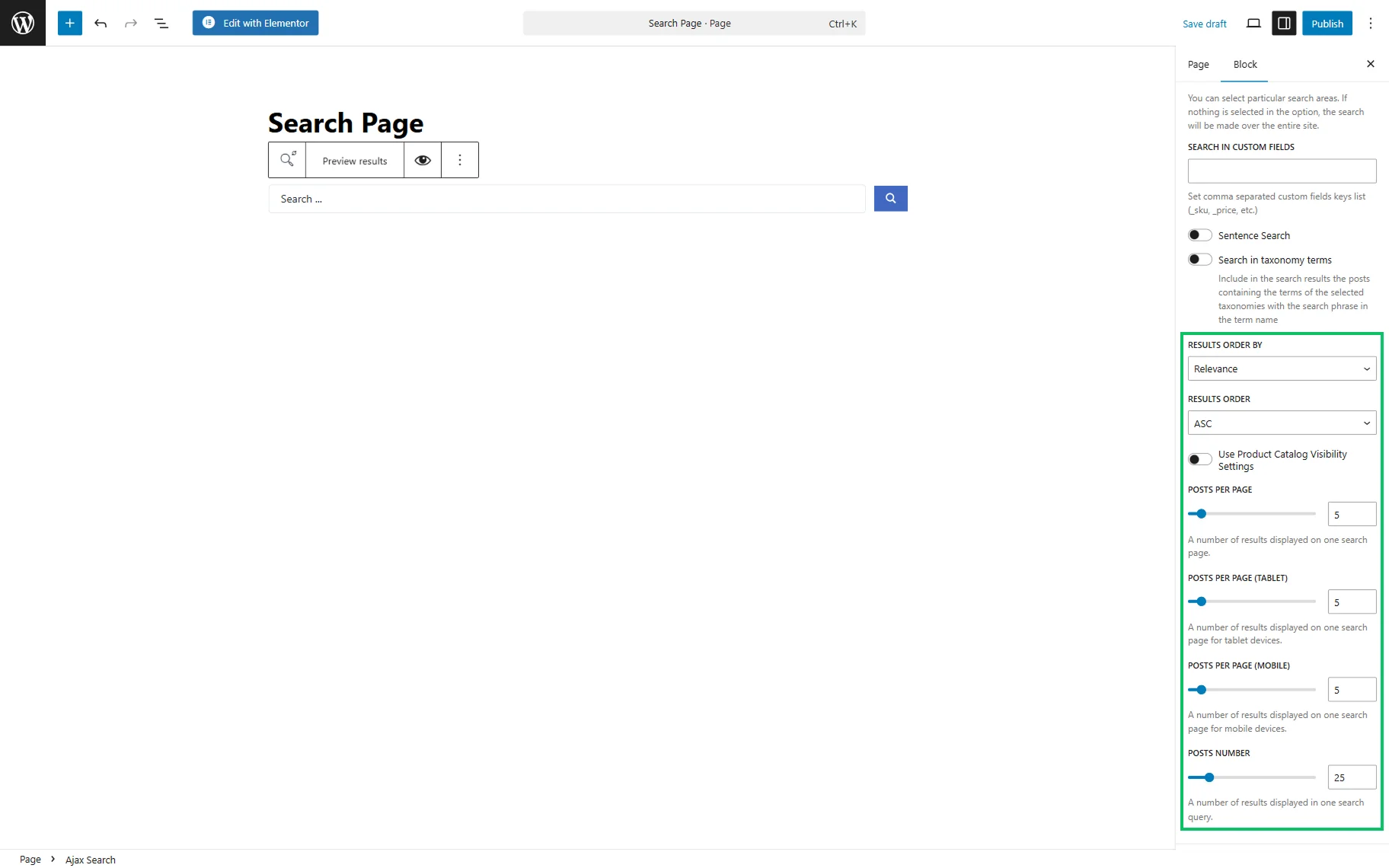
- RESULTS ORDER BY — a drop-down menu to arrange results by “Relevance,” “ID,” “Author,” “Title,” “Date,” “Last modified,” “Rand,” “Number of Comments,” and “Menu Order”;
- RESULTS ORDER — an order of results in the “ASC” or “DESC”;
- Use Product Catalog Visibility Settings — a toggle that becomes available only when WooCommerce is installed and activated. When this toggle is activated, the WooCommerce products’ visibility conditions will be used for search;
- POSTS PER PAGE — the number of results displayed on the search page. One can also adjust the same value for tablet and mobile in the next two fields;
- POSTS NUMBER — the number of results displayed in one search query.
The Search Query Includes/Excludes tab enables the inclusion or exclusion of specific terms from search results, as well as the exclusion of individual posts.
AJAX Search Query Feature in Bricks
The Ajax Search element is available for the Bricks Builder. Its name should be put in the search bar to add the element to the page.
The Search Query tab includes the same customization fields as Elementor and Block Editor.
The Search by the current query switcher should be left active to search in the current page query context.
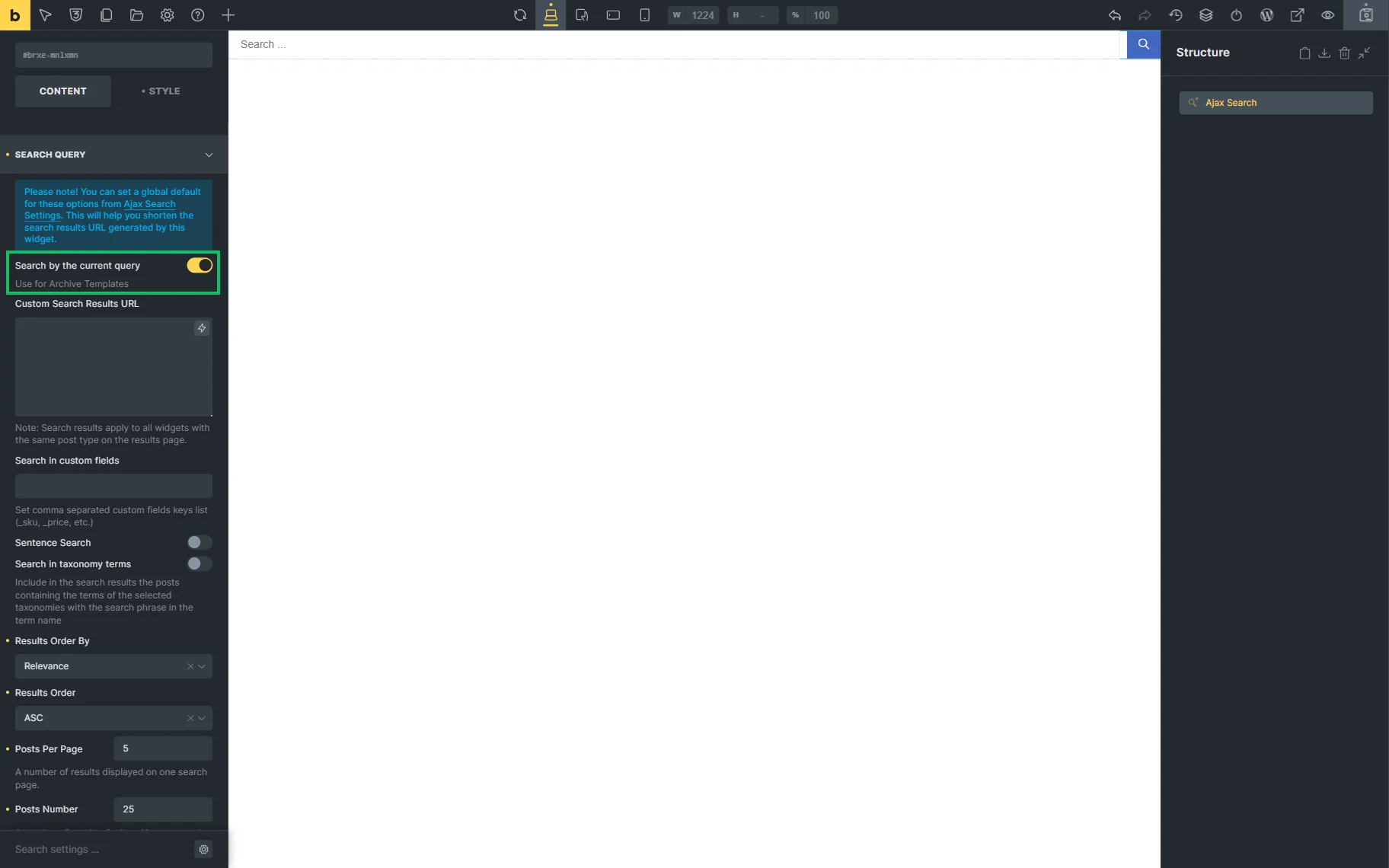
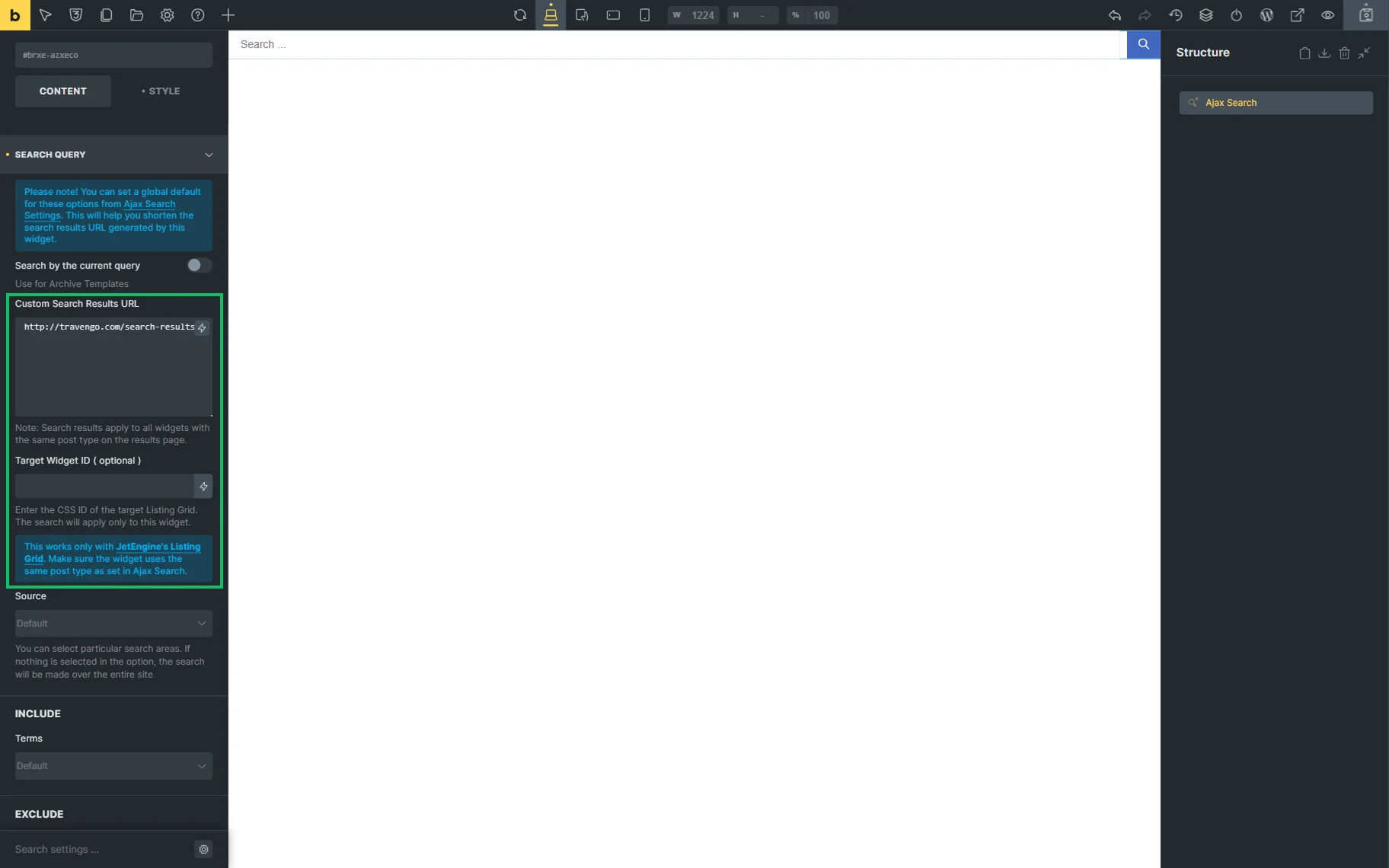
In the following Custom Search Results URL field, one can paste a URL that leads to the search results page. Search results apply to all widgets with the same post type on the results page.
If the Custom Search Results URL field is completed, one can specify the specific Listing Grid’s CSS ID in the Target Widget ID ( optional ) field so the search results apply only to this Listing Grid.
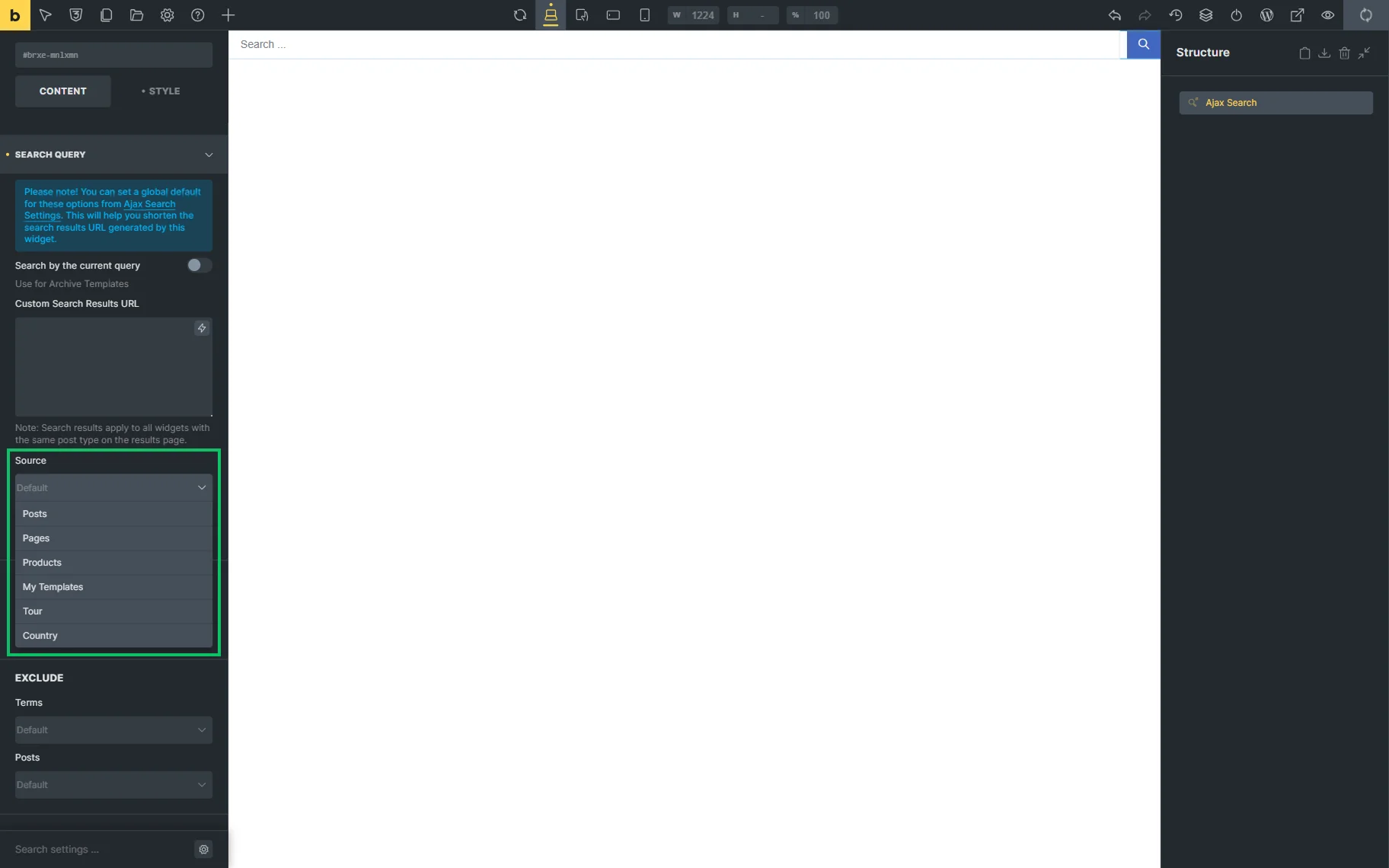
If the Search by the current query feature is disabled, the source for searching can be selected among several options in the Source field.
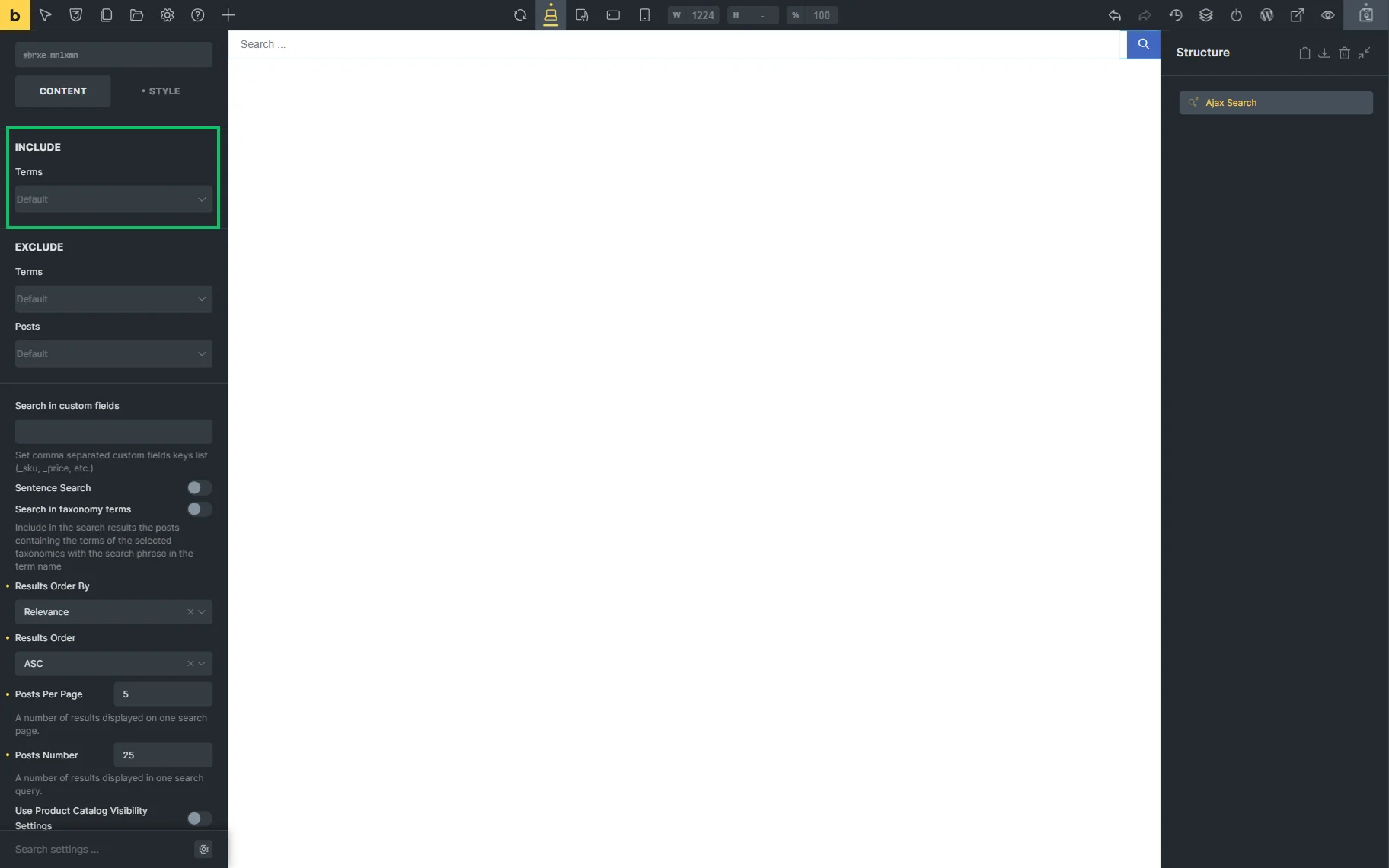
The following section is called Include and allows adding specific Terms to the search.
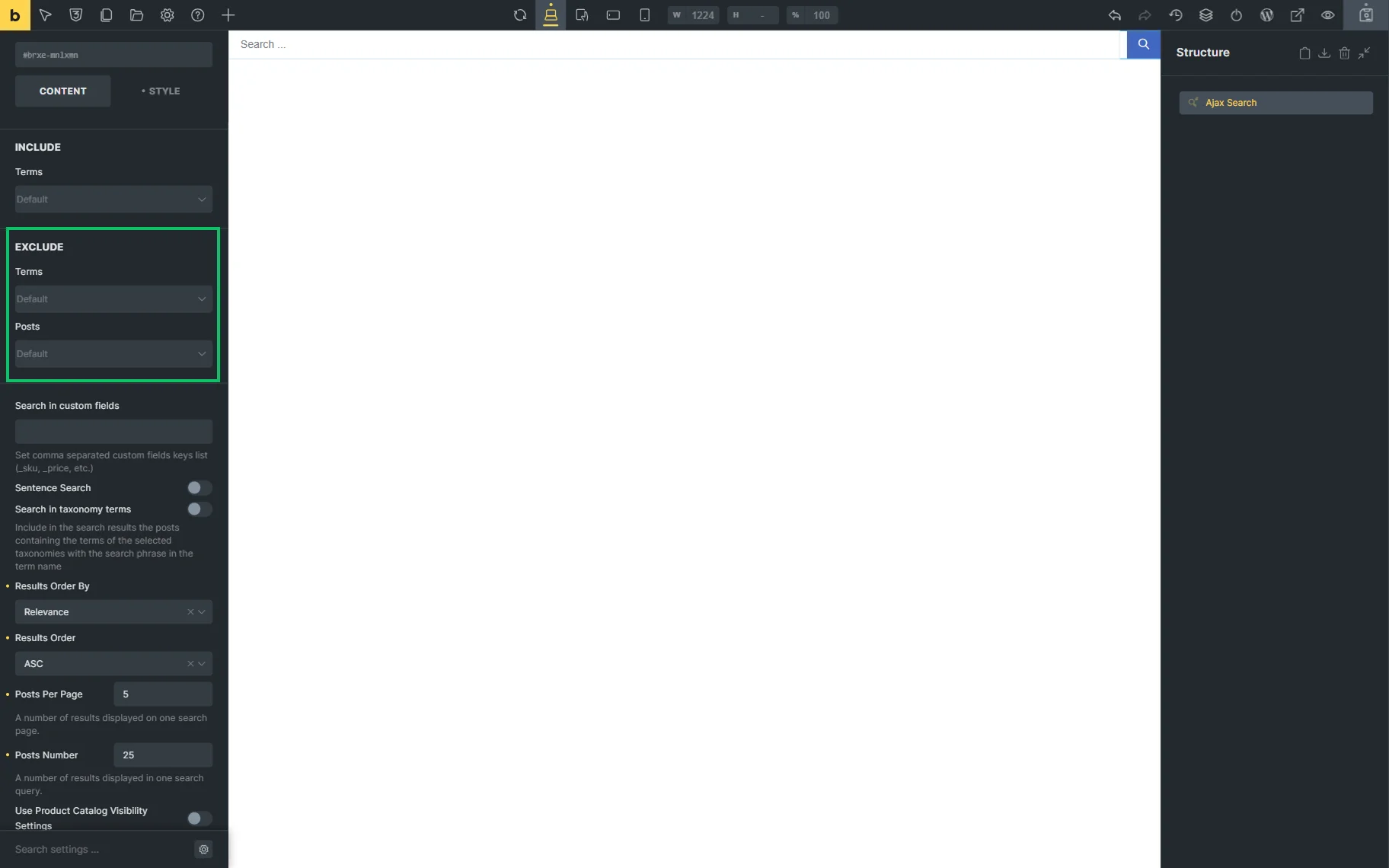
In the Exclude section, particular Terms and Posts can be excluded from the search.
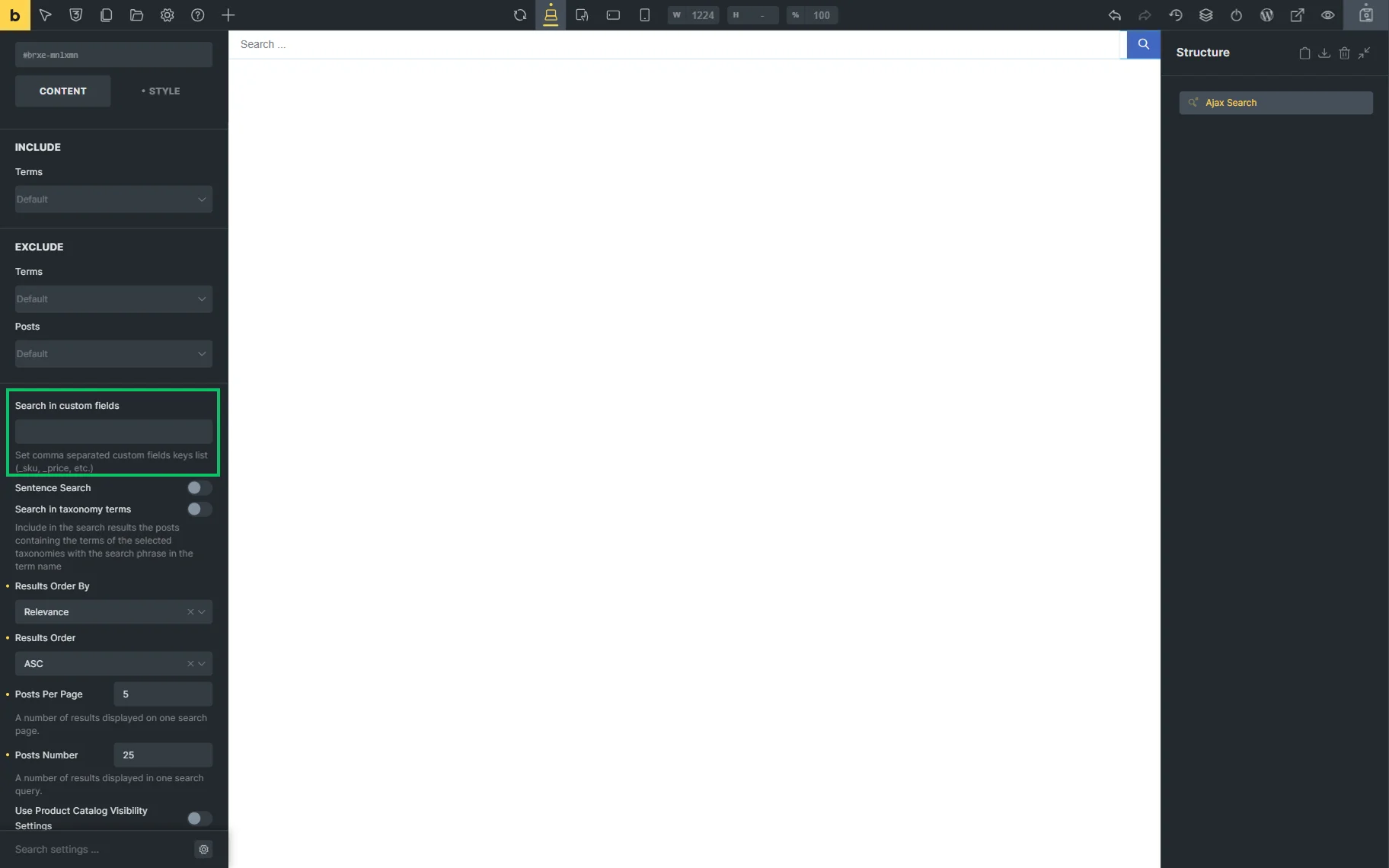
The Search in custom fields bar allows specifying the meta fields to search among their data.
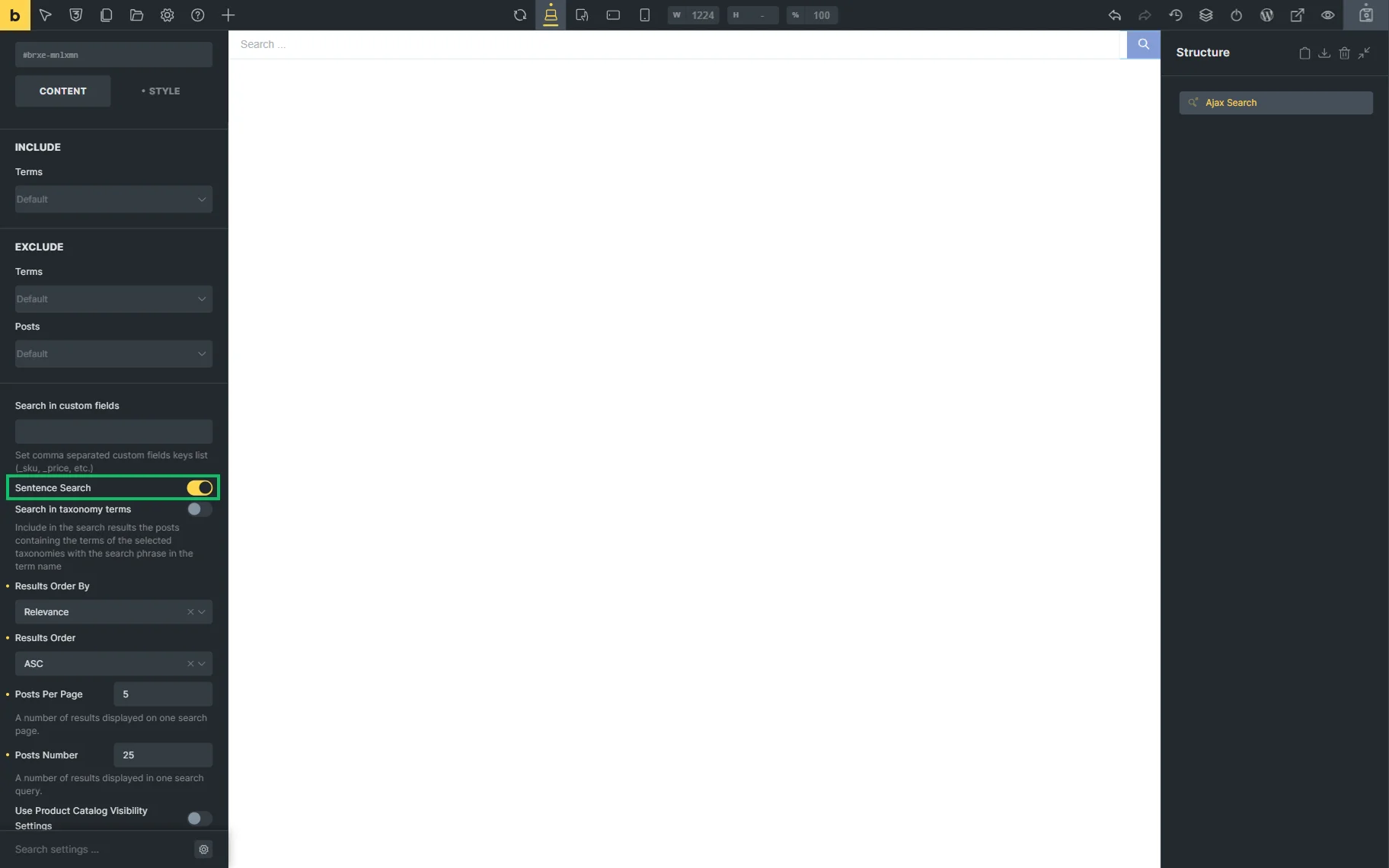
The Sentence Search toggle lets users search information based on complete sentences.
Once the Search in taxonomy terms switcher is activated, the search for taxonomy items is enabled. So, if the name of the taxonomy is entered in the search bar, posts that are connected to this taxonomy will be displayed as results.
The Taxonomies can be specified in the following field; otherwise, the search will be conducted among all the taxonomies available on the website.
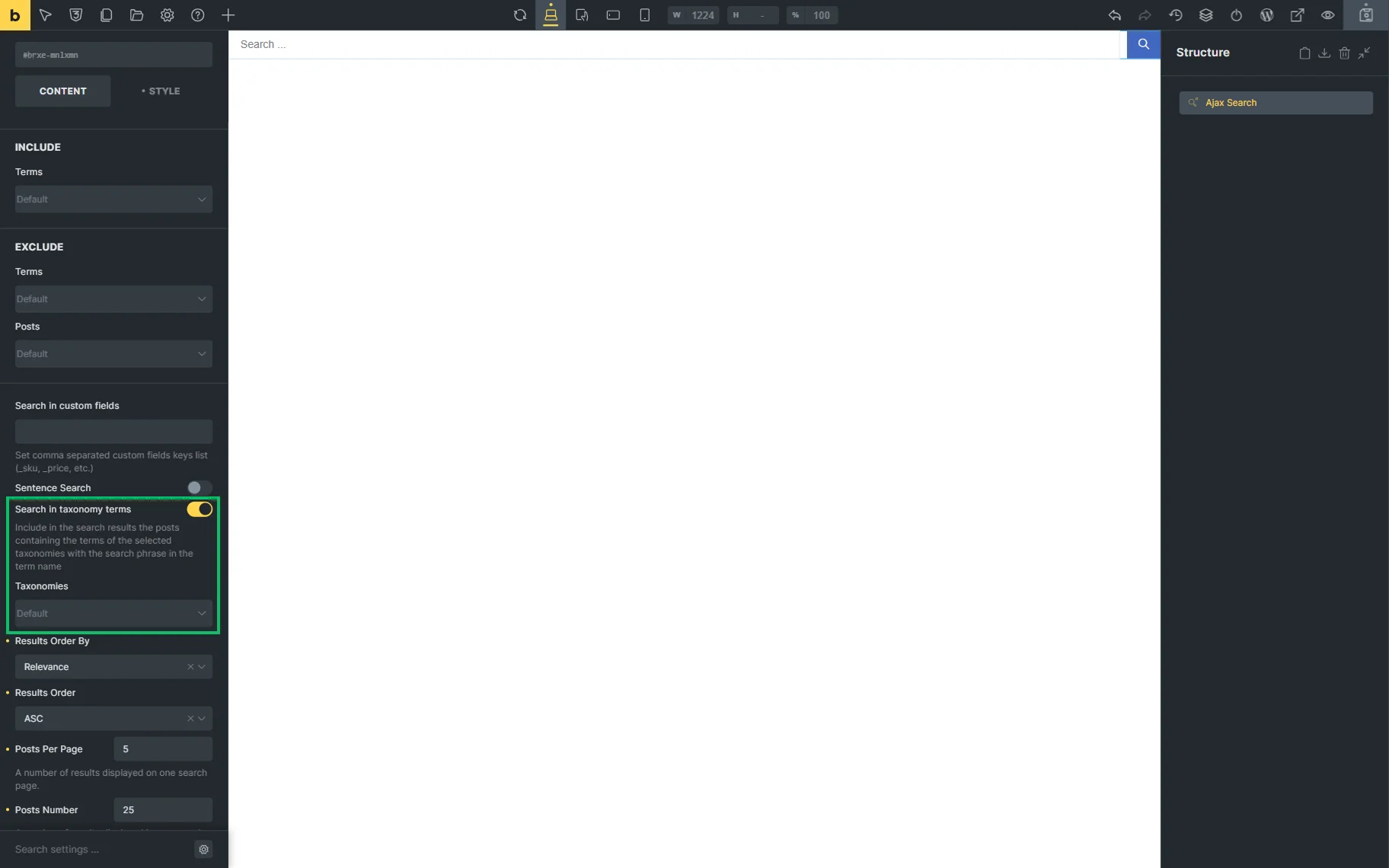
The rest of the settings can also be adjusted in Bricks:
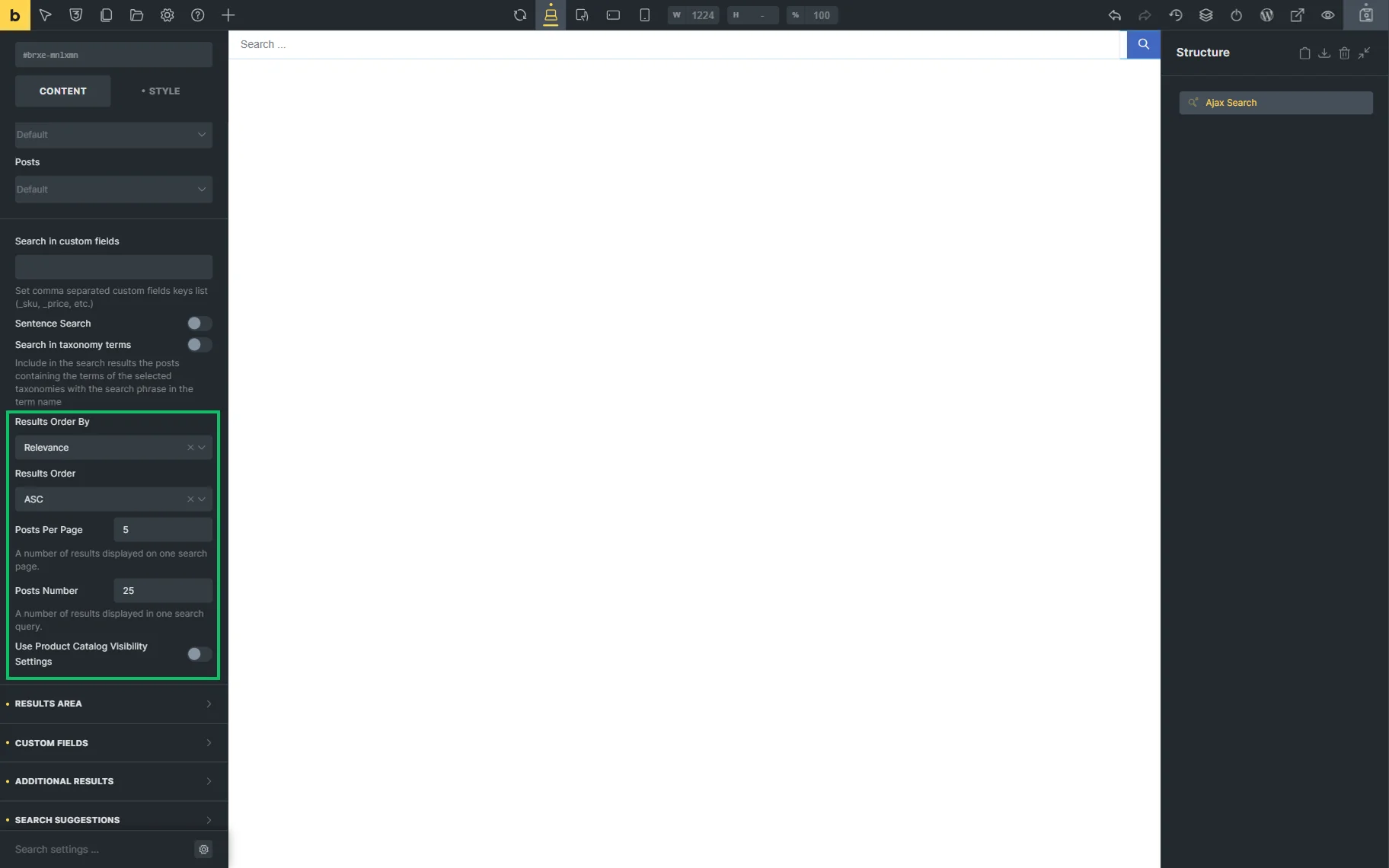
- Results Order By — allows arranging results by “Relevance,” “ID,” “Author,” “Title,” “Date,” “Last modified,” “Rand,” “Number of Comments,” and “Menu Order”;
- Results Order — displays results in the “ASC” or “DESC” order;
- Posts Per Page — adjusts the number of results shown on the search page;
- Posts Number — specifies the number of results displayed in one search query;
- Use Product Catalog Visibility Settings — a toggle that appears only if the WooCommerce plugin is installed and activated on the website. When active, the WooCommerce product visibility conditions work for the search.
That’s all about the AJAX Search Query available for Ajax Search in Elementor, Gutenberg, and Bricks with the JetSearch plugin for WordPress.