Doesn’t matter how beautiful and well-designed a Search bar on your website is; the main problem of any default WordPress search system is the lack of flexibility and, well, uselessness when it comes to real projects.
And, what if you want to make a search bar the entry point – an efficient, user-friendly element that converts?
This article is about that – I will guide you through every little detail of building an efficient search engine on your Elementor website using Crocoblock’s JetSearch plugin. I will also mention JetSmartFilters and explain how this plugin can improve the efficiency of search result refinement.
Rethinking Search Functionality on WordPress Sites
I’ve noticed one thing about most WordPress websites: search is treated as a fallback, not a primary navigation entry point. Have you noticed the same?
Sure, eCommerce sites often invest more effort into search functionality, but what about the rest? The same pattern still seems to apply.
Even the largest eCommerce sites still have room for improvement. For example, let’s have a look at the Baymard Institute’s research, with 54 rounds of manual benchmarking of 326 top-grossing eCommerce sites in the USA and Europe, across 769 UX guidelines, which showed these results:
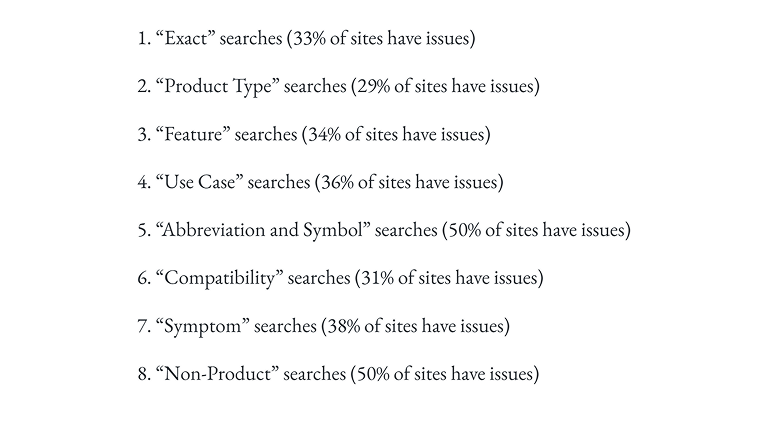
As shown in the image above, we have these eight search query types:
- Exact means search by SKU or model name;
- Product Type – e.g., “women’s jeans” or “laptops”;
- Use Case – e.g., “wedding gift” or “off-road bike”;
- Feature – e.g., “black jacket”;
- Abbreviation and Symbol – e.g., “13in laptop”;
- Compatibility – e.g., “iPhone case”;
- Symptom – e.g., “stained rug detergent”;
- Non-Product – e.g., “return policy.”
Of course, here we are talking about UX only, but the given search type categories can be very helpful for building a systematic approach to creating and testing the WordPress search functionality.
In the next section, I will walk you through the process of setting up a search functionality for an Airbnb-like website with properties and experiences.
📌 Read this guide on building an Airbnb-like website for renting properties.
📌 And this guide will help you build a website for touristic experiences and guides, similar to Airbnb Experiences.
Such websites need a proper entry point – a bar with filters or an advanced search to start with. We can see this configuration on all top websites for booking apartments, flights, or any services.
Adding Advanced Search Functionality to a WordPress Website Using JetSearch
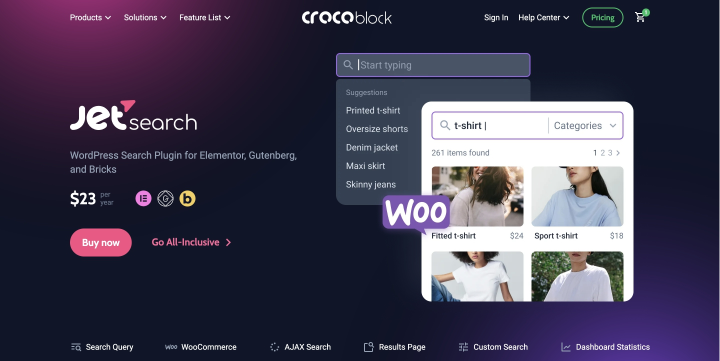
JetSearch is a plugin for Elementor, Bricks, and the Block Editor that adds advanced search functionality, such as:
- AJAX search;
- curated (manually added or based on the previous search queries) search suggestions;
- custom search result pages with SEO-friendly URLs;
- custom selection of the taxonomies and post types to take part in a search;
- search in meta fields, including the user’s fields;
- keyword highlighting;
- flexible settings for all kinds of widget customizations.
There are two levels for setting up JetSearch:
- Basic (default) settings are available in the Dashboard.
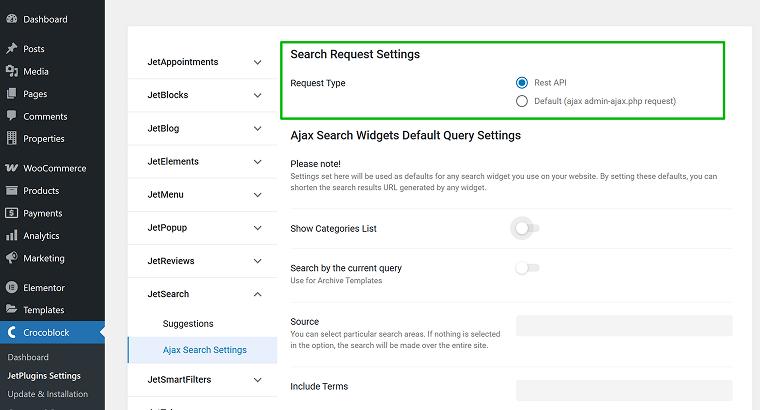
Open them in Crocoblock > JetPlugins Settings > JetSearch > AJAX Search Settings.
It’s a default set of rules that will be used for every JetSearch bar you add. But if you leave it empty and set up the JetSearch behavior only on the front end, in the widget settings, nothing critical will happen.
The only thing that is available there but not in the widget settings is the Request type. By default, it uses the REST API, which is a modern, more flexible approach. However, if the queried post type is not exposed to the REST API (show_in_rest is disabled), REST requests are unavailable. In that case, you must switch to admin-ajax.php, the legacy method for handling AJAX requests. Note that post types hidden from REST are also not editable in Gutenberg.
- Search Suggestions.
Open them in Crocoblock > JetPlugins Settings > JetSearch >Suggestions.
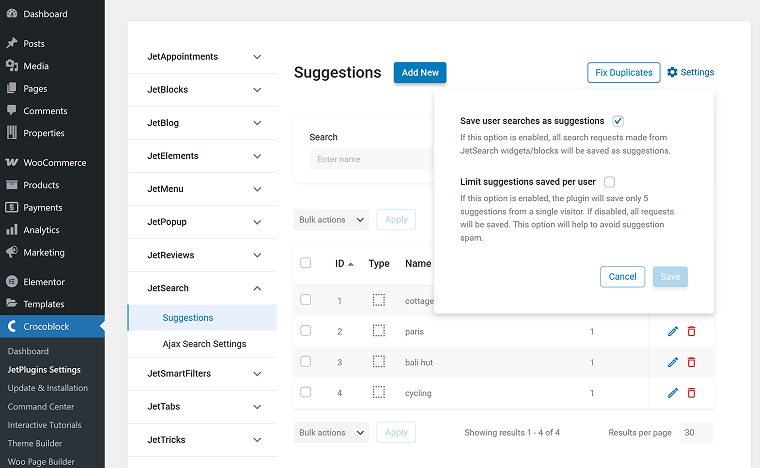
Here, you will see all the suggestions collected from the previous user searches – and they will be collected only if you allow it in the widget settings. Here, you can delete, add new (manually), and change the weight – priority.
The great thing about this approach is that you can guide users to where you want them to go through suggestions.
For example, during spring, you have too many black jeans in stock, so you want to sell them more actively. So, instead of showing “blue jeans” more often, you can increase the priority of the phrase “black jeans” and add more similar phrases to gently push users toward your black jeans collection.
In this section, you can also fix duplicates and limit the number of suggestions saved per user.
Most of the settings are available right inside the widget, though.
Let’s have a closer look at them in the next section.
JetSearch Elementor widget settings
Of course, these settings are available in Bricks and Block Editor, but as we are talking about Elementor here, I will demonstrate them using this builder.
General and search query settings
First and foremost, we should determine where exactly the search will be performed:
- Which post types take part in the search (by default, all).
- Should the search be performed within meta fields (by default, no), and if yes, which fields should be included? You can insert as many meta field keys (names) as you want.
- The Custom fields section displays additional metadata, e.g., price, location, or other data. There, you insert the field name and set up the format. For example, you can add the currency sign or add some words before and after.
- And, of course, you can set up placeholders, icons, buttons, and sorting rules.
Search in taxonomy terms and/or display them in the Additional Results section
Technically, they’re also part of the search query settings, but I want to talk about them specifically.
For example, I have a tour called “Paris Pastry Walk” that belongs to the “France” category of the “Country” taxonomy.
But if I type France, this tour will not be shown. To make it appear, I should activate the Search in taxonomies toggle. Now, when I type ‘France’, I will see all the tours in this category.
There’s one more way to make your taxonomy terms more visible in the search: using the Additional Results section. If I activate the Term Search Source and select the Country taxonomy, I will see a link to the France category (archive) page when searching for France, not just the tour in France.
You can do the same for user pages.
Search suggestions block
There are settings for displaying search suggestions as well, and you have full control over how they are shown – either below the search bar or in the dropdown. You can adjust the styling and the number of suggestions.
Also, you can display only the previous searches of the current user or all popular search suggestions.
Search result area layouts
Finally, you can adjust how search results will be displayed not only on the dedicated search results page, but right in the search results dropdown.
And JetSearch goes beyond just styling, as many plugins do – you can create a dedicated template for displaying your search results. But to do it, install the JetEngine plugin and use its Listing Templates tool in JetEngine > Listings/Components.
In the example above, I just used the same listing template I have on my main page. But you can definitely make a dedicated one – it’s quite simple, the main goal there is to display all the fields and data you want.
The video below will guide you through every detail:
Why JetSearch Is a Great Solution for Your Elementor Sites?
First and foremost, JetSearch is a powerful, feature-rich plugin for advanced search.
Elementor is a builder, not a search engine, and if you simply add its search bar, it will just add a default, weak, and inflexible WordPress search functionality. But any site definitely needs something much more powerful – a solution that will work with WooCommerce, custom fields for posts and users, taxonomies, and any kind of data.
Also, you can customize every little detail of the layout in which the results are displayed.
And finally, the search results page can be customized with additional filters to narrow down the results.
FAQ
AJAX search allows search results to update instantly without reloading the page. This makes the search experience faster, smoother, and more interactive for users.
Default WordPress search doesn’t handle custom fields, taxonomies, or complex queries well. It also lacks relevance tuning, suggestions, and real-time results.
You can improve relevance by searching in custom fields, taxonomy terms, and by prioritizing certain keywords or suggestions. This helps users find what they’re actually looking for faster.
Yes, but not with the default search. Advanced search solutions allow searching inside meta fields such as price, location, or custom user data.
Absolutely. Search can act as a primary navigation tool, especially for content-heavy sites, directories, booking platforms, and marketplaces.
Takeaway
This article is one more reminder that WordPress search is not just a “nice-to-have” feature or a fallback option tucked away in the header. When done properly, using advanced search plugins, it becomes a powerful entry point that helps users navigate complex content, discover what matters to them, and actually convert.