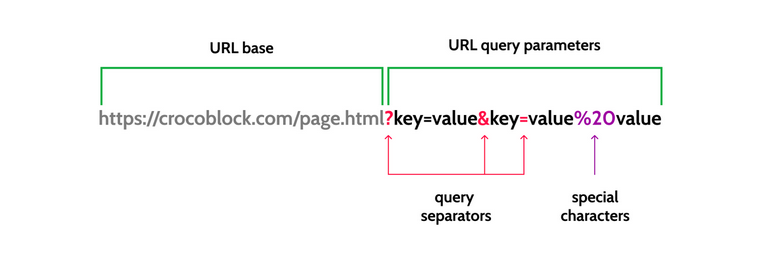
URL query variables, also called query strings or URL parameters, are an extremely powerful tool for passing data from one page to another.
On websites, including WordPress ones, this simply means you can change what a page shows based on a value in the URL.
A query string can:
- filter posts or products;
- preselect form values;
- switch between layout variations;
- show or hide specific sections;
- pass IDs between pages, etc.
They don’t do anything on their own. You decide how to use the value, but once you start building dynamic sites with custom fields, listings, or forms, query variables become one of the most practical tools you can use.
When you request certain information, for example, searching for something using a search field, WordPress performs a query under the hood.
For example, when you search for a hoodie, WordPress builds this query under the hood:
new WP_Query([

    'post_type' => 'product',

    'tax_query' => [

        [

            'taxonomy' => 'product_cat',

            'field'    => 'slug',

            'terms'    => 'hoodies',

        ],

    ],

]);
In the result URL, we will see this:
https://example.com/?post_type=product&product_cat=hoodies
As you can see, the URL has the information from the query, in other words, its variables; that’s how it got its name.
But not everything that happens under the hood is displayed in the URL field. WordPress has two types of query variables: public and private.
Public query variables are those allowed in the URL. WordPress recognizes them automatically and uses them to modify the main query. Examples include:
- s (search);
- post_type;
- page;
- product_cat;
- author.
Private query variables, on the other hand, are used internally by WordPress and cannot be safely passed via the URL unless you explicitly register them.
So when we talk about URL query variables, URL parameters, or URL query strings, we usually mean public query vars and custom query variables – like those you can pass using the Dynamic Link. I will discuss them later.
Crocoblock Tools for Dealing with URL Query Variables (Query Strings)
As we’ve discussed in the previous section, every action on the website can involve public query variables whenever the query is performed.
But how to add custom query variables to pass certain values?
Crocoblock has a couple of powerful tools for that – let’s see them, as well as the manual method.
Dynamic Link by JetEngine
JetEngine has a Dynamic Link widget/block where you can add custom query variables. What’s important: it supports macros, so you can pass values dynamically, e.g., the current post ID, field values, etc.
💡Read the macros guide here.
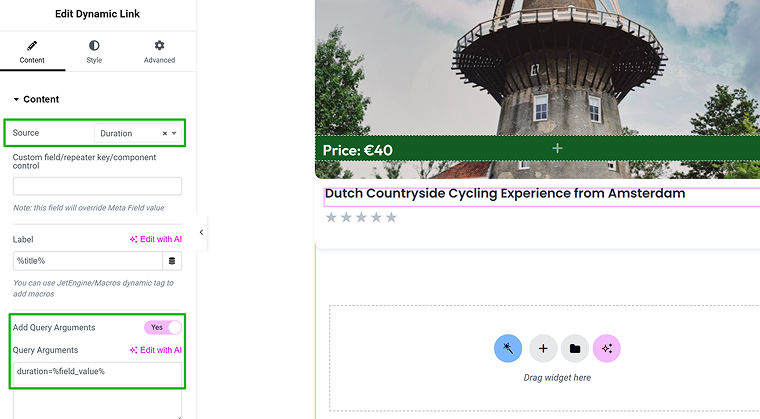
For example, my CPT has a “duration” custom field, and I want to pass this value using a query variable. So, I add a Dynamic Link widget, choose this field in the Source, and type duration=%field_value%.
As a result, I will have a URL like this after clicking the button:
mysite.com/?duration=6 (because the field value was 6).
Adding manually
You can manually enter dynamic values by adding key1=value1&key2=value2 to your URL, and so on. For example, mysite.com/page=frontpage.
The downside of this method is that you can’t pass values dynamically, and it doesn’t support any macros, so it’s pretty limited.
Adding query variables using JetFormBuilder
Using the JetFormBuilder’s Redirect to Page action, you can add query strings dynamically from fields filled out by the user.
Also, you can retrieve existing values dynamically using the Hidden field option as well as Calculated field (e.g., current page field values, Option Pages’ values, etc.).
Search and filter parameters
When you search for something, search plugins automatically add a query parameter, for example, s=shoes.
Filters also do it. Thus, if you use JetSearch or JetSmartFilters. There, you can slightly adjust URL aliases.
5 Popular Cases for URL Query Variables on WordPress
Displaying values from forms on a Thank You page (JetFormBuilder + JetEngine)
JetFormBuilder + JetEngine is an extremely powerful combo, and this is just one example.
So, JetFormBuilder can both retrieve and pass query strings to the next step to be handled by JetEngine’s Dynamic Widget. Let me break it down.
Let’s start with a simple example of displaying values entered in the form on the Thank you page.
- Create a form with some fields: in my case, it’s a Text field called “text” and a Select field called “select.”
- In JetForm > Post Submit Actions, choose Redirect to Page. There, in the settings, choose a page to redirect to and, in the URL Query Arguments field, choose the field you want to pass to the Thank You page.
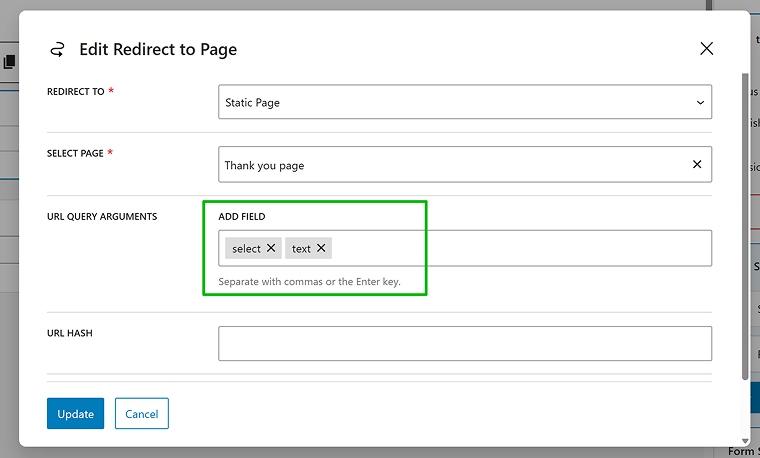
- Now, if you fill out the form, you will see the values from form fields in the URL, like this:
yoursite.com/thank-you-page/?select=1707&text=some-text
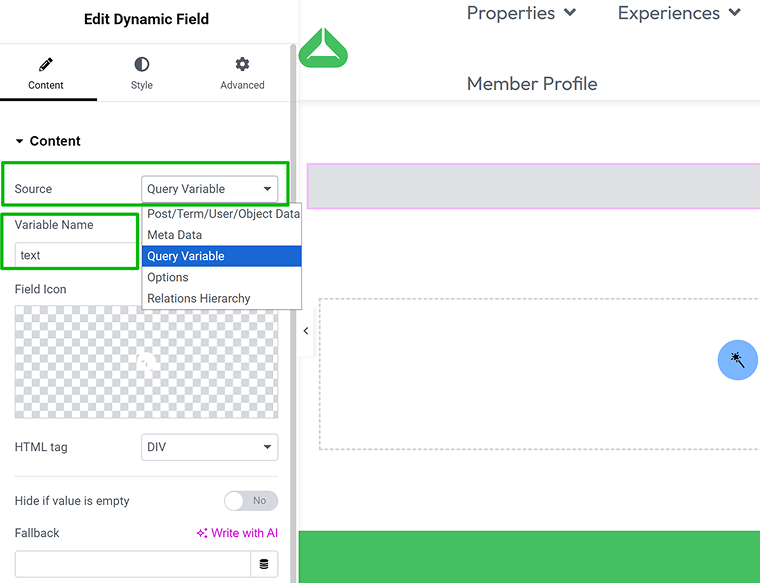
I can see a number as the value of a select field because I chose to populate it dynamically from existing posts, and “1707” is a post ID. For the Text field, it’s exactly what I have entered. - Well, we have it in the address bar, but how do we display these values on the page properly? On your Thank You page, add a Dynamic Widget/Block for each value you want to display.
In the Source, choose Query Variable, and type the field name (text, in my example).
- If you have more complicated values than text, e.g., the post ID, as I do, in the Filter Field Output, choose the callback that works the best for you. To display a post name instead of its ID, I chose Get Post/Page Title.
You can format values and add text before or after them, too.
Fetching UTM parameters and adding them to form submissions (E2E tracking)
JetFormBuilder can both pass and retrieve query strings. In the previous example, I demonstrated how it can pass, but what about fetching them? Here’s an example: you have a promo campaign and add some UTM parameters, for example:
http://mysite.com/?utm_source=google&utm_medium=cpc&utm_campaign=winter
Of course, Google Analytics and similar tools can show you where submissions come from, but why not capture that information immediately when the form is submitted? You can implement it with JetFormBuilder’s Hidden field.
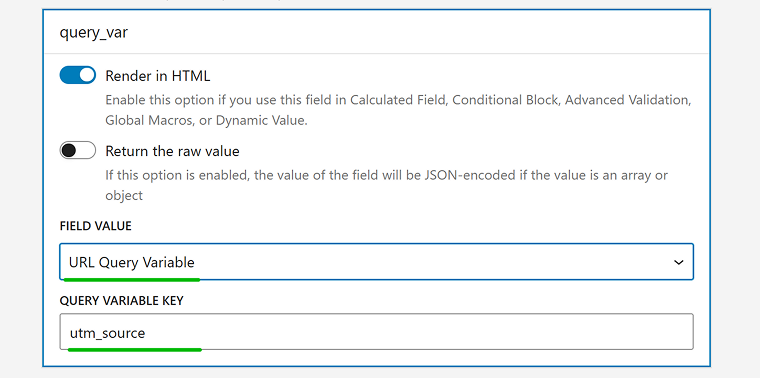
Add a Hidden field and choose the URL Query Variable option. In the Query Variable Key field, type the parameter key you want to fetch. In my case, it’s utm_source. If you want to fetch all the parameters (utm_medium, utm_campaign, etc.), add more hidden fields, one for each parameter.
Then, you can add this field value to an email, form records, or any of the many after-submit actions.
Thus, you capture the source data directly within the form and recreate proper end-to-end analytics without relying solely on external tracking tools. Of course, you can add more options from the Hidden field, including the post title the form was submitted to (very important if you use pop-ups for forms and want to know which page generates your leads), the user ID, time, date, and more specific fields.
Displaying or hiding certain pages based on query variables
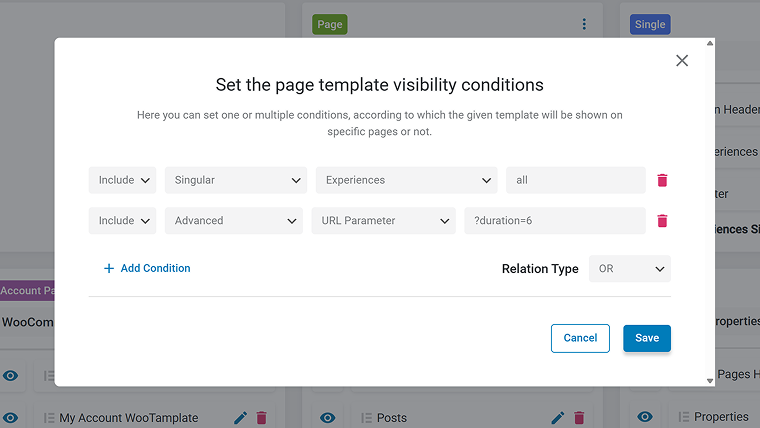
JetThemeCore has the URL parameter option in the Conditions settings. You can change the entire page template or just the header or footer, depending on the URL parameter.
It can be very handy for switching templates based on the selected filter or search query – read the full guide here.
Edit/Delete listing items on membership websites
If there’s a multi-vendor marketplace or an Airbnb-like website, members can edit or delete their items using query variables.
Let’s say there are members who have property listings. On their front-end profile pages, they have their listing items, and, for sure, they have to be able to edit and delete them.
The Edit front-end button
Create a page and add it to the user profile in the Profile Builder by JetEngine as a subpage. Add there a form powered by JetFormBuilder with all the fields for your property, and include the Hidden field to retrieve the _post_id value.
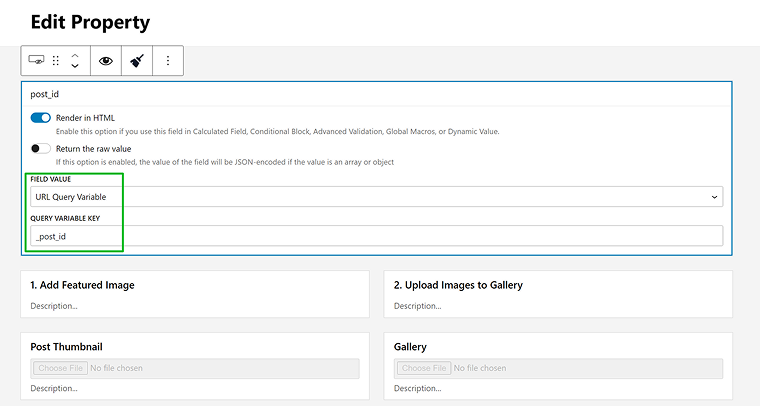
Then, add the Insert/Update Post action and map the fields. Take the Post ID value from the Hidden field (that fetches URL query variable) – thus, it will update the existing post with this ID.
Now, where does the URL query variable come from? We need to add it.
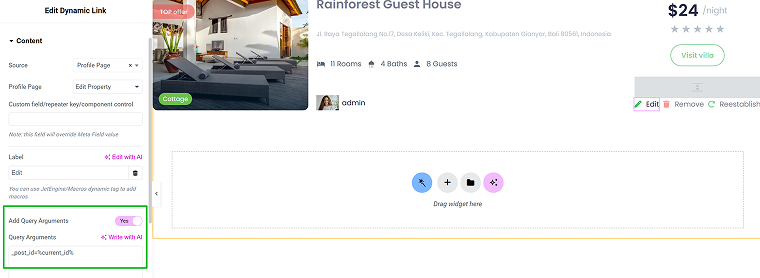
When you create a Listing Template to display all the properties on the member’s profile subpage. There, add the Edit button using the Dynamic Link widget.
In the Source, choose “Profile Page,” and then choose the page you’ve created earlier with your property editing form.
Switch the Query Argument toggle in the Dynamic Link settings to retrieve the post ID of the current listing item/property.
Type the macro:
_post_id=%current_id%
The Delete front-end button
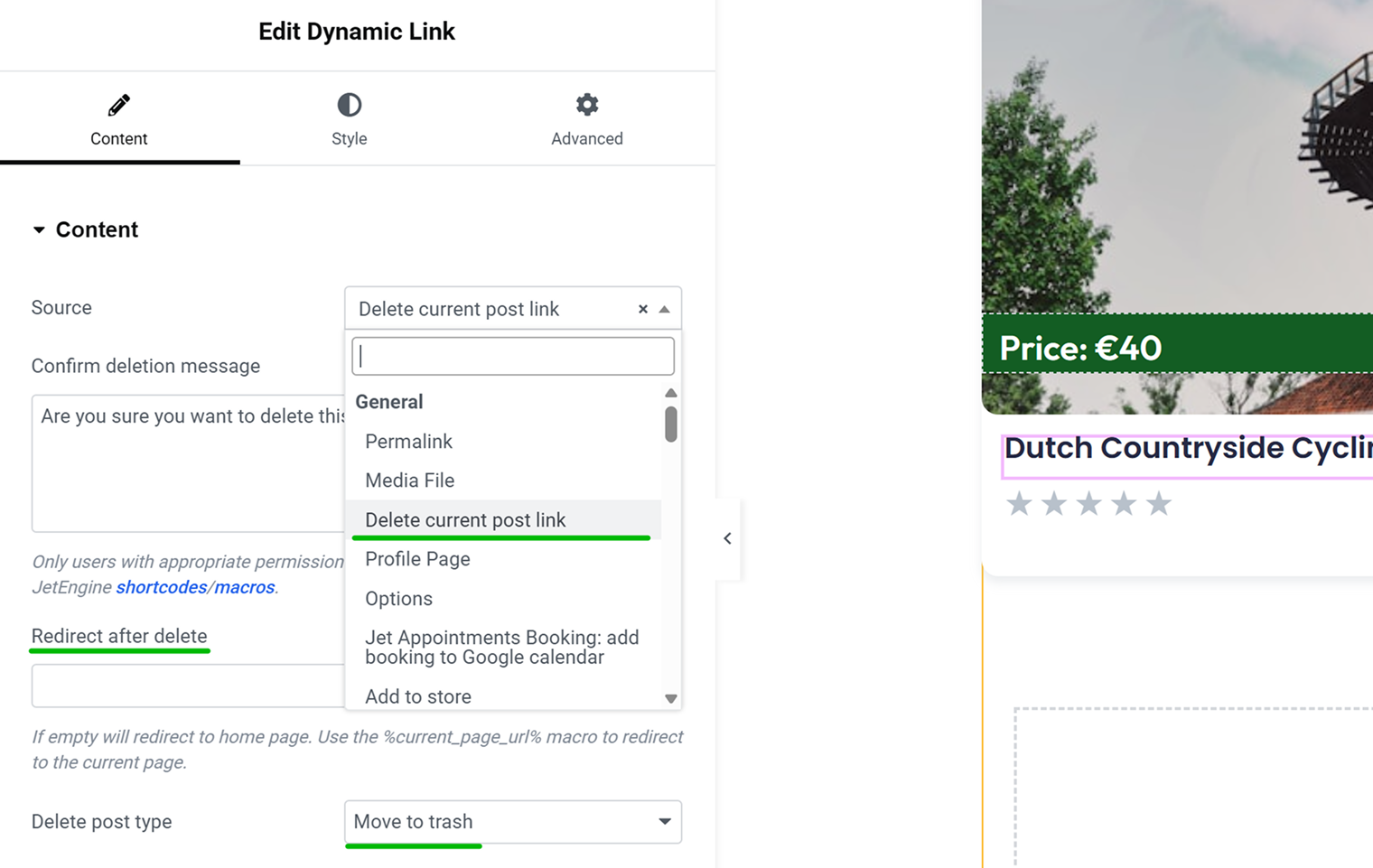
What about deleting the item? It’s even easier; skip the first step from the previous section, as you don’t need a form and the editing page. In the Dynamic Link settings, select the “Delete current post link” option. You can set up the redirect URL and whether to move the post to trash or delete it permanently.
Using query parameters for booking and appointment forms
Both JetAppointment and JetBooking have two types of forms that you can create using plugins’ Wizards:
- Static page booking/appointment form – to be placed on Home or other pages, where you select both service/property and a provider;
- Single page booking/appointment form – to be placed on the particular property or service page, so it already “knows” which service or property you want to book.
But what if you want to use a Static form, but the service/property or provider is selected automatically? This demo shows how it works: the “Make an Appointment” button is added using the Dynamic Link widget, with a query argument that dynamically retrieves the current page ID. Then this page ID is retrieved by the booking form – just as we made it for the “Edit” button in the previous section.
FAQ
URL query variables (query strings) are parameters added to a URL after a question mark, like ?post_type=product. WordPress reads these values and can use them to filter content, modify queries, or pass data between pages.
WordPress reads allowed query variables from the URL and converts them into WP_Query arguments. This changes the database query and determines which posts or products are displayed.
Yes. You can manually add key=value pairs to a link or generate them dynamically. The receiving page can then read and use those values to display content, prefill forms, or trigger specific logic. Use JetEngine’s Dynamic Link widget/block to do it.
Maximum around 1500 characters, the precise number depends on the browser.
JetEngine, JetFormBuilder, and JetThemeCore support them. Also, these plugins can be combined with other Crocolbock plugins, such as JetBooking or JetAppointment, as well as others, to add extra functionality.
Takeaway
Query variables are simple but unlock significant flexibility. They let you control what a page shows, pass values between steps, and build dynamic logic without overcomplicating things.
They don’t do magic on their own, and it’s up to you to decide what happens with the value. But once you understand how they connect URLs, queries, and dynamic output, they become one of the most practical tools in WordPress.