
How to Use Elementor Page Builder
Learn how to use Elementor Page Builder with and without JetPlugins to start your WordPress site and enhance its functionality.
What Are the JetPlugins for WordPress?
The JetPlugins enhance WordPress functionality and can be used as add-ins for Elementor, the Block Editor (Gutenberg), and the Bricks theme. Therefore, WordPress and the corresponding editor (e.g., Elementor, Divi) should be installed and activated first (except the native WordPress Block Editor).
Read the 25 Important Reasons Why You Should Use WordPress for the Next Website article to learn more about the benefits of using WordPress. In addition, look through the What Is WordPress.com article to learn the main features, ways to use, pros and cons, and pricing plans of this CMS.
The JetPlugins are typically used with the free version of Elementor, as they often replicate Elementor PRO functionality and offer additional options, but cannot be swapped for one another. Additionally, Elementor PRO offers advanced features, e.g., integration with services without additional plugins (e.g., Facebook and reCAPTCHA), a role manager to configure and limit editor access, a theme builder to customize standard themes, including custom fonts & Adobe TypeKit, and more. Therefore, using Elementor PRO and JetPlugins enhances the site’s functionality without decreasing its performance.
In addition, Elementor, Elementor PRO, and JetPlugins are SEO-friendly, and sites built with them are well indexed and appear in search results.
Watch the Crocoblock Elementor – Pro Tutorial video to learn how to use the PRO version of Elementor with the JetPlugins. Also, more details on the common use of JetPlugins and Elementor PRO can be found in the Elementor Pro and JetPlugins Go Well Together and Here Is Why tutorial.
Starting a Website with WordPress and Elementor
You can create a real-mode website as follows: buy hosting, a domain, install WordPress, and Elementor. Read the Starting a Website with WordPress article to learn how to select the domain names and hosts, install and customize WordPress, etc.
Additionally, you can create a test-mode website on your computer using specific software such as Local or Open Server, or utilize a cloud service for WordPress.
Starting a Website with the JetPlugins
JetPlugins can be added to the websites as any WordPress plugin, e.g., individually (manually) or as part of the JetPlugins set by downloading the Crocoblock Wizard from your Crocoblock account.
Read the How to Install JetPlugins via WordPress Dashboard tutorial to learn how to install any plugin in different ways.
In addition, you can install and activate any add-on for the JetPlugins. Read the Essential Addons for Elementor vs. Crocoblock: Picking Top Website Building Tool article for more information on adding various widgets, templates, forms, and more.
Pricing Plans
WordPress and Elementor are free software; if you need more functionality, you can buy the required Elementor PRO plan or WooCommerce Bundles.
In addition, you can expand Elementor functionality with JetPlugins by selecting and purchasing a JetPlugins subscription plan.
The WordPress Pricing: How Much Does a WordPress Website Really Cost? article details all issues mentioned above.
Using Elementor Without JetPlugins
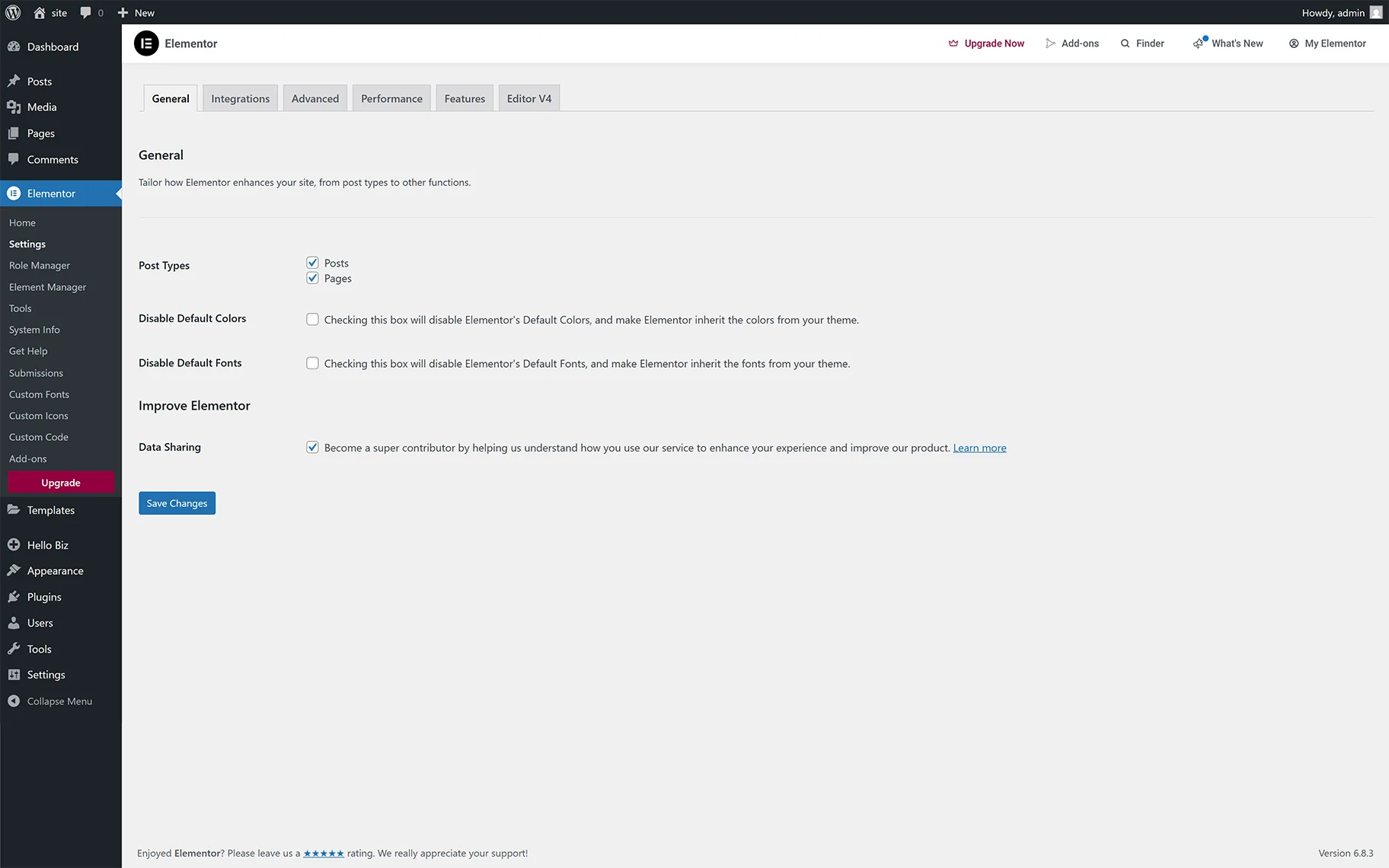
Elementor has several settings that make it easier to work with the plugin. With their help, you can customize the default font and spacing, select the type of content for your site, and choose the primary colors.
To select all these settings, go to the site’s admin panel, click Plugins > Elementor > Settings > General.
In general, all work with Elementor comes down to dragging the elements you need to the right place on the page. All items are broken down into three categories:
- sections (large sections of the site where columns and widgets are located);
- columns (the place where widgets can be placed);
- widgets (individual elements such as pictures, text, videos, etc.).
Read the 13 Beginner Productivity Tips for Web Designers Using Elementor article to learn how to arrange these elements in the way you want. To do this, go to the WordPress Dashboard and click Pages > Add New or Posts > Add New.
You can edit pages and posts with Elementor or the standard WordPress editor. Click “Edit with Elementor.” Additionally, the Block Editor can be utilized, and various tips and tricks can be applied as outlined in the Ultimate WordPress Gutenberg Tutorial: Use Block Editor Like a Pro article.
As we mentioned earlier, you can work with Elementor on the principle of drag and drop. To add an element to the page, select it from the left side of the screen and drag it to the desired location.
If you need to make several elements side by side, click on the “+” button. After that, you will see a screen that lets you choose options for placing widgets.
Once you choose the page structure, add new elements to each column.

Apply the necessary settings and customize each widget or page element as you need. To do this, click the button with six dots at the top of the component. So if you place text, you can adjust its style, font size, and content. If you place an image, you can configure its location and size.
Once you’ve placed all the necessary details on the page, it’s time to publish it.
Click the “Preview” button to ensure that the page will look the same as in the editor. If you like how everything looks, click the “Publish” button.
Using Elementor with JetPlugins
While using the Crocoblock Wizard, the JetPlugins can be added via the “Full Crocoblock installation” mode as part of the Crocoblock dynamic template installation or via the “Jet Plugins installation mode”. In both cases, all available plugins will be listed in the WordPress Dashboard > Plugins tab.

Also, the Crocoblock tab will be added to the WordPress Dashboard. Read the Crocoblock Dashboard Overview to learn more about its functionality.

In addition, the dashboards of installed and activated plugins will be displayed as separate dashboards (e.g., the JetEngine Dashboard, JetPopup Dashboard, JetBooking Dashboard, and more) or in the WordPress Dashboard > Crocoblock > JetPlugins Dashboard tab.
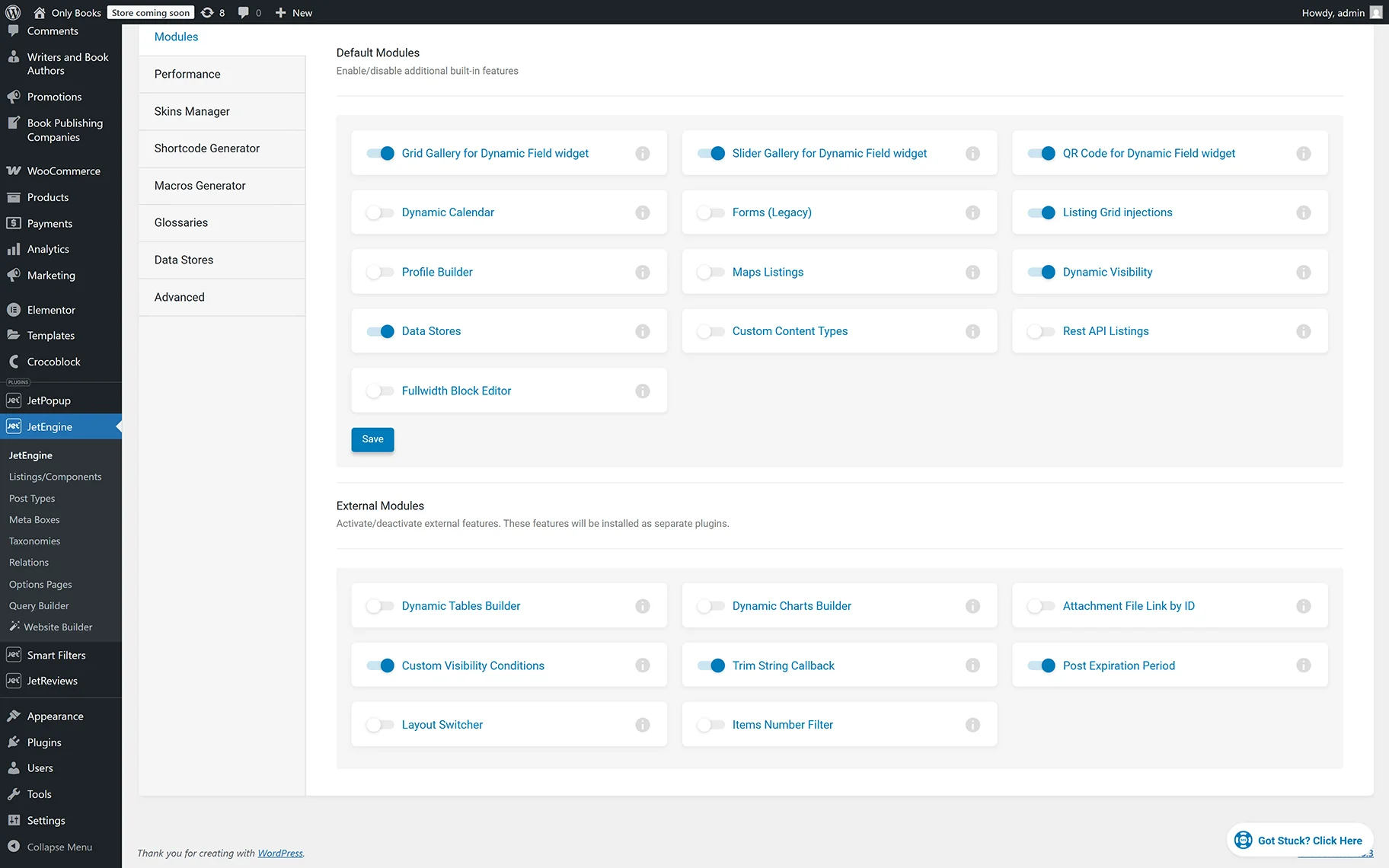
After activation, the specific site templates will be added to the WordPress Dashboard > Crocoblock > Theme Builder tab.

After installation and activation, the JetPlugins add the available widgets to the Elementor search bar.

That’s it. Now you know how to use Elementor Page Builder with and without JetPlugins to start your WordPress site and enhance its functionality without programming and CSS knowledge.