Building a dynamic WordPress website with tools like Crocoblock can unlock the full potential of the platform. Features like custom post types, dynamic relationships, front-end filters, and AJAX-based content updates enable developers to build powerful directory sites, booking platforms, and data-driven applications. However, as functionality increases, so does the strain on the hosting environment.
Unlike simple blogs or static brochure sites, dynamic WordPress builds generate significant server load, rely on real-time database queries, and often break when hosted on platforms that enforce aggressive caching policies or limit server resources. Traditional managed WordPress hosting providers frequently struggle to support these use cases effectively.
Built for Complexity, Tuned for Performance
Levamo positions itself as a premium hosting provider optimized for high-performance WordPress applications. Unlike most hosts that aim for a broad audience, Levamo caters specifically to developers, freelancers, and agencies building custom, interactive, and scalable WordPress solutions.
From the moment a site is deployed, it becomes clear that the hosting stack is designed with modern WordPress demands in mind. It eliminates common pain points around performance tuning, caching conflicts, and developer limitations.
Performance optimized for Crocoblock workflows
At the heart of Levamo’s performance advantage is its use of LiteSpeed Enterprise, a high-performance web server architecture that outpaces NGINX and Apache in both speed and resource efficiency. This alone delivers superior performance for dynamic content.
What truly sets it apart, however, is the inclusion of Object Cache Pro, a Redis-based object caching layer that minimizes database queries and speeds up dynamic pages. This is especially valuable for Crocoblock-powered websites using JetEngine’s CPT, listings, and AJAX filtering.
In benchmark tests involving a mid-sized JetEngine directory site, page load times improved by over 60 percent after switching to Levamo. Time to First Byte dropped from 680ms to under 100ms without any front-end optimization plugins.
Caching that understands dynamic content
Caching is often the Achilles’ heel of dynamic WordPress sites. Traditional managed hosts apply rigid caching rules that can cause filtered content to display outdated results or user-specific dashboards to serve cached pages intended for other users.
Levamo addresses this by offering configurable caching at multiple levels. Developers can exclude individual routes or query parameters from the cache, ensuring that AJAX filters, form submissions, and user dashboards remain interactive and accurate.
Because the stack is built around LiteSpeed, page caching and object caching coexist without conflict. There is no need to rely on third-party caching plugins, which often complicate setups on other platforms.
Enterprise-grade security by default
Security is integrated deeply into Levamo’s architecture, not added as an afterthought. A Web Application Firewall, automatic DDoS mitigation, and a system of daily malware scans protect each environment.
In addition, Levamo is partnered with Patchstack, a WordPress-specific security platform that monitors the entire plugin and theme ecosystem. If vulnerabilities are discovered, patches are applied proactively, often before plugin authors issue updates.
This layered, proactive approach to security ensures that Crocoblock-based builds, which often rely on several custom or niche plugins, remain protected from both targeted and automated attacks.
Support that understands wordpress development
Hosting dynamic websites inevitably leads to edge cases and performance challenges. The quality of support often determines whether a project hits its deadline or stalls indefinitely.
Levamo stands out in this area by offering direct access to WordPress specialists. Support staff are equipped to understand complex plugin interactions, performance tuning, and database-level issues. Users working with JetEngine queries, REST API endpoints, or conditional content filters will find the team’s knowledge immediately helpful and refreshingly specific.
A multi-site plan that makes sense for agencies
For freelancers or agencies managing multiple WordPress projects, Levamo offers a dedicated Multi-Site Plan that supports up to 10 individual WordPress installations from a centralized interface. This streamlines both billing and operational workflows.
Each site on the Multi-Site Plan benefits from the full Levamo stack, including LiteSpeed, Object Cache Pro, Redis, global CDN, and 24/7 support. Environments are isolated by default, ensuring that one client’s traffic spike or coding issue never impacts the performance of others.
Developer tools that enable full control
Levamo was clearly built with developers in mind. SSH access is available on all plans, along with WP-CLI, Git integration, staging environments, and real-time server logs. Developers can switch PHP versions, manage cron jobs, and view performance metrics without navigating through confusing or limited dashboards.
Debugging JetEngine queries, testing custom taxonomies, or deploying new layouts becomes significantly faster when server access is open and responsive.
Partnership opportunities for growth-focused teams
In addition to its hosting services, Levamo offers an Agency Partnership Program that provides further value to freelancers and agencies. Partners receive early access to new features, a dedicated support contact, and revenue-sharing opportunities for client referrals.
For teams that rely on Crocoblock to deliver high-end custom websites, the partnership program creates opportunities to scale both revenue and operational capacity without increasing overhead.
Transparent pricing for serious builds
Levamo avoids pricing gimmicks or hidden upgrade fees. Instead, it offers transparent, straightforward plans that include everything needed to host a dynamic site at scale.
- The Startup Flex Plan begins at $79 per month, billed annually. This plan includes LiteSpeed Enterprise, Object Cache Pro, Redis, a global CDN, daily backups, one-click staging, and premium support.
- For developers or agencies managing multiple sites, the Multi-Site Plan begins at $119 per month. It offers the same full-featured stack and supports up to 10 installations.
A 3-day free trial is available for all plans, allowing developers to migrate a staging version of their existing site and test real performance before committing.
How to Install Crocoblock on Levamo
Log in to your Levamo dashboard and create a new WordPress site (or use an existing one). Thanks to Levamo’s managed platform, WordPress is ready to go out of the box.
After registration and payment, you are redirected to the Welcome screen, where you can start building your site by choosing from two options.
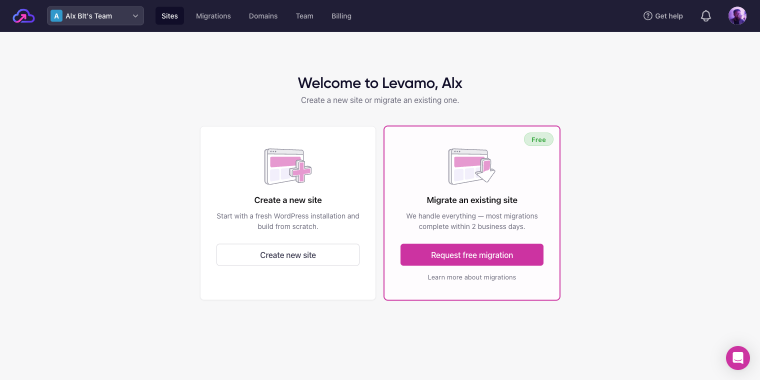
- Clicking on the “Create site” button, you’ll go through a short installation process to enter some details for your website;
- Clicking on the “Upgrade now” button commits you immediately to the Levamo subscription.
After clicking the “Create site” button on step 1, you need to confirm your pricing plan.
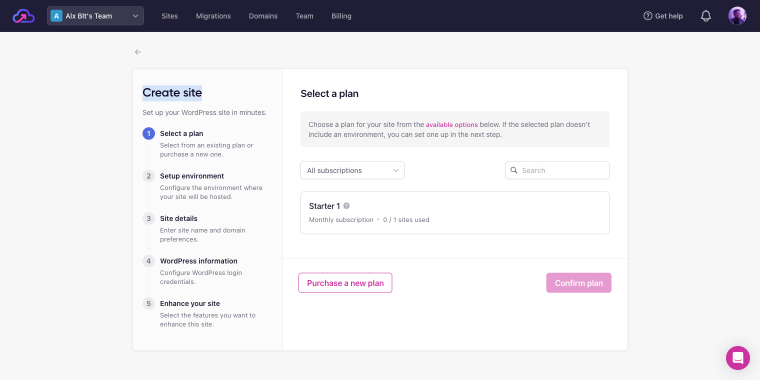
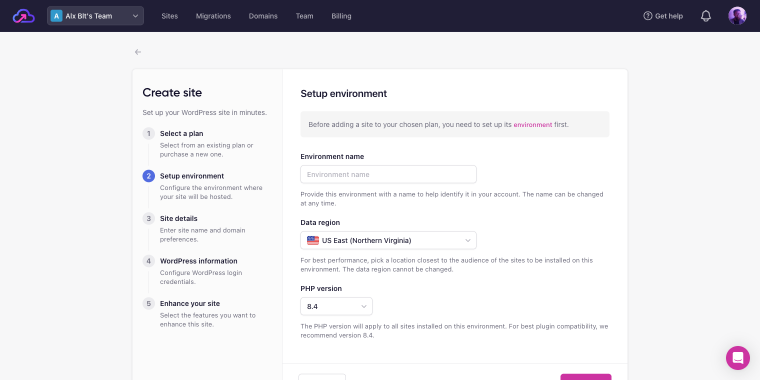
In step 2, enter the details of your setup environment, including the language and PHP version.
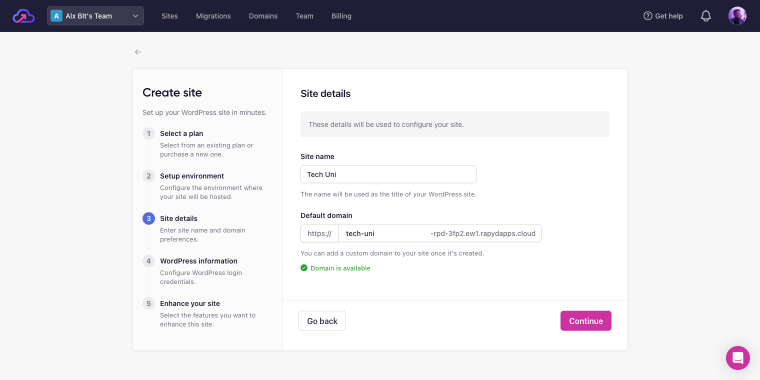
Lastly, in step 3, enter the site details and click the “Continue” button.
On step 4 (WordPress information), you’ll be asked to create login details for your website, and on the last step (Enhance your site), you’ll be offered to install additional functional plugins.
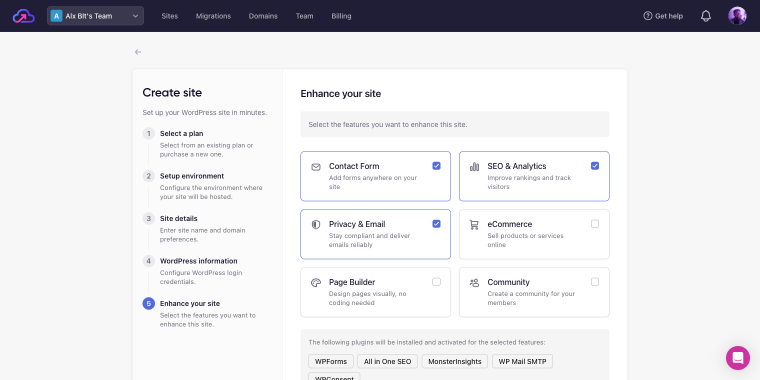
Choose your options and click the “Add Site” button.
Right after that, you’ll see a screen with the message “Your site is being set up. Please allow up to 15 minutes for this process to complete.”
Once the installation is finished, we can log in to the WordPress site dashboard by clicking on the “WP Admin” button to install the Crocoblock wizard for a dynamic website setup.
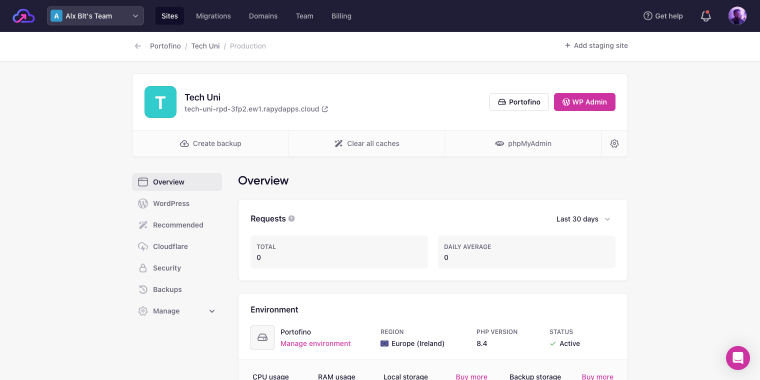
When you’re there, go to WordPress Dashboard > Plugins > Add Plugin and install the latest version of the Crocoblock wizard plugin that you can find in your Crocoblock account.
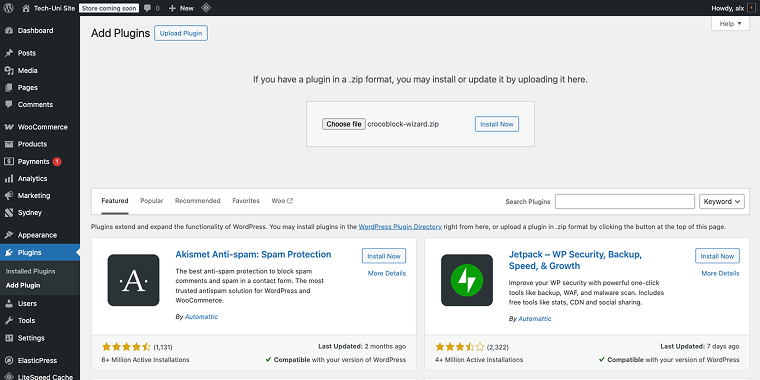
After installing and activating the wizard plugin, it will run you through all the steps of dynamic website installation.
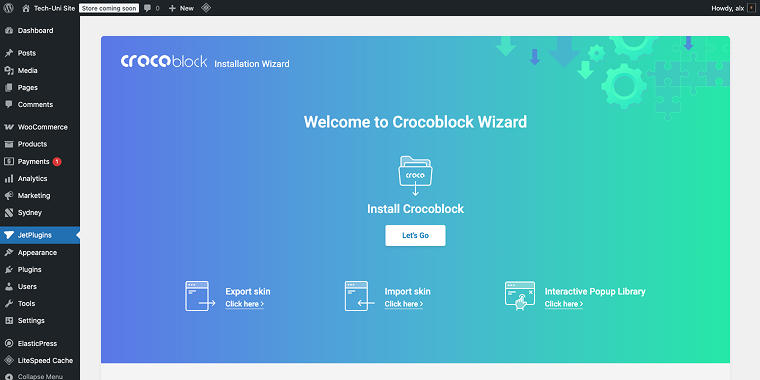
Begin by clicking on the “Let’s Go” button.
Right after that, the wizard will ask you to enter the Crocoblock license key, so feel free to enter it into the appropriate field. After validating your license, the wizard will prompt you to select the type of installation you want to perform. Two options are available:
- Full Crocoblock installation — choose this option if it’s your first installation and you want to test all the features of Crocoblock;
- Jet Plugins installation — choose this option if you have an established website and want to enhance it with a variety of great plugins.
And then click on the “Install” button.
Template installation
On the next step, you can choose the theme you would like to use with Crocoblock, be it “Kava,” “Blocksy,” “OceanWP,” “Astra,” “GeneralPress,” or “Hello Theme.” If you already have a preferred template, click the “Continue with your current theme” button. I’ll select the Kava theme.
You can continue with either the parent or child theme. Both options are available on the Use child theme page. Keep in mind that the developers recommend using the child theme to ensure the safety of changes in your code. I’ll pick the “Use the child theme” option. Next, click the “Continue” button.
After the theme has been successfully installed, you can select the skin and start the installation. Two tabs are available here.
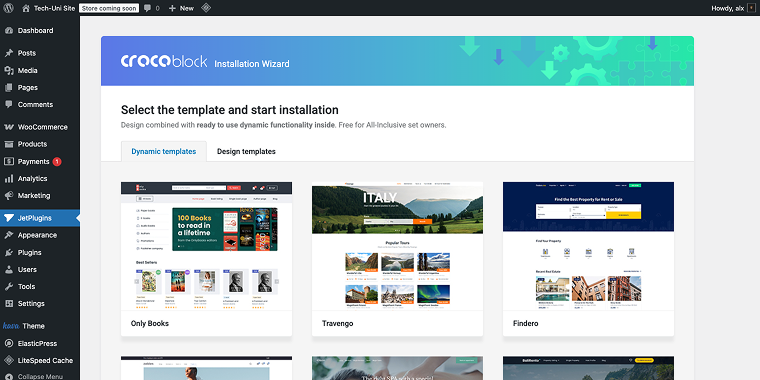
- The first tab is Dynamic templates, which includes fully-functional dynamic websites ready to be customized and launched;
- The second tab is Design templates, where you will find many skin designs suitable for all the themes Crocoblock offers.
If you’d like a quick view of the available skins, hit the “View Demo” button under each and choose the suitable one. I’ll select the Zolden dynamic template. After making your decision, click the “Start Installation” button.
Plugins installation
Now, you can see the Configure plugins page. It will consist of two sections for the All-Inclusive clients and one for all the others.
- The first section is Required plugins, which is common for the All-Inclusive package and all other subscription plans. You can turn off some plugins if you don’t need them for your work.
- The second section is Extra plugins, which is available only to All-Inclusive plan owners and displays a list of optional plugins that can be installed. To add functionality to your website, simply tick the boxes on the left.
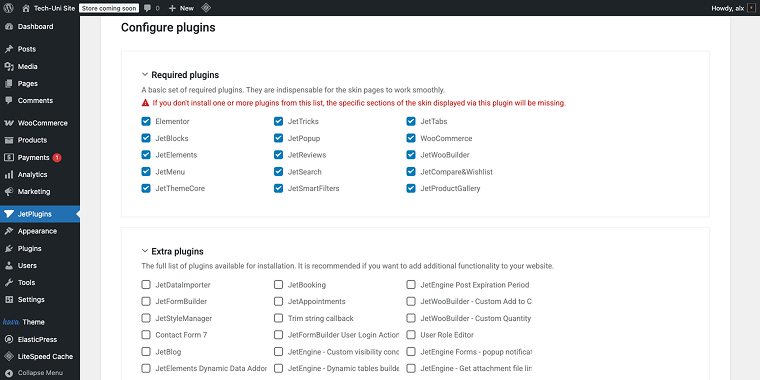
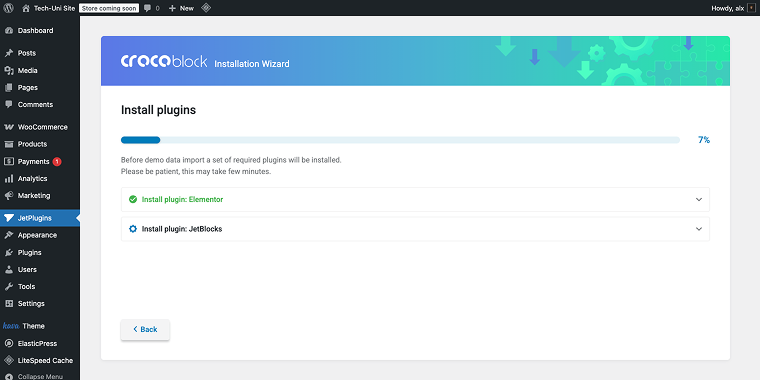
At the bottom of this block, click the “Continue” button. Or, if you don’t want to install plugins, hit the “Skip” button. It will take a few minutes to install all of the selected options. You can watch the progress on your screen.
Demo content import
After the installation is complete, you will see the Demo Content Import page, where you should select what to do with your existing content.
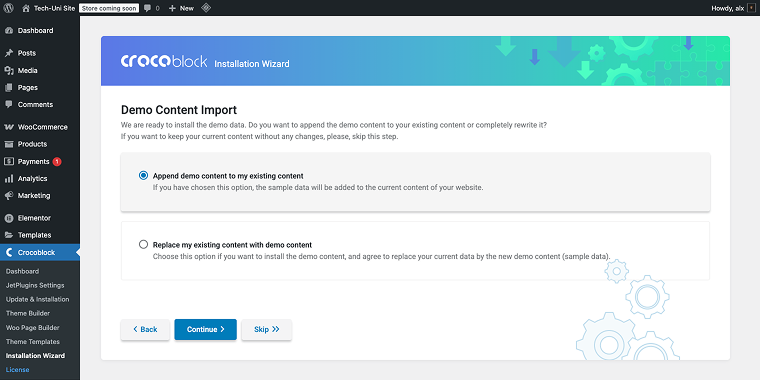
- If you need to add content to your existing one, please select the ‘Append demo content to my existing content’ option.
To install new content instead of the existing one, select the “Replace my existingcontent with demo content” option.
NOTE
Everything created before selecting the Replace my existing content with demo content option will be deleted, so ensure there is nothing vital for you on the website.
Alternatively, you can “Skip” the demo content installation. After you’ve made your choice, click the “Continue” button.
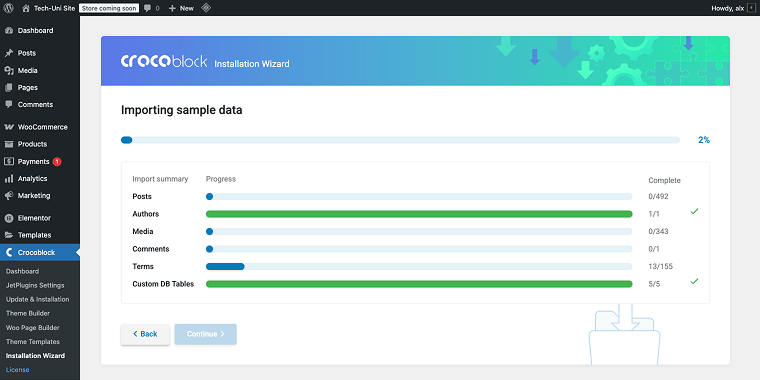
After that, you will see a progress bar that shows the progress of Importing sample data.
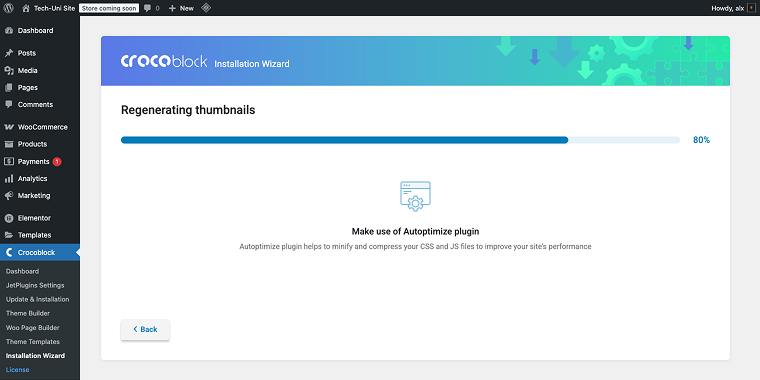
The next to be shown is the Regenerating thumbnails progress.
Finally, after completing all the steps, you will be redirected to the Congratulations! You’re all set! page, which provides access to your site, editing pages, or the Crocoblock Dashboard.
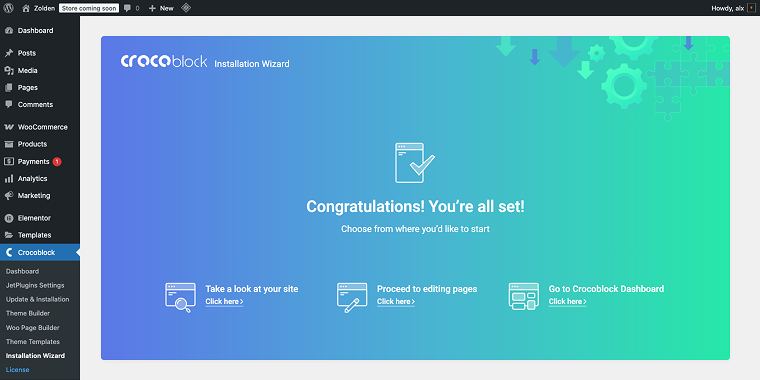
That’s all; now you can start exploring opportunities that you have just obtained with the Crocoblock Wizard and JetPlugins on your WordPress website.
FAQ
Regular WordPress hosting often struggles with Crocoblock JetEngine sites because of strict caching policies and resource limits that clash with dynamic content needs. Traditional hosts may break AJAX filtering, show outdated results in filtered listings, or serve cached user dashboards to the wrong users. Levamo’s customizable caching and LiteSpeed Enterprise architecture are specifically built to handle dynamic post types, custom relationships, and real-time database queries without performance issues.
Levamo achieves notable performance improvements with its specialized stack that includes LiteSpeed Enterprise and Object Cache Pro Redis caching. Benchmark tests indicate that JetEngine directory sites see over 60% faster page load times, with Time to First Byte decreasing from 680ms to less than 100ms. The Redis-based object caching layer reduces database queries, which is essential for sites using JetEngine’s CPT relationships, dynamic listings, and AJAX filtering features.
Yes, Levamo provides comprehensive developer tools, including SSH access, WP-CLI, Git integration, staging environments, and real-time server logs across all plans. Developers can switch PHP versions, manage cron jobs, and view performance metrics through an intuitive interface. This facilitates faster debugging of JetEngine queries, testing custom taxonomies, and deploying new layouts, while WordPress expert support assists with complex plugin interactions and database optimization.
Final Thoughts
Dynamic WordPress websites need hosting that is as modern and efficient as the tools used to build them. Levamo provides this by offering performance, flexibility, and support that perfectly complement Crocoblock-powered sites.
It doesn’t try to be budget-friendly. Instead, it is designed for builders, developers, and teams who prioritize speed, scalability, and accuracy. For those who frequently work with advanced post types, dynamic filters, and interactive front-end features, Levamo isn’t just a good option – it’s the best.
The best way to evaluate its impact is to try it yourself. Developers and agencies are encouraged to start the 3-day free trial and test their Crocoblock projects on the platform. Differences in performance, stability, and workflow are often obvious within hours.