Can the booking business site work without the booking calendar? Theoretically, it can, but practically, it is like running a hotel with a notebook in your hand. A successful booking system needs to see all bookings straightaway to provide services on time and avoid losing clients.
In this article, I will explore what the booking calendar is, its role on a WordPress site, and examine its key features and use cases. And as a cherry on top, I will showcase a couple of interesting use cases that demonstrate how to maximize the benefits of the booking calendar. So read on!
What Is Booking Calendar?
A WordPress booking calendar is an interactive scheduling tool that displays available dates and allows users to make direct reservations.
In WordPress, the booking calendar is used on booking-like sites to display the availability of Custom Post Types that present properties, vehicles, events, or other services; collect booking reservations via a form; and synchronize with other platforms (such as Google Calendar, Airbnb, or Booking.com).
So the WordPress reservation calendar covers two main functions:
- a visual interface for easy availability check;
- a functional mechanism for straightaway reservation.
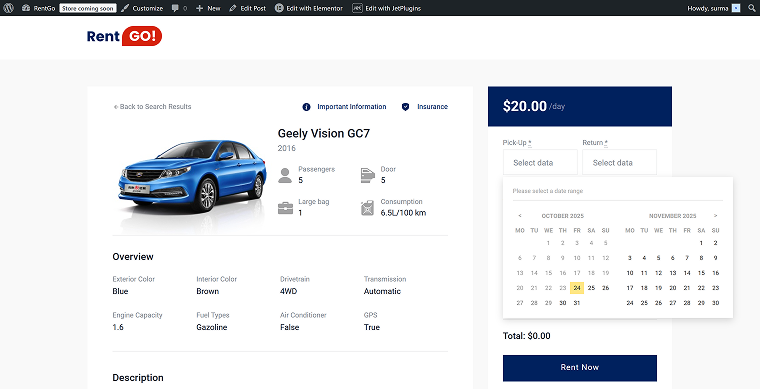
Difference between the booking calendar and the availability calendar
If I have the availability calendar, why would I use the booking calendar? Let’s compare these two elements to understand which should be used for what cases.
The availability calendar is a simple WordPress booking calendar option for sites that serves as a visual interface for easy checking availability. A simple booking calendar for WordPress is ideal for small businesses that only need to display availability. Usually, it uses colors to distinguish between available and booked dates for intuitive understanding. The availability calendar is generally used to display the service’s availability without allowing bookings or purchases.
The biggest advantage of the availability calendar is its ease of use for customers. The most logical place for the availability calendar is a single service page, so the site user can see when the required service is available straightaway.
Additionally, the availability calendar can be synchronized with iCal or Google Calendar in a “read-only” status.
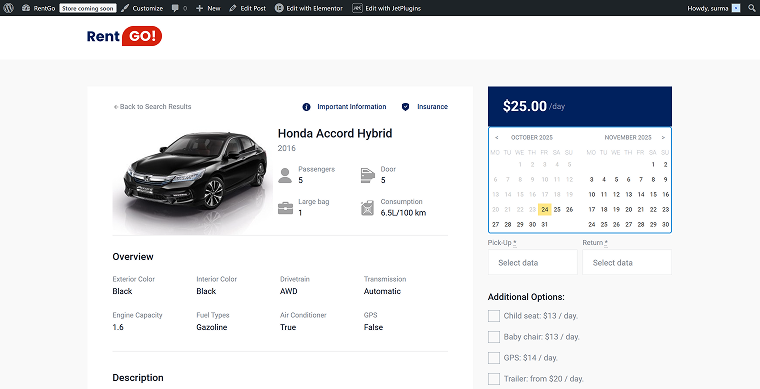
As you can see, the booking calendar offers more functionality than the availability calendar. The booking calendar is integrated into the booking form, allowing customers to select their desired dates and proceed with the booking.
Often, it provides two-way synchronization: available dates become blocked promptly after being booked. Additionally, the booking calendar can be integrated with custom meta fields, making the calendar more interactive and user-friendly.
The booking calendar is also clear for customers. The available dates are usually highlighted.
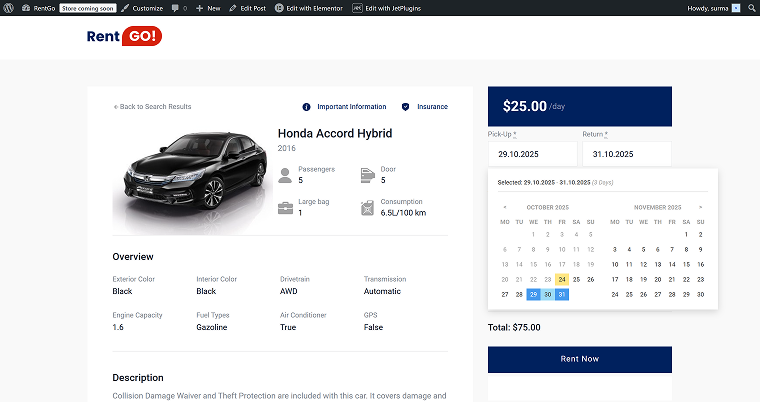
WordPress booking calendar use cases
The booking calendar can serve multiple purposes on a WordPress site, depending on the type of business. For individual instructors or freelancers, a simple booking calendar WordPress setup can be an elegant way to showcase availability without extra complexity. Let’s have a look at the following examples:
- Hotel rooms or apartment reservations — the booking calendar enables property availability management, synchronization with Google Calendar, Airbnb, and Booking.com via iCal, and support for various check-in/check-out rules, seasonal pricing, and additional services.
- Vehicle or equipment reservations — display available vehicles or tools by day, set minimum/maximum rental periods, and synchronize with external calendars.
- Events and classes — display available dates for workshops and classes using a WordPress event calendar plugin, allowing users to register directly from the calendar.
- Campgrounds or meeting rooms — manage availability per location or per unit, using post relations to connect listings to calendars.
- Tours — display available tour dates and additional services. Allow tour bookings to be submitted promptly via the form and synchronize the calendar with Google Calendar, Airbnb, or Booking.com.
Even this short list demonstrates that the booking calendar can be tailored to suit almost any business type and reservation scenario. The key is how flexibly the plugin handles Custom Post Types, meta fields, and calendar synchronization — all of which are core strengths of JetBooking, a calendar plugin for WordPress.
Google Calendar Synchronization
You can keep all the bookings on the site only — that’s fine, and it works. However, if you need to pass bookings made on your site to Google Calendar or other booking platforms, or vice versa, synchronization will be necessary.
So, which synchronization types are available, and how do you integrate them into your WordPress reservation calendar? Let’s have a closer look at the iCal and Google Calendar synchronization concepts.
What is iCal?
iCal, or iCalendar, is a versatile file format for exchanging calendar data. Usually, it is a read-only text file with the .ics extension. This file type is compatible with any modern calendar, including Google Calendar, Outlook, Apple Calendar, and others.
Synchronization is the process of exchanging data between two calendars. It can be divided into two types:
- “Pull” synchronization or import means that the calendar on my site obtains data from an external calendar. For instance, I’ve already added events to my Google Calendar, and I’d like to import them into JetBooking’s Booking Calendar. For that, I’d need the URL iCal feed (the link to the .ics file), which JetBooking reads automatically.
- “Push” synchronization or export is the opposite process: the data from my site is sent to the external calendar. So, whether it’s Google Calendar, Apple Calendar, or any other calendar, it “signs” to the .ics file from my site. Each time the system is updated, new bookings are added to the external calendar.
Of course, there is a two-way synchronization — it’s a combination of both described types. So, my site imports bookings from the external calendar while simultaneously exporting data to it.
💡 You may be wondering if there is any difference between the Google Calendar API and iCal. Let’s clarify it now.
The Google Calendar API is an advanced way to exchange data between calendars, offering its own unique features. Compared to iCal, the Google Calendar API is more complicated, requiring a Google Cloud project, an API key, and OAuth.
When the iCal feed is a public link to the .ics file, the Google Calendar API supports programmatic access through its API. Additionally, the Google Calendar API provides wider access to the data, allowing bookings to be created, updated, and deleted.
Another key aspect of the Google Calendar API is the speed of event updates: they are immediate. The iCal update can take up to 60 minutes.
Both synchronization types can be implemented through a WordPress plugin reservation calendar, such as JetBooking, which supports iCal and Google Calendar connections.
To sum up, the iCal feed works well for simple booking systems. The Google Calendar API is a better solution for complex applications or enterprise integrations.
How does the iCal synchronization work with JetBooking?
The JetBooking plugin works seamlessly with iCal feeds, supporting all three types of synchronization:
- Follow the How to Set Two-Way Booking and Google Calendar iCal Synchronization guide for a step-by-step setup.
- You can integrate your JetBooking calendar with Airbnb using this dedicated article on their website.
- You can also synchronize your WordPress booking calendar with Booking.com by following their guide.
Use Case: Booking Calendar for a Car Rental Company
Let’s take a closer look at a real use case. In this section, I will demonstrate how a car rental business can utilize JetBooking to efficiently manage vehicle reservations. This sample demonstrates the practical use of booking calendars, Custom Post Types (CPT), and synchronization.
To manage a typical car rental site, the company requires:
- each car must have its own booking calendar;
- bookings can’t overlap: no double-bookings should be made;
- dynamic pricing — price depends on rental duration;
- staff need to easily view and manage all reservations.
JetBooking is a flexible calendar plugin for WordPress that combines scheduling, dynamic pricing, and synchronization in a single system.
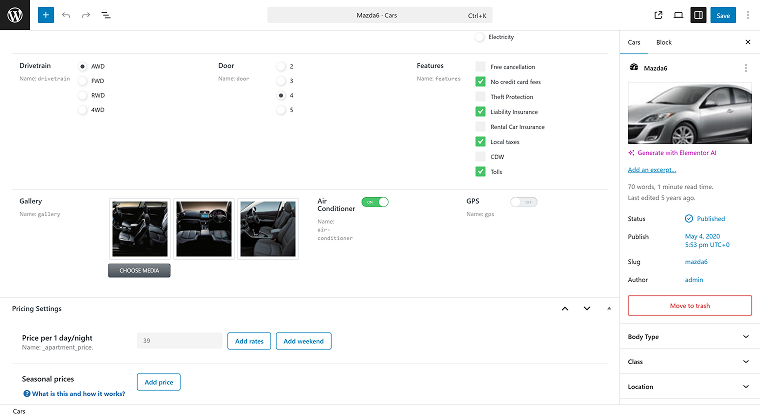
Let’s see how the site looks from the backend. Using the JetEngine plugin, I created the “Cars” CPT, where each post presents a car.
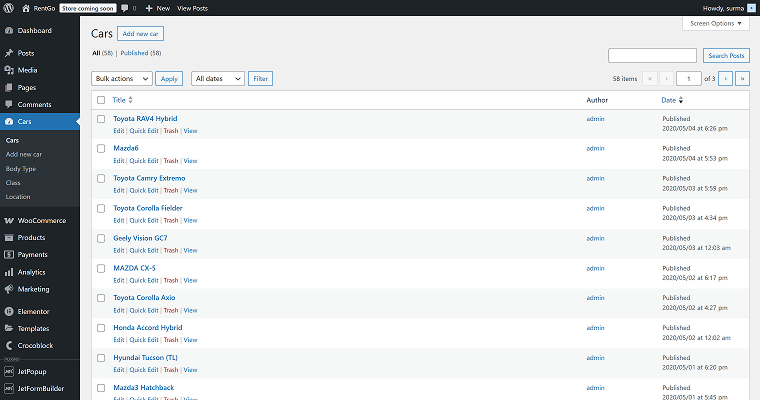
Custom meta fields are added with JetEngine, and the pricing fields are set by JetBooking.
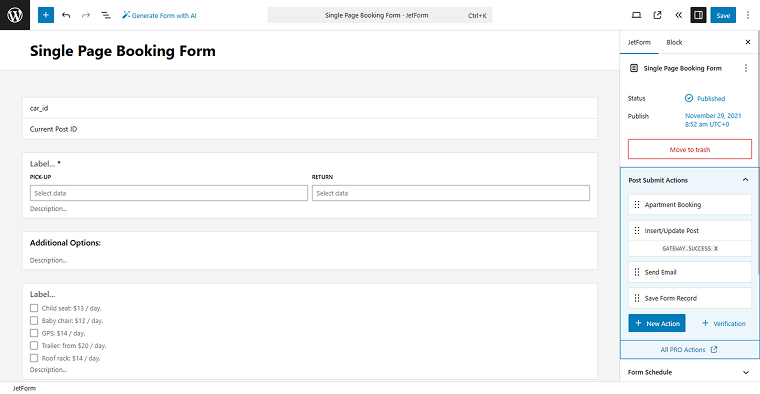
Of course, the booking form is necessary for the booking site — I’ve created it with JetFormBuilder. The setup process is straightforward — the WordPress booking calendar plugin’s logic dynamically manages vehicle availability and pricing.
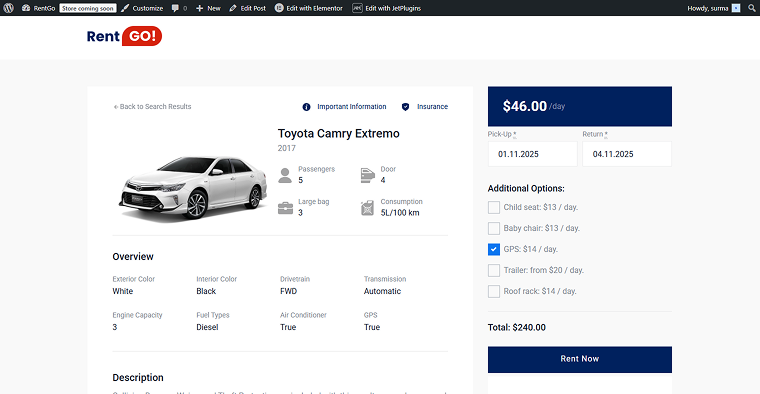
On each single car page, the booking calendar is integrated in the form. The customer can then select the desired date from the available options, choose any additional options, and make a reservation promptly.
The customer receives an email with the reservation details, and the reservation is added to their Google Calendar (to implement this functionality, see the synchronizing bookings with Google Calendar guide).
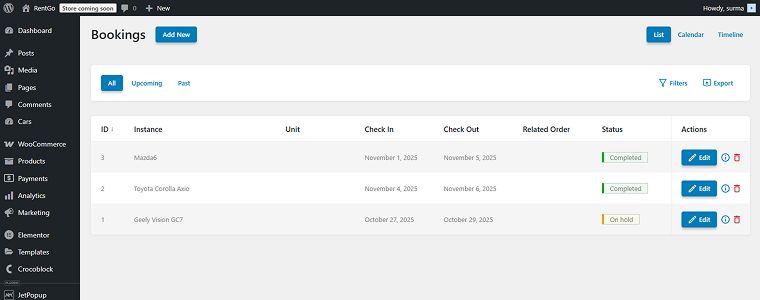
From the backend, as a site owner, I can see the booking being added to the system.
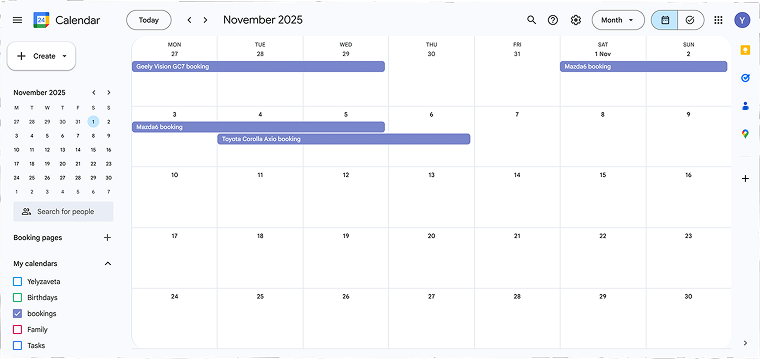
Additionally, since two-way synchronization is set up for this site, the same bookings are displayed in the connected Google Calendar.
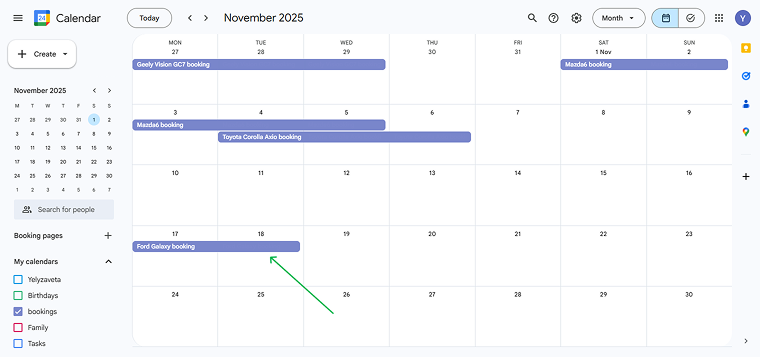
To test the booking import, I added another booking to the Google Calendar.
Then, this booking appears on the WordPress site.
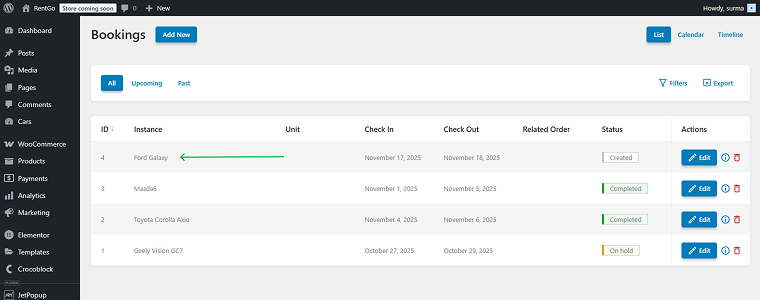
So, the admin can manage all reservations from the WordPress dashboard or through the connected Google Calendar. The same logic applies to other industries: whether you need a hotel reservation tool or a WordPress event calendar plugin for classes and workshops, JetBooking can adapt to various business types. JetBooking offers full control and flexibility, making it adaptable to any rental business. Additionally, you can see that each car has its own booking calendar, and prices change dynamically based on the car and the number of booking days.
📚 Read also: Adding Booking Functionality to Elementor WordPress Website with JetPlugins
How to Use JetBooking and JetAppointment Plugins Together
In case you are using the JetAppointment plugin, the booking calendar remains the heart of such a site.
If you are unsure about the difference between JetBooking and JetAppointment, or do not know which suits your case better, feel free to refer to our JetBooking vs. JetAppointment breakdown.
To put it concisely, JetBooking allows daily bookings, and JetAppointment offers hourly bookings. You may even use both on the same site — for example, if you own a tattoo studio and need to allow masters to reserve the studio for days, while customers can book hourly appointments.
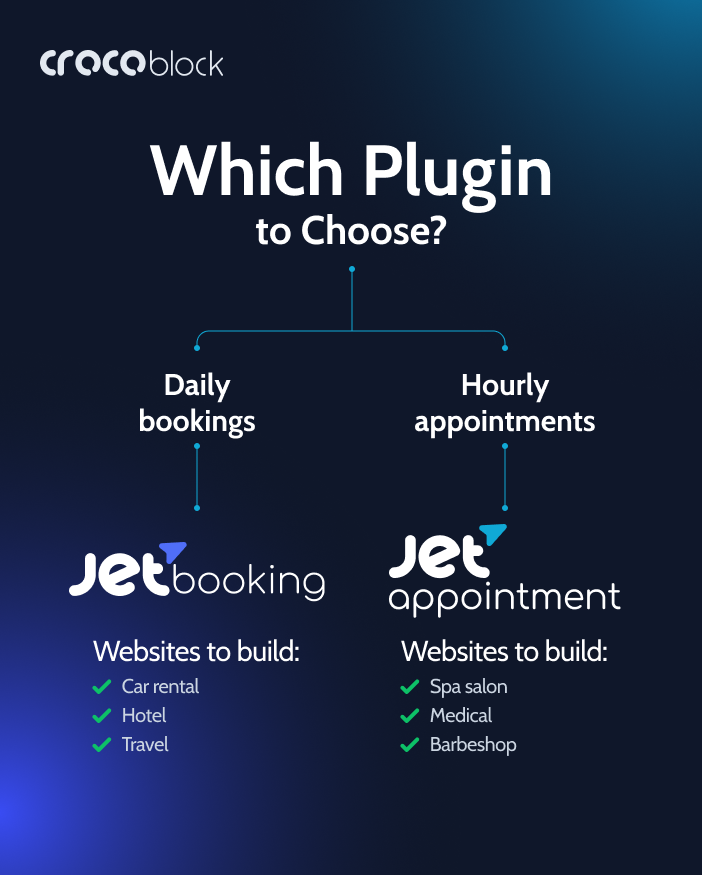
In this case, you would need to synchronize JetBooking and JetAppointment’s calendars with Google Calendar separately.
Want your JetAppointment bookings to sync with Google Calendar? Check out our guide on setting up two-way appointment synchronization with Google Calendar to see how it’s done.
So, combining two types of booking calendars and synchronizations might be an effective practice for specialized businesses. Feel free to give it a try.
Bonus: UX Booking Calendar Tips
When using JetBooking and JetFormBuilder, you will notice that the booking calendar is an integral part of the form, opening when the user clicks the check-in or check-out field. This construction operates pretty well for a simple booking site. However, let’s explore how we can further improve it and make it even more customer-friendly.
Can we merge the availability calendar and a form?
As I mentioned earlier, the booking calendar covers both visual and functional purposes. At the same time, the booking calendar is within the form and cannot be seen until the date field is clicked.
You can keep it like that, but if you need to show the calendar by itself, without clicking any buttons, you can add the Booking Availability Calendar widget alongside the JetFormBuilder’s form and connect them.
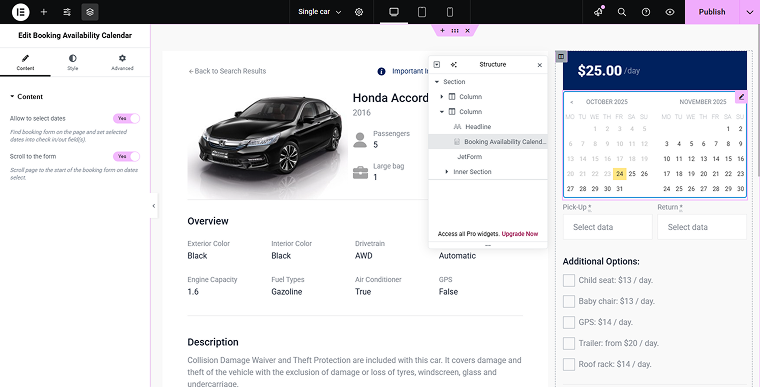
Thus, when the single service page is opened, the user can immediately see the available dates, select the desired ones, and they will be passed to the form where the reservation can be made. If your site doesn’t require advanced logic, a simple WordPress booking calendar layout can be embedded as a standalone block next to the booking form.
Setting up the calendar’s colors for intuitive perception
With the Booking Availability Calendar widget, you can easily customize the appearance of the calendar. The settings for inactive, today, and start and end dates are available in the Style tab of the widget.
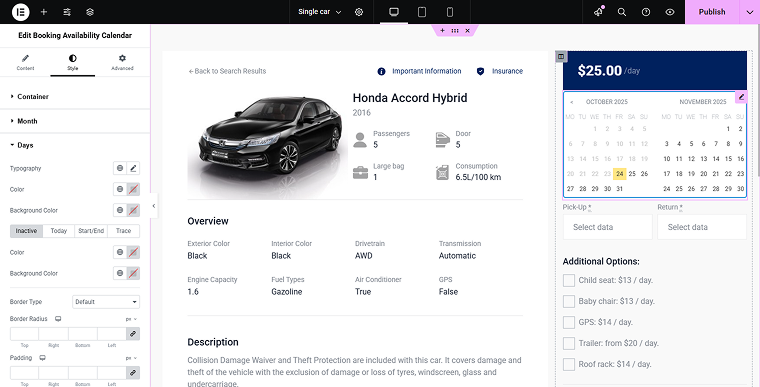
Of course, you can achieve that with custom CSS, but why reinvent the wheel when a ready-made solution already exists?
A couple of settings help to make the calendar much easier to understand at first glance. You can highlight the current date, mark unavailable dates in gray or red, and vice versa for available dates — so you are free to customize colors however you like.
Show price in the calendar
Let’s go further and customize the calendar even more. Sure, you’ve seen the travel Google Calendars, where you can see the prices for each day while searching for travel paths. Let’s see how to achieve this on a WordPress site with the JetBooking plugin.
First, navigate to the WordPress Dashboard > Bookings > Settings > Configuration, and enable the Show price in calendar toggle.
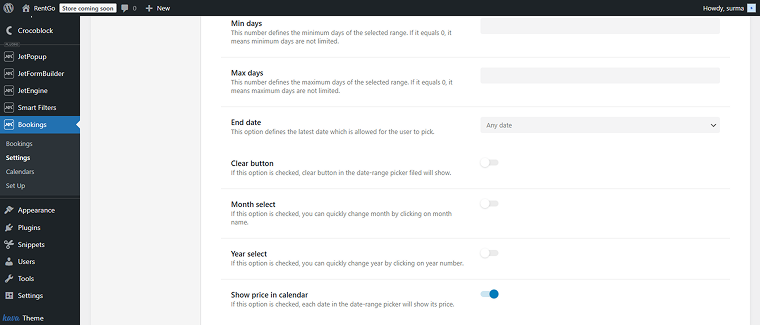
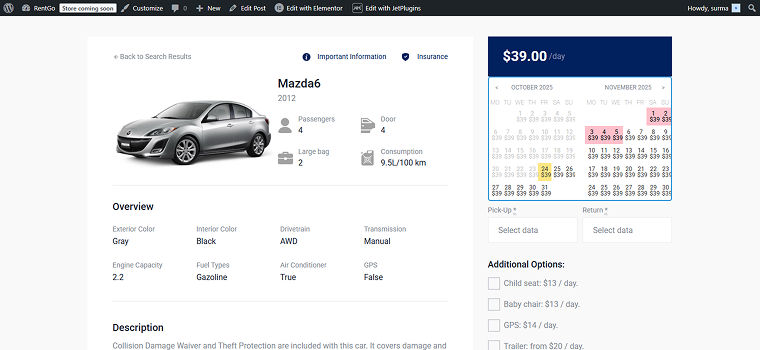
Thus, on the front end, we can see the prices for each day inside the Booking Availability Calendar.
NOTE
Showing prices in the booking calendar on the single service post would make sense if you have seasonal prices set up.
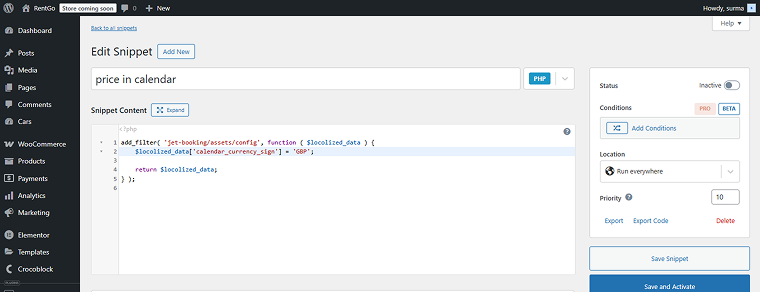
In case you need to change the currency shown in the calendar, add the following code to your site’s functions.php file or to the Code Snippets plugin or any similar plugin:
add_filter( 'jet-booking/assets/config', function ( $locolized_data ) {
    $locolized_data['calendar_currency_sign'] = 'GBP';

    return $locolized_data;
} );
Instead of the “GBP,” use the needed currency.
Here is an example of the custom CSS I added to customize the calendar’s look. It should be added to Appearance > Customize > Additional CSS. You can change it according to your needs:
.jet-booking-calendar__container .date-picker-wrapper .month-wrapper {
    border: solid;
    border-width: 2px;
    border-color: #3498db;
    border-radius: 5px;
}

.select-wrapper {
    width: 70px;
    border: 2px solid #007BFF;
    border-radius: 5px;
    background-color: #F8F9FA;
    padding: 5px;
    padding-left: 1px;
    padding-right: 15px;
    box-shadow: 0 4px 8px rgba(0, 0, 0, 0.1);
}

.select-wrapper select {
    width: 100%;
    border: none;
    background: none;
    font-size: 15px;
    color: #333;
    appearance: none;
    outline: none;
}

.select-wrapper:after {
    content: " ▼ ";
    position: absolute;
    right: 10px;
    top: 50%;
    transform: translateY(-50%);
    pointer-events: none;
    font-size: 14px;
    color: #333;
}
FAQ
JetBooking supports group bookings by allowing you to specify a minimum and maximum number of guests. However, it is not possible to book multiple services simultaneously. For recurring services, while JetBooking handles seasonal and duration-based pricing, JetFormBuilder PRO offers a PayPal Recurring Payments add-on to manage subscriptions directly through the form.
Yes, synchronization is possible through multiple methods. JetBooking offers built-in sync with Google Calendar and supports iCal/CSV exports for external schedules. For CRMs and email marketing, you can use JetFormBuilder PRO’s direct integrations (like Hubspot or MailerLite) or use a “Call Webhook” action to connect via third-party automation tools like Make or Zapier.
The official and most reliable method is through integration with WooCommerce. By choosing the WooCommerce-based mode in JetBooking’s setup, the booking seamlessly uses your configured WooCommerce checkout, supporting all its payment gateways (Stripe, PayPal, etc.). Alternatively, JetFormBuilder PRO offers payment add-ons, such as Stripe and Paypal Payments, that can process transactions directly within the booking form.
Conclusions
In this article, we examined the integral booking calendar element of the booking system. After reading it, you will understand what the booking calendar is, the difference between availability and booking calendars, and how and where they can be used. We reviewed the realistic use cases and explored the booking site setup.
The WordPress booking calendar is not just a visual tool — it is a dynamic system that makes the reservation process simple and intuitive for customers, while also helping businesses manage their time and resources effectively. Whether you rent cars, offer holiday apartments, or host events, a reliable WordPress reservation calendar keeps all the data organized and accessible.
Using JetBooking, a powerful WordPress calendar booking plugin, you can build an effective booking system inside WordPress. Each item — a car, room, or property — can have its own booking calendar, complete with dynamic pricing, availability rules, and synchronization with Google Calendar or iCal.