Job board projects have a tricky learning curve. The first 20% seems simple: create CPTs (for job entries and resumes), set up a listing to display job entries, add filters, and so on.
Then the real questions begin. How do you allow employers to edit only their own posts? How do you automatically link 500 imported vacancies to the correct taxonomy terms? How does the application form know which job it belongs to?
This article is based on real questions submitted to the Crocoblock support team by developers creating a job board with Crocoblock JetPlugins. Instead of a generic tutorial, it provides a guide to architecture decisions; what options are available, potential issues, and how live sites have solved these problems.
To clarify, we’ve included three live sites built with JetPlugins, each representing a different level of complexity.
Why Job Boards Still Matter
The numbers make a strong case for building your own platform rather than relying on general hiring sites. In industry-specific hiring, niche job boards deliver 20–25% qualified application rates, compared to just 5-8% on mass platforms, a 3-4x improvement in first-stage screening that directly reduces time and cost per hire.
The platform choice matters just as much as the niche itself. With 42% of all websites on the Internet running WordPress, it’s the natural starting point for a custom job board. And as demand for white-label recruitment portals increases by 28%, WordPress with JetPlugins provides exactly the right combination: open-source flexibility with purpose-built tools for any level of complexity.
3 Job Board Websites Built with JetPlugins
The three job listing website examples below were built with different goals, budgets, and levels of complexity, but all of them use JetEngine as the core data layer. Together, they demonstrate what the plugin stack looks like at three different points on the spectrum:
- a standalone job board with filtering and a multi-step application process;
- a full corporate HR platform where the job board with Crocoblock is part of a larger site architecture;
- a simple marketing site with a dynamic listing.
Kainjoo.com (job listing website example)
- Theme & Template: Ohio WordPress theme.
- Plugins: JetEngine, JetSmartFilters, JetPopup, JetBlocks, JetFormBuilder.
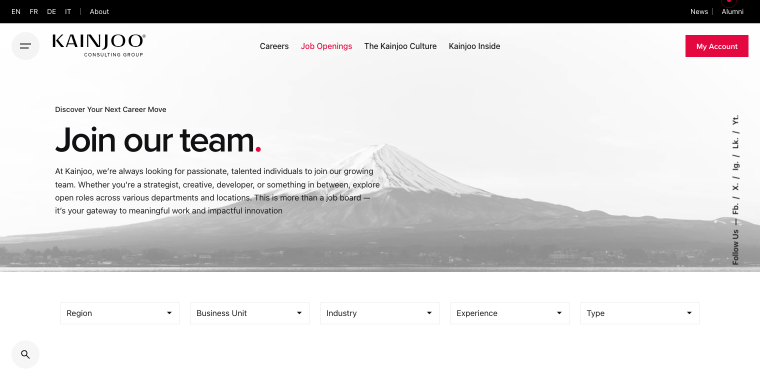
Kainjoo’s job listings page at the vacancies page demonstrates a clean multi-filter setup built with JetSmartFilters.
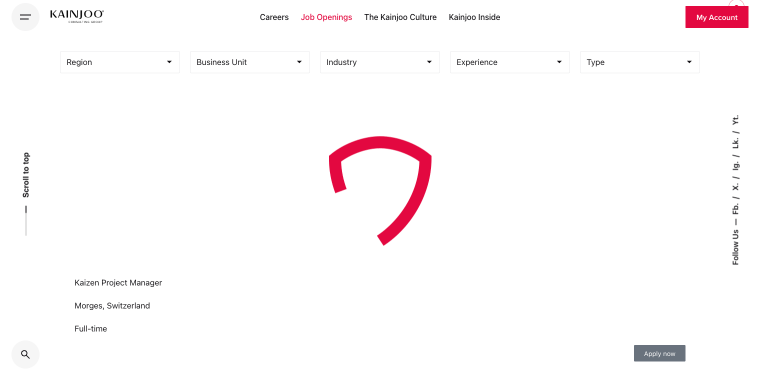
Using the Select filters, users can sort vacancies (by “Region,” “Business Unit,” “Industry,” “Experience,” and “Type”) in a horizontal row above the listing.
The vacancy list itself is a JetEngine Listing Grid that includes job title, location, and employment type, all rendered through WordPress job board JetEngine dynamic widgets, meaning the layout updates automatically as new vacancies are added in the backend.
What makes this implementation notable is the application flow. Each vacancy has an “Apply now” button that opens a multi-step application form built entirely with JetFormBuilder.
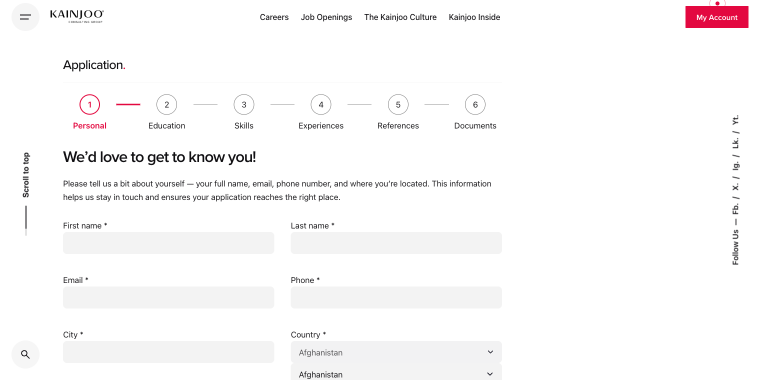
Six steps covering Personal, Education, Skills, Experiences, References, and Documents. This is a more structured approach than a single-page form, and JetFormBuilder’s multi-step functionality handles the progression natively without additional plugins.
On the single vacancy page, a sidebar Listing Grid pulls structured job metadata: Location, Engagement Type, and Department, as dynamic fields. This keeps the core job details consistently formatted across all vacancies, regardless of how each post was filled.
MILAN EXPERTS
- Theme & Template: Kava by Crocoblock.
- Plugins: JetEngine, JetSmartFilters, JetElements, JetBlocks, JetPopup, JetTabs, JetTricks, JetBlog.
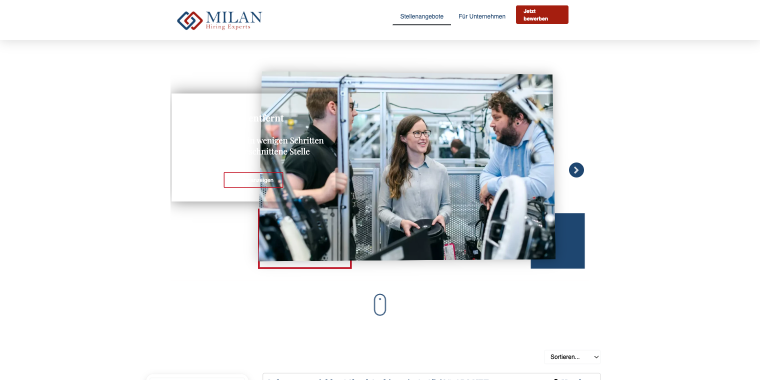
Milan Experts is a German IT recruitment agency, and their site is an example of a job board fully integrated into a corporate presence rather than built as a standalone product. Everything from the hero section to the vacancy detail page is assembled from JetPlugins.
The homepage hero uses a JetElements Slider widget with parallax sections and scroll-triggered motion effects. The sticky header is built with JetBlocks and stays fixed during scroll, a common UX requirement for job boards where users navigate between listing and detail pages frequently. The FAQ section uses the JetTabs Classic Accordion widget.
The vacancy listing at is a JetEngine Listing Grid with a sidebar filter panel built in JetSmartFilters: “Bundesland,” “Stadt,” and “Branche” dropdowns alongside a text search field.
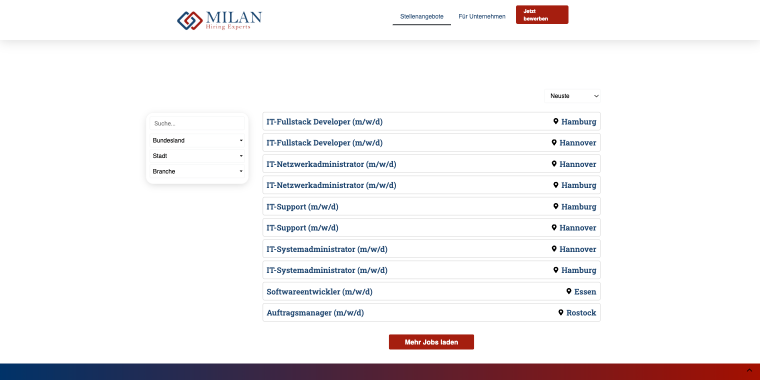
Job title and location inside each listing item are dynamic widgets pulling from JetEngine custom fields. A “Mehr Jobs laden” loads more items without a page reload.
The single vacancy page keeps the same two-column layout: job description sections in the main column, and a sidebar with structured metadata, all rendered as JetEngine dynamic fields.
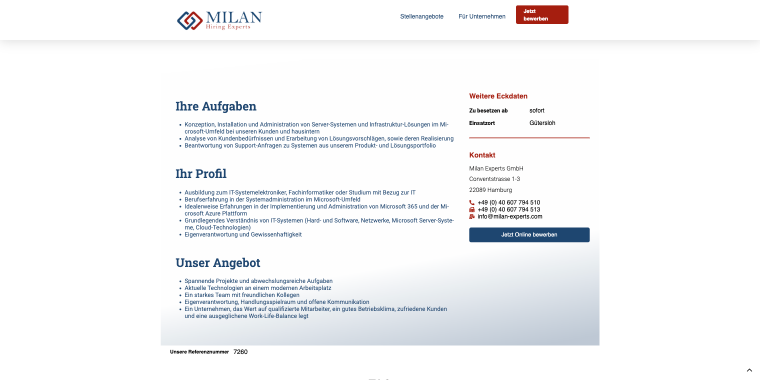
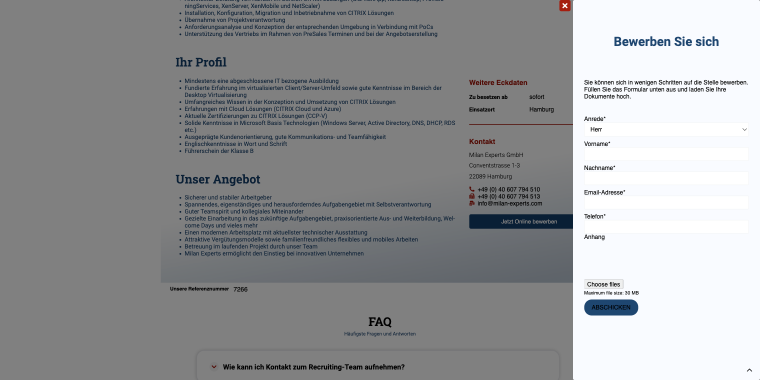
The “Jetzt Online bewerben” CTA in the sidebar triggers a JetPopup-built pop-up with the application form built with JetFormBuilder.
GetJob.co.il

- Theme & Template: Hello Elementor Child.
- Plugins: JetEngine, Elementor Pro.
GetJob is an Israeli job platform with a companion mobile app, and the site itself is a lean example of how little you actually need from JetPlugins to ship a working job board. The majority of the site is built with Elementor Pro widgets: sections, layouts, typography, and buttons. JetEngine enters the picture, specifically where dynamic data is needed.
The testimonials section is a Listing Grid, each review card with user name, photo, and text is a listing item template pulling from a custom post type or CCT, not hardcoded content. This is a small but telling detail: even on a site that’s mostly static marketing pages, the moment repeating structured content appears, a Listing Grid is the right tool.
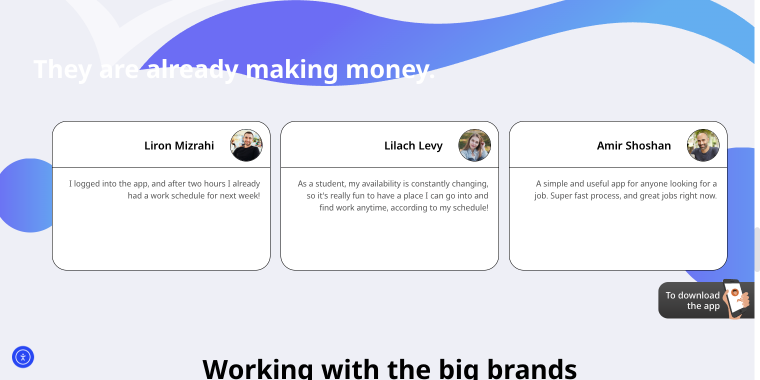
The site’s focus is the mobile app rather than the web listing itself, which explains the minimal JetEngine footprint.
The setups above answer the “what”; here’s the “how,” based on the questions developers actually ask when building job board sites.
Building WordPress Job Board Websites: Common Pitfalls and Solutions
We’ll start at the foundation: how to structure your data before you write a single template or build a single form.
Data architecture solutions
Should internal vacancies get their own CPT or share an existing one?
The instinct is often to create a separate Custom Post Type for internal vacancies. This is sometimes right, but frequently overkill.
The real question is: do internal and external vacancies share the same fields, templates, and editorial workflow? If yes, use one CPT and separate them with a taxonomy term (Internal / External). This keeps the listing logic unified, filters work across both types, and you’re not maintaining two parallel structures.
Create a separate CPT when internal vacancies have genuinely different fields, a different approval workflow, or need to be completely hidden from public listing queries.
If internal vacancies need to be visible only to logged-in employees, a visibility condition on the listing template is simpler than a separate CPT with access restrictions.
Pulling vacancies from an external source
One support request described this problem: a client needed to display vacancies stored outside WordPress and assumed they needed to write a custom SQL query to connect the CPT to that data.
The answer in most cases is JetEngine’s Query Builder. It allows you to create custom queries (including from external database tables) and feed results directly into a Listing Grid without writing a line of PHP. The query output becomes the data source for the listing, with full support for filters and dynamic templates.
If the external database is on a different server, you will need to create a REST API endpoint on your website.
Here’s the setup:
Go to WordPress Dashboard > JetEngine > Modules > Default modules and enable the REST API Listings switch.
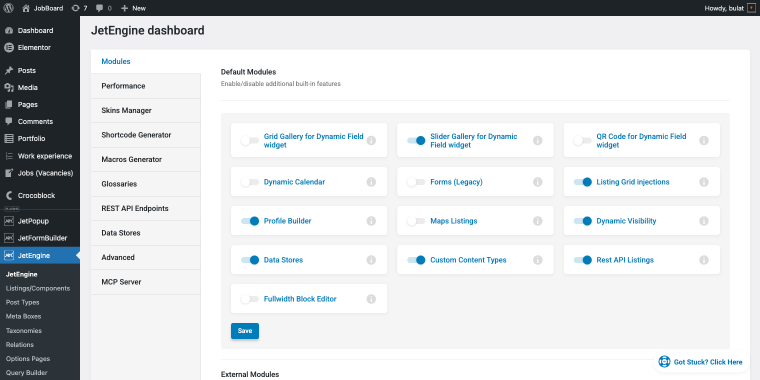
On the same page, go to the REST API Endpoints tab to create a new endpoint.
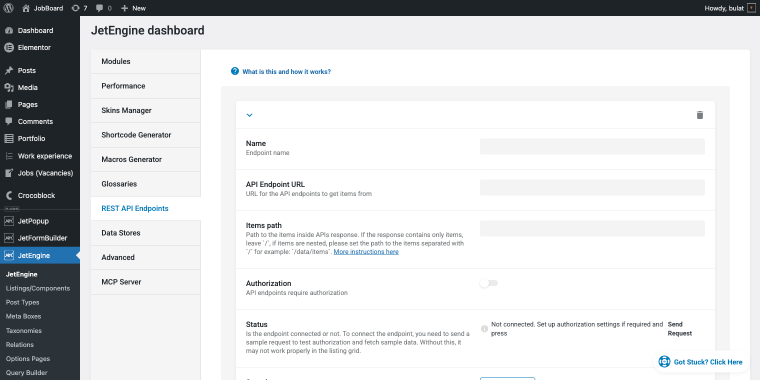
Once the endpoint is ready, go to WordPress Dashboard > JetEngine > Query Builder to create your REST API query.
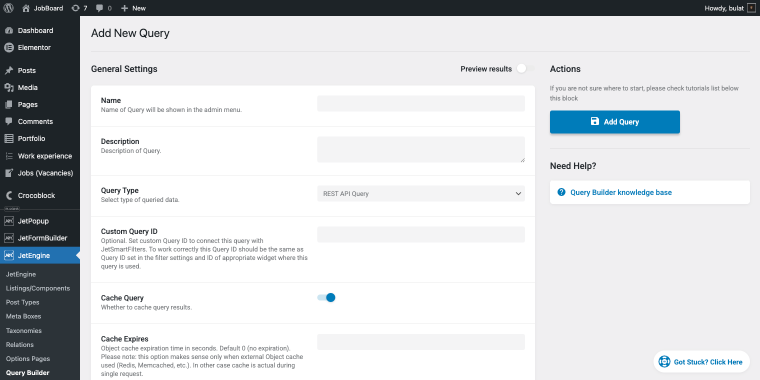
Refer to this comprehensive manual on how to set up the Query Builder for REST API items.
Using custom taxonomies for category-based archive pages
If your job board needs category pages (/jobs/accounting/, /jobs/remote/, /jobs/london/), the foundation is custom taxonomies attached to your job CPT.
In your WordPress Dashboard, go to JetEngine > Taxonomies to create taxonomies like vacancy_category, vacancy_type, vacancy_location.
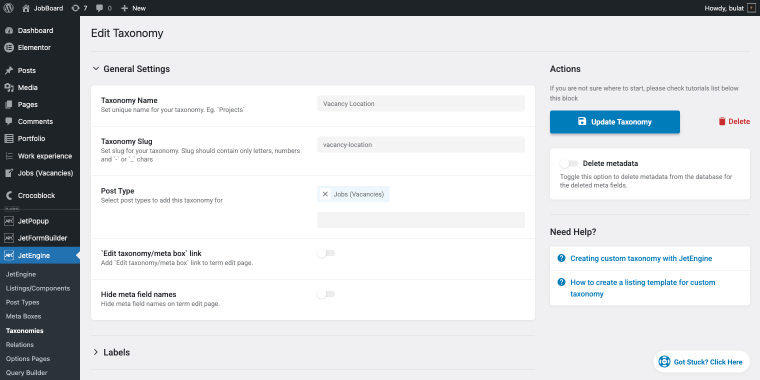
In the taxonomy settings (Post Type field), don’t forget to specify the post type that will have this taxonomy.
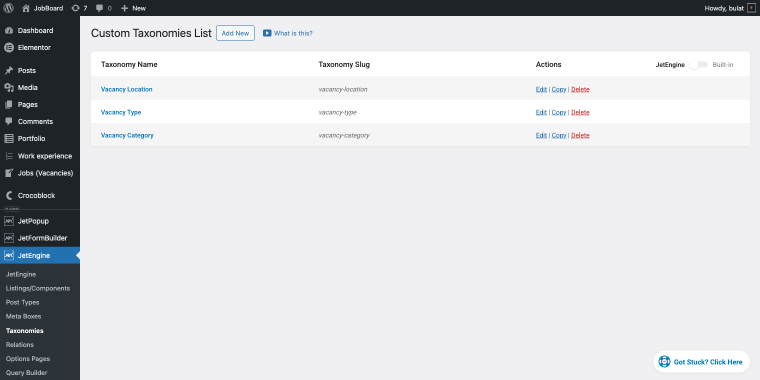
To create an archive page, you can use the JetThemeCore plugin. Feel free to refer to this manual to learn more about creating archive pages for custom taxonomies.
Templates and display
Once the data structure is set up, the next question is how to display it and where the single template, archive page, and listing grid each belong.
Building a dynamic single job template with a listing grid
Milan-Experts.com has an answer to this question. The vacancy listing is a Listing Grid where the job title and location are displayed in a clean list, with a sort dropdown and filters on the left by JetSmartFilters. Clicking any row opens a separate detail page for that specific vacancy, dynamically populated with that job’s data.
The job detail page uses a separate Single Post template, created with JetThemeCore. Inside it, every custom field (description, requirements, salary, conditions) is rendered using JetEngine dynamic widgets.
Feel free to refer to the detailed guide on creating a single page template for the Custom Content Type.
Separating archive pages for different job types
If you need /jobs/remote/, /jobs/full-time/, /jobs/internship/ as separate browsable pages rather than filtered views, the cleanest approach is to create a vacancy_type taxonomy. Each term gets its own archive page with its own URL.
The answer here is JetThemeCore, which lets you create a page template and assign it to a specific taxonomy archive via display conditions. Here’s the setup:
- Go to WordPress Dashboard > JetThemeCore > Theme Templates > Add New.
- Create a template of type Archive.
When saving, a condition pop-up appears. Set the condition to Include > Archive > your taxonomy (e.g., Job Type) > specific term (e.g., Remote).
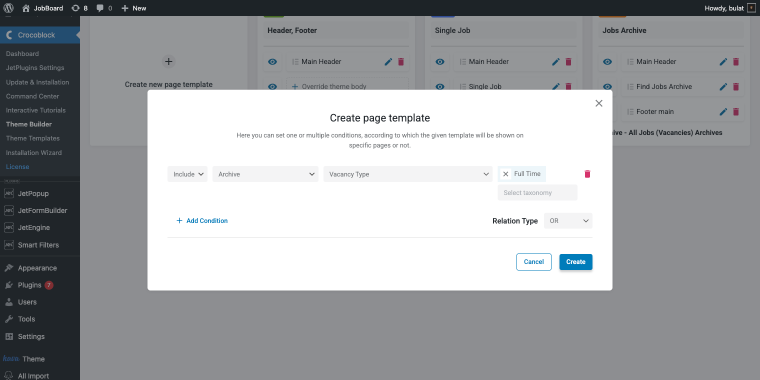
The same approach works for any taxonomy and any term combination: Vacancy Type > Full Time, Vacancy Type > Remote, Vacancy Location > Berlin. Each can get its own template with its own layout, intro text, or featured listing while all pulling from the same CPT.
How can I remove the word “Archive” from the browser tab title of a CPT archive page?
This is a minor but recurring issue. WordPress appends “Archive” to the <title> tag of CPT archive pages by default, resulting in browser tabs and search snippets that read “Archive
| Jobs | Site Name.”
If you’re using the Yoast SEO plugin, go to Yoast SEO > Search Appearance > Content Types, find your job post type, and scroll to the Archive section. The title template field will contain something like %%term_title%% Archives %%page%% %%sep%% %%sitename%%. Remove the Archives literal text and adjust the pattern to fit, for example, %%term_title%% %%sep%% %%sitename%%.
Importing and automation
With the display layer sorted, here’s how to manage the less glamorous but equally important task: importing vacancy data into WordPress at scale.
Assigning taxonomy terms during bulk import
When importing hundreds of vacancies from a CSV, manually assigning taxonomy terms to each post is not realistic. WP All Import handles this in the Taxonomies, Categories, Tags section of the import mapping.
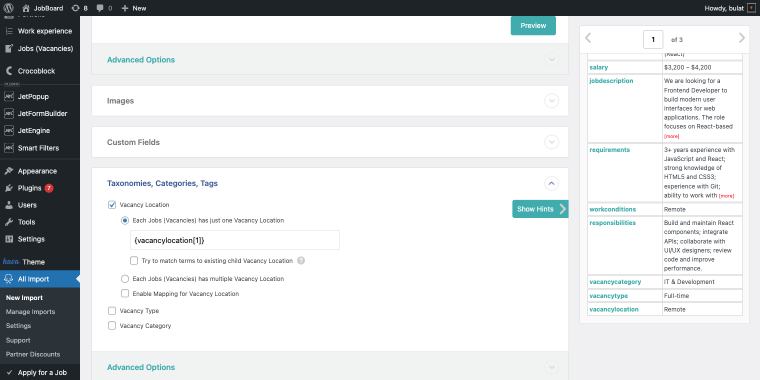
The setup: for each taxonomy (Vacancy Location, Vacancy Type, and Vacancy Category), check the box and set the value source to the corresponding column in the CSV using XPath notation {vacancylocation[1]} for a column named vacancylocation, for example.
WP All Import will match the value to an existing term or create a new one if it doesn’t exist.
Please note!
Typos in the CSV create new taxonomy terms silently. Full Time, Full-Time, and Fulltime will become three separate terms. Clean the source data before importing, or use the Mapping option to normalize values.
Roles, access, and forms
The final layer is access control: who can post, who can apply, and how the forms identify which job or user they’re related to.
Restricting employers to editing only their own posts from the front end
This is one of the more complex requirements in a job board, and one that’s already solved in the LaborTime dynamic template. The implementation uses User Role Editor alongside JetEngine. The approach has two layers.
User Role Editor creates a custom Employer role with limited capabilities, specifically, the ability to edit posts but only their own (“edit_posts” without “edit_others_posts”). This is a WordPress capability, not a JetEngine setting.
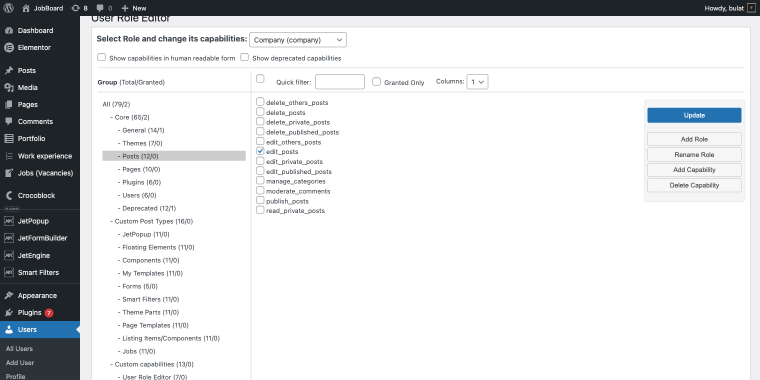
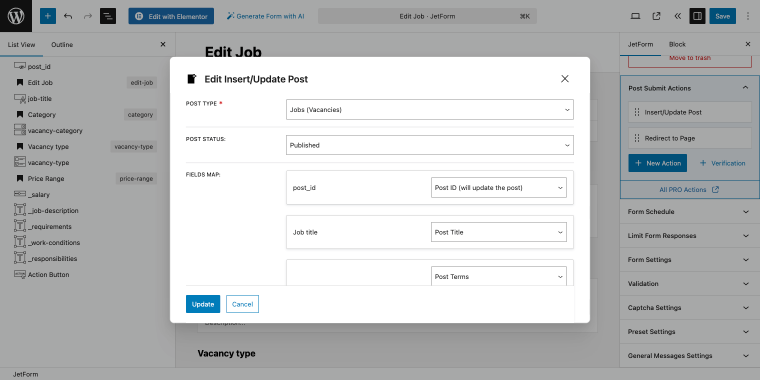
The front-end edit form is built with JetFormBuilder. The vacancy edit button is displayed conditionally, only to the Company user role.
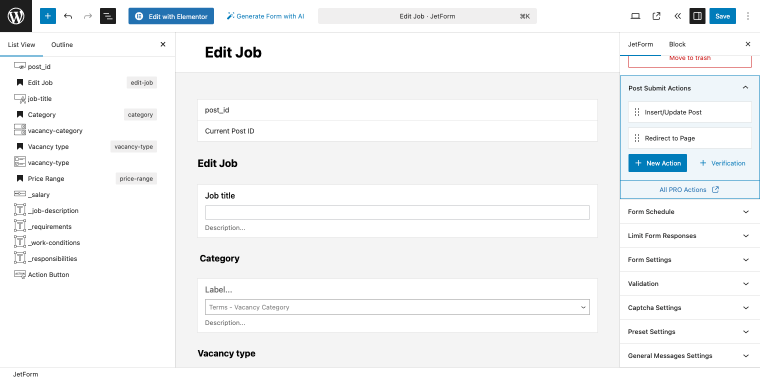
The vacancy editing form makes use of the Insert/Update Post post submit action that updates the Job CPT.
Prepopulating an application form with job and user data
When a candidate submits an application, the form should capture two things automatically: who is applying and which job they’re applying for. JetFormBuilder’s preset system handles both without URL parameters or custom code.
Let’s have a look at the LaborTime dynamic template, once again. The “Apply” button lives on the single job post template, visible only to users with the Employee role (visibility condition).
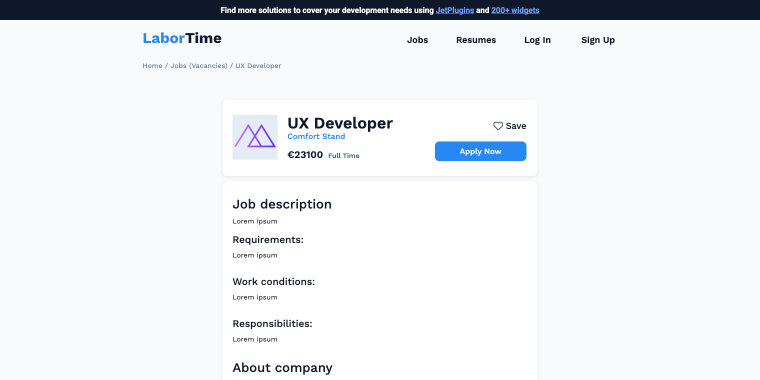
Clicking it opens a JetPopup-built pop-up containing the application form. The pop-up inherits the context of the page it’s opened on, which is the single job post.
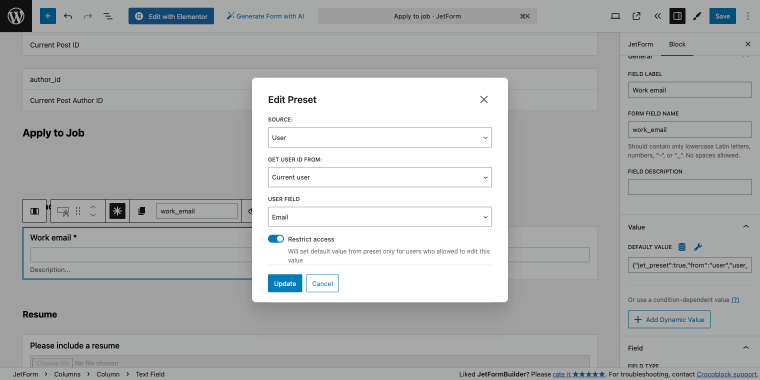
For fields like Work email, open the block settings in JetFormBuilder and click the Preset icon next to DEFAULT VALUE. Set SOURCE to “User,” Get User ID From to “Current User,” and User Field to “Email.” The field will be populated from the applicant’s account profile automatically.
Please note!
If the applicant is not logged in, the “Apply” button should be hidden from guests entirely and should be replaced with a “Log in to apply” prompt for guests.
FAQ
JetEngine is the most practical choice if you need dynamic listings, user-based access control, and a Query Builder, all without writing custom PHP. For anything beyond a basic static jobs page, it significantly reduces development time.
Yes, and the market data backs this up. According to Mordor Intelligence, job boards account for roughly 44-45% of the entire digital hiring segment, making them the single largest category in online recruitment. Video interview platforms and assessment tools are growing fast, but they plug into job boards; they don’t replace them. The real question isn’t whether to build one, but what niche to serve: a specialized board delivers better candidate qualification rates than a generic platform. That’s exactly the kind of project WordPress and JetPlugins are built for.
The absolute minimum is JetEngine (for CPTs, listings, and dynamic templates) and a page builder, Elementor or Bricks. Add JetSmartFilters if users need to filter vacancies, and JetFormBuilder if you want on-site application forms. JetThemeCore is only needed if you’re building custom archive or single templates outside the page builder.
Yes, but query optimization is important. Use the Query Builder to limit post counts per request, enable lazy loading, and ensure your taxonomy terms are indexed. For very large datasets, consider moving vacancy data to a separate database table and querying it via REST API instead of storing everything as WordPress posts.
The cleanest approach would be creating custom user roles. Then build a front-end submission form in JetFormBuilder using the Insert/Update Post action. Display the form only to the Employer role via a JetEngine visibility condition. This way, employers can create and edit their own listings, and nothing else.
Yes, and it’s a common pattern. Create a separate CPT for resumes with custom fields for skills, experience, and availability. Use a Listing Grid to display resume cards with JetSmartFilters for recruiter-side filtering. Access control works the same way as for vacancies: job seekers can manage their own resumes via a JetFormBuilder front-end form, while employers can only view resumes (no editing).
Not always. Elementor Pro has its own theme builder that manages single post and archive templates. JetThemeCore becomes useful when you need more specific display conditions, such as assigning a different template to a particular taxonomy term (/jobs/remote/ vs. /jobs/full-time/) or when you want to better integrate with JetEngine’s dynamic conditions system tightly.
Conclusion
A WordPress job board isn’t a single plugin you install; it’s an architecture decision you make.
The three sites in this article: Kainjoo, Milan Experts, and GetJob, each made different tradeoffs, and all of them work well in production because they matched the plugin stack to the actual requirements.
The most common support request patterns aren’t about individual features. They focus on the intersections: how the CPT structure influences filter performance, how user role setup determines what JetFormBuilder can do, and how the import process shapes the taxonomy data that listings depend on.
The most common support questions aren’t “how do I use this feature” or “why isn’t my setup working the way I expected.” That’s usually a sign that the data architecture was built after the front end, not before it. Get the CPT and taxonomy structure right first, and the display and form layers will fit into place naturally.