Building a local business directory in Divi used to mean a frustrating compromise, because many have picked Divi because of the visual builder, but then you hit the wall every directory project hits: custom fields, dynamic listings, AJAX filtering, map clustering, taxonomy relationships. None of it is what a page builder is built for, or even has many tools to be easily integrated with this builder. So you have to bolt on a directory plugin and accept that half your site would look like the directory plugin’s templates rather than your own design – so when to deal with Divi then?
That gap has narrowed considerably in 2026 with the new Divi 5 and Crocoblock integration – it allows you not just to turn the site into a standard directory but vice versa, build a very flexible and powerful directory functionality on top of your existing site, without messing up design or breaking a budget on a set of plugins and layouts.
powered by Divi-5 dynamic?
So here, I will go into detail about creating a Divi business directory with Crocoblock and mention other tools that can also do the job, but not as flexibly.
Next-Gen Business Directories With Crocoblock JetEngine and JetSmartFilters (2026)
Crocoblock officially released JetEngine and JetSmartFilters support for Divi 5 in April 2026, and for directory builders, this is the most significant change to the Divi ecosystem in years.
The two plugins ship through a free Divi Integration Addon that’s bundled with any active Crocoblock subscription. Every JetEngine and JetSmartFilters module appears natively in the Divi 5 Module Library, including CPT (Custom Post Type) and custom taxonomy support, relations, as well as dynamic fields, maps, images, and so on, plus the full filter set including search, range, checkboxes, select, alphabet, sorting, and date filters.
So, here is the functionality this combo offers:
- custom post types and taxonomies for business listings;
- dynamic maps;
- user geolocation;
- map sync;
- many filters, including location and distance filter;
- QR-code generator for quicker scan;
- AI-website structure builder for quicker setup;
- MCP server support and command line to integrate AI, if needed.
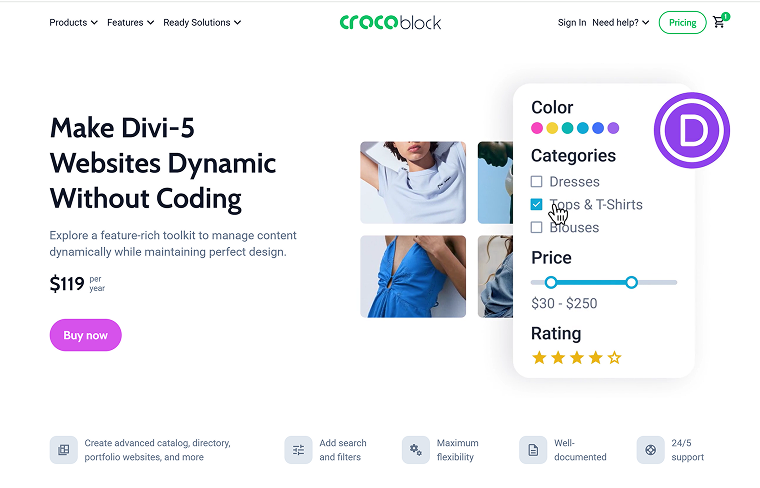
Why does the Divi + Crocoblock combo matter specifically for directory/listing websites?
So, Crocoblock integration for Divi means two powerful plugin support added: JetEngine and JetSmartFilters.
What does JetEngine do for a directory website?
JetEngine handles the data layer that Divi was never designed for. You create custom post types for businesses, taxonomies for categories and locations, and custom fields for everything a listing needs:
- phone numbers;
- hours;
- price ranges;
- geolocation;
- social links;
- photo galleries;
- repeaters for menu items or services, etc.
You can also build relationships between listings (e.g., a business belongs to a city, has multiple locations, lists several services), which is essential the moment your directory grows past a flat list.
JetEngine then lets you design a dynamic loop (called Listing template in JetEngine) visually inside Divi using its dynamic modules, and that template gets rendered automatically for every entry.
What does JetSmartFilters do for a directory website?
JetSmartFilters handles the front-end experience. AJAX filtering means users refine results without page reloads, which is now the baseline expectation for any directory site. You get 15+ filter types, geolocation/map filtering, sorting controls, and pagination, all working against the same listing grid you built in Divi.
The two work together as one system. A filter you place on the page knows which listing grid it controls, what fields exist on the underlying post type, and what taxonomy values are available. That tight coupling is the thing third-party directory plugins genuinely cannot replicate, as they each have their own data model, their own filtering, and their own templates that you fight against to make Divi-native.
This combo doesn’t have pre-built gated features, so you are constructing the directory from scratch, which is exactly what makes it flexible enough to fit any niche but also means more setup time than a plug-and-play option.
If you want to build a job board, real estate site, restaurant guide, or services marketplace and have it look exactly the way you want, this is now the path of least resistance in Divi.
If you need a form plugin (and you will definitely need it for creating forms), install JetFormBuilder. It’s a builder-agnostic plugin, and you can style it right in the Block Editor with the built-in styler. Then, insert it using a shortcode into the Divi editor.
You can use most of the guides from Crocoblock website made for JetEngine and JetSmartFilters and Elementor, as the idea and the workflow are the same for Divi.
How to Create a Directory and Classified Website With Divi and Crocoblock
Step 1: Set up the foundation
After installing WordPress on your hosting and activating the Divi 5 theme, either install Crocoblock through the dedicated JetPlugins for Divi package or, if you already hold a Crocoblock subscription, install the free Crocoblock plugin and head to Crocoblock > Updates & Installations to enable the Divi Integration Addon along with JetEngine and JetSmartFilters.
After activation, the Divi installation wizard launches automatically. In JetEngine > JetEngine, activate the modules you will need:
- Maps Listings (for location-based output);
- Grid Gallery for Dynamic Field (optional, for image galleries on listing cards).
In JetEngine > Map Settings, set up the map provider and insert the API key if needed.
For better results, it’s recommended to use Google Maps, as they support address autocomplete and other advanced features.
Step 2: Create a custom post type for your listings
Go to JetEngine > Post Types > Add New.
Let’s call the first one “Businesses” and set the slug to businesses. Under Meta Fields, add the fields each listing will need – for a local business directory, that usually means:
- address (map, and choose “Location Address” in the field type);
- phone (text or number);
- website (text);
- gallery (gallery);
- featured (switcher – for marking premium listings).
And, of course, you can add many more fields.
In the Advanced section, activate the thumbnail and editor support for the feature image and long description. Certainly, you can create dedicated custom fields for them instead.
You will now have a Businesses item in your WordPress sidebar where you can add actual business listings. Create at least one demo listing.
Now, create a template to display your new custom post type in Divi > Theme Builder and add a new template, choosing Businesses > All Businesses. Create a template for the post type as usual. To display custom fields for your CPT, use the JetEngine Dynamic Field module. For images, use the Dynamic Image accordingly.
Now, you can see how your demo content looks on the front end.
Step 3: Add taxonomies for categories and locations
Go to JetEngine > Taxonomies > Add New and create two: Business Categories and Locations. Attach both to the Businesses post type.
Then, in the Businesses > Business Categories, add the categories (e.g., restaurants, salons, mechanics, etc.). Do the same for Locations (e.g., cities, neighborhoods, regions). These taxonomies become the backbone of your category and location filters.
💡 Read this article to know the difference between taxonomies and categories.
Step 4: Build the Listing Template in Divi
Now, it’s time to display your listings. That’s why it would be better to add more demo posts. Go to JetEngine > Listings/Components > Add New Item.
Use the settings:
- Listing source: Posts;
- From post type: Businesses;
- Listing item name: Business Card;
- Listing view: Divi.
Click “Create Listing Item” to open the Divi builder. This is where you design one card, and Divi will repeat it automatically for every listing. Build the structure you want using JetEngine’s dynamic Divi modules:
- Dynamic Image module – set source to Post thumbnail for the featured image.
- Dynamic Field modules – one for the title (source: Post title), one for the address (source: Meta Data > address), one for the phone, etc.
- Dynamic Link module – you can use it for buttons and links with advanced settings.
- Dynamic Terms module – outputs the category badge.
Style it with Divi’s normal Design tab, as fonts, colors, spacing, and hover effects all work the way they do in any other Divi module.
Step 5: Create the directory page
Create a new WordPress page called Directory. Open it in the Divi builder and add a Listing Grid module from the JetEngine section. In its settings:
- Listing: select Business Card (the template you just made);
- Set up columns and posts per page.
Save and preview: you should see all your sample businesses rendered in the card design you built. If you don’t, check that the Listing Grid is pointing at the right listing template and that your sample posts are published.
It’s very good practice to use Query Builder for setting up your query and then applying it in the Custom Query section of your Listing Grid. This approach ensures flexibility, hundreds of options for data querying, caching, and performance. You can mix and match different loop templates (listing templates) with different custom queries. However, don’t mix up Divi loops with JetEngine loops – they are separate entities.
Map listing in the directory page
The previous setup with a Listing Grid will display a grid of posts (or a list, if you choose one column). But surely, we want to display them on a map. That’s why add a Map Listing module and specify the listing name and the address field. You can also set up a map size, pop-up settings, and many more details for your map.
You can place the map above, below, or side-by-side with your Listing Grid to have the preview.
You can achieve a result similar to one shown on this demo site.
Step 6: Build the AJAX filters
Go to Smart Filters > Add New and create the filters your directory needs. For a typical local business directory, let’s add two filters by taxonomies:
- Business Categories: filter type: Checkboxes List, data source: Taxonomies, taxonomy: Business Categories. Name it Filter by Category.
- Location select: filter type: Select, data source: Taxonomies, taxonomy: Locations.
Save each filter.
Add more filters according to your custom fields. Use the JetSmartFilters documentation – it all works for Divi, even if it uses another builder for the examples.
Now, open your Directory page back in Divi. Add a row above (or a sidebar column beside) the Listing Grid. Drop in the corresponding filter modules (Checkbox filter, Select filter, etc.), and for each one:
- Select Filter: pick the filter you’ve just created;
- This filter for: JetEngine Listing Grid;
- Apply type: AJAX (so the page doesn’t reload);
- Apply on: Value Change or Button (instant filtering or on button click).
Save the page. Open the front end and try the filters.
Step 7: Add submissions, monetization, and search alerts (optional next steps)
The core directory is now functional. To extend it:
- Front-end listing submissions – pair JetEngine with JetFormBuilder (free) so business owners can submit listings from the front end.
- Pricing/featured listings – use JetEngine’s Dynamic Visibility on the “featured” switcher field (add it in this case) to highlight premium entries, and gate submissions behind a payment using JetFormBuilder’s payment integrations.
- Sorting – add a Sort Filter (price, alphabetical, newest) above the Listing Grid.
That’s it. Besides that, you can add user profile functionality and turn it into a full-fledged membership website.
Other Directory Plugins and Solutions
GeoDirectory (Freemium)
🏆 Best for location-heavy directories with maps.
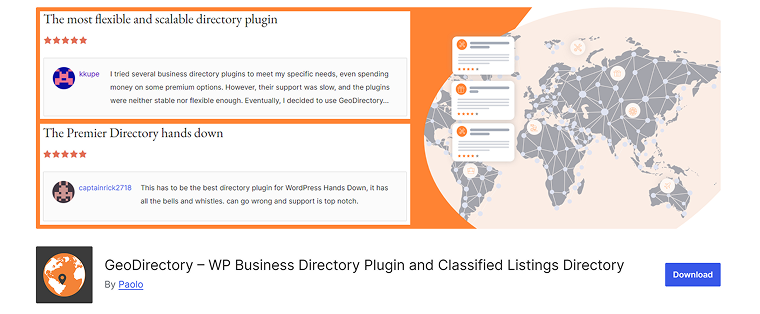
GeoDirectory has been the go-to choice for location-based listings for years, and it’s officially compatible with Divi 5. Where it shines is anything geo-anchored, and it has solid Google Maps integration with clustering, radius search, and country/region/city hierarchies.
Pros and cons:
- It comes with its locked-in system of CPTs and templates.
- The free core is genuinely useful, but most serious projects end up needing add-ons (events, pricing manager, claim listings, advanced search), which pushes you into a membership starting at $229/year.
- It scales well to large datasets, which is why it tends to win out for directories that expect to host thousands of listings rather than hundreds.
Directorist (Freemium)
🏆 Best feature-rich starter with multi-directory support.

Directorist covers a working directory in its free version: custom fields, search filters, front-end submission, and basic monetization. Its standout feature is multi-directory support – several directory types under one installation.
Pros and cons:
- good Divi compatibility, though some styling friction reported;
- active Divi-extended ecosystem and responsive support team;
- the Pro version starts at $149/year.
Listdom (Free with paid add-ons)
🏆 Lightweight option with a dedicated Divi add-on.

Listdom is often overlooked, but it has a Divi add-on for designing listing detail pages, cards, and map info windows with Divi modules. The core plugin includes 14+ search filters, front-end dashboards, Google Maps, and unlimited custom fields.
Pros and cons:
- lighter than GeoDirectory or Directorist, and features or limitations depending on the project;
- real Divi design control without committing to a full dynamic-content plugin.
- best fit for smaller directories.
Business Directory Plugin (Freemium)
🏆 Simple, works for small directories.
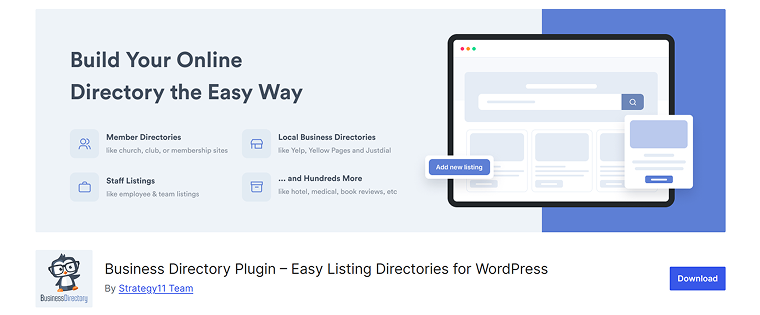
Business Directory Plugin still has a place for genuinely small projects – a chamber of commerce, an internal company listing, a niche hobby community. Free and simple to configure.
Pros and cons:
- no advanced filtering or fancy maps;
- Divi handles surrounding pages while the plugin handles the directory;
- best fit for very small, low-budget directories where simplicity beats features;
- the paid version starts at $99 per year for one site.
FAQ
Not really, as Divi is a page builder, not a directory engine. You can design listing pages and use the Loop Builder for basic post lists. Still, for custom fields, front-end submissions, AJAX filtering, and map search, you will need a directory plugin like JetEngine + JetSmartFilters (from Crocoblock) or GeoDirectory paired with Divi.
Yes. JetEngine and JetSmartFilters have officially supported Divi 5 since April 2026 through the free Divi Integration Addon, which adds all JetEngine and JetSmartFilters modules natively. Existing Crocoblock subscribers get the add-on at no extra cost from Crocoblock > Updates & Installation.
For dynamic, fully-custom directories, the JetEngine + JetSmartFilters combo is now the strongest option in the Divi ecosystem because both work as native Divi modules. For location-heavy directories with Google Maps as the focus, GeoDirectory can be a good choice. For a feature-rich starter with front-end submissions out of the box, Directorist is the easier pick.
No, as every plugin in this guide is built for no-code use through the Divi Visual Builder. JetEngine and Divi together let you create custom post types, listing templates, and AJAX filters entirely visually.
Yes. JetEngine has a Maps Listing module with geolocation filtering through JetSmartFilters.
Takeaway
Building a directory in Divi has always been a tradeoff between design control and functionality. With the JetEngine + JetSmartFilters Divi 5 release in April 2026, it closed the biggest gap: native dynamic content and AJAX filtering inside the Divi builder, designed visually like every other Divi module.
That said, the best plugin for your directory depends on what you’re actually building. A neighborhood restaurant guide isn’t the same project as a national service marketplace, and the data structure decisions you make on day one are the ones that hurt most to undo later.