You’ve added a live chat widget to your WordPress site. Visitors can reach you in seconds. Problem solved, right?
The numbers back that up:
- 53% of companies resolve most complaints during the first live chat interaction;
- 60% of customers say they’re more likely to revisit a website that uses it;
- shoppers between 18 and 49 prefer live chat over any other support channel.
For catching visitors before they leave, live chat genuinely works.
But not quite for everyone. If your site has registered users (customers with accounts, buyers with active orders, members mid-journey), you’ve likely noticed that live chat doesn’t fully meet their communication needs. Order questions still land in your inbox. Site admins still get confused about which service the user is referring to. Guests and real estate agents still coordinate over WhatsApp or Telegram because there’s nowhere on-site to do it.
That gap matters: Salesforce research shows 96% of customers say a tailored experience drives loyalty. Live chat handles the first contact well, but a tailored experience for logged-in users requires something built around their context, not a generic widget.
Live chat vs messaging in WordPress are built for entirely different moments in the user journey, and using the wrong tool in the wrong place can be detrimental.
This article will explain the differences and will show some nice WordPress live chat alternative use cases for a portal messenger in WordPress.
Portal Messaging vs Live Chat: What’s the Real Difference?
The easiest way to see the distinction is through two scenarios that look similar on the surface but need completely different tools.
Scenario A
A first-time visitor lands on your store’s product page. They’re unsure about sizing and won’t commit without an answer. They need a response within the next two minutes, or they’ll close the tab.
This is exactly what live chat is built for: immediate contact, no account required, and a real-time response.
Scenario B
A customer who placed an order four days ago wants to change a color detail before production starts. They’re already logged in, know their order number, and are willing to wait an hour for a reply, as long as the response addresses their specific order rather than going through a generic support queue.
What they need is portal messaging: a private, persistent thread tied to that order and accessible within their account.
The structural difference comes down to four things:
| Live chat | Portal messaging | |
|---|---|---|
| Who can start a conversation | Anyone, including anonymous visitors | Registered users only |
| When it’s designed for | Right now, in the moment | Workflow-based chat WordPress across the user journey |
| Context the tool carries | None (or minimal) | Bound to an object: order, product, booking, listing |
| Where data lives | External SaaS | On your server, inside user accounts |
Some tools try to do both, but they can be quite expensive.
When live chat plugin WordPress is the right choice (and its limits)
Live chat earns its keep at the top of the funnel, anywhere anonymous visitors need to make a decision, and hesitation is the enemy of conversion.
Where live chat genuinely wins:
- pre-purchase questions that need a same-session answer (“Does this come in XL?”, “What’s the return policy?”);
- high-traffic stores where the first-contact window is short;
- SaaS onboarding where the first five minutes determine whether a user sticks around;
- simple support triage for anonymous visitors.
If those are your primary use cases, a tool like Tidio, Tawk.to, or Crisp is a reasonable fit.
JetMessenger Use Cases for Portal Chat WordPress: Booking Platform, Marketing Agency, and WooCommerce Chats
Once you decide that portal messaging is the right approach for logged-in users, here’s what we can do for the three most popular niches using the JetMessenger private messaging plugin for WordPress.
Use case 1: Property booking platform
Any real estate listing site is built around individual property pages, each with photos, specs, and an agent contact block that displays contact information for all booking-related chat questions.
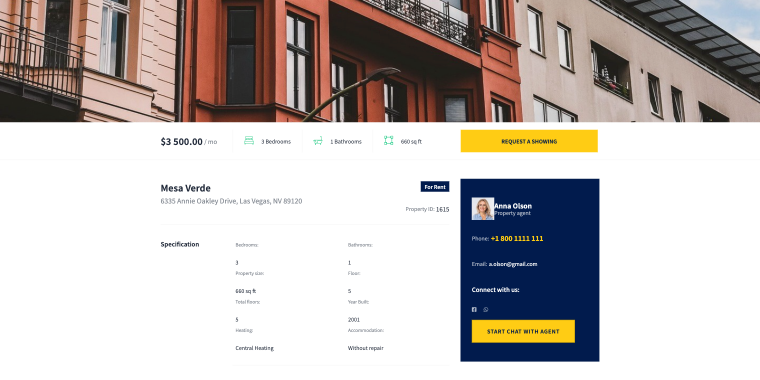
As a rule, it’s enough information to reach out, but every channel takes the conversation off-site:
- a phone call with no written record (if you have a busy schedule and the same user reaches out in a few days, I doubt they will be remembered);
- an email thread disconnected from the listing;
- a WhatsApp exchange that the platform never sees.
With the JetMessenger WordPress messaging solution, a “Start chat with agent” button can be added directly to that contact block. We’ll need a Start New Chat element.
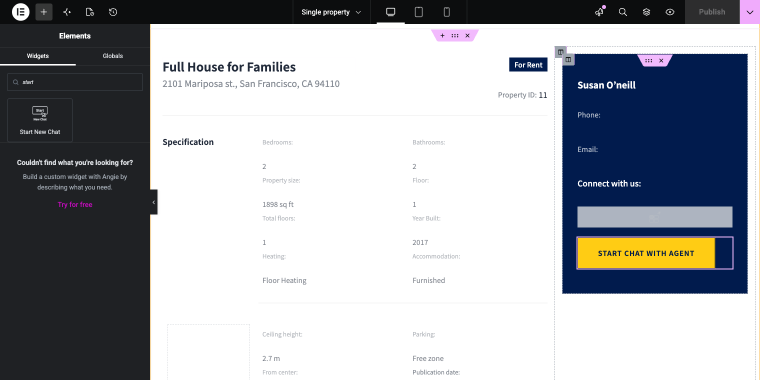
On a property listing website like this, the agents are the post authors assigned to the listings. To ensure that we contact Anna Olson (the real estate agent/post author) rather than the site administrator, we need to make a minor adjustment.
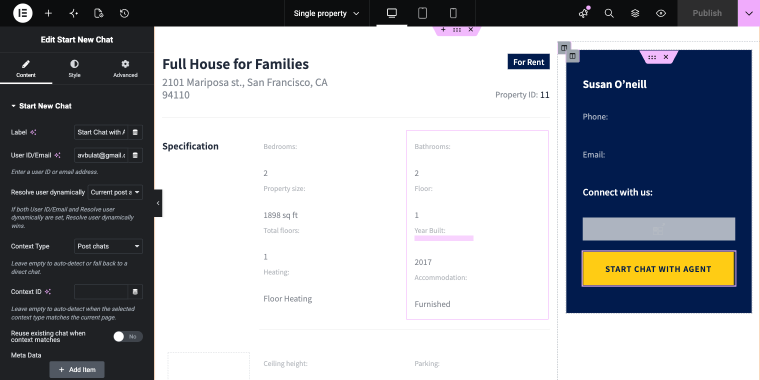
In the Content tab of the Start New Chat element, we can find the Resolve user dynamically field. Select the “Current post user” option, and in the Context Type field, select the “Post chats” option. That’s it.
Once the visitor clicks the chat button, they are redirected to the Post Chats page (the name can be changed accordingly), and a new thread opens, already linked to the listing they were browsing.
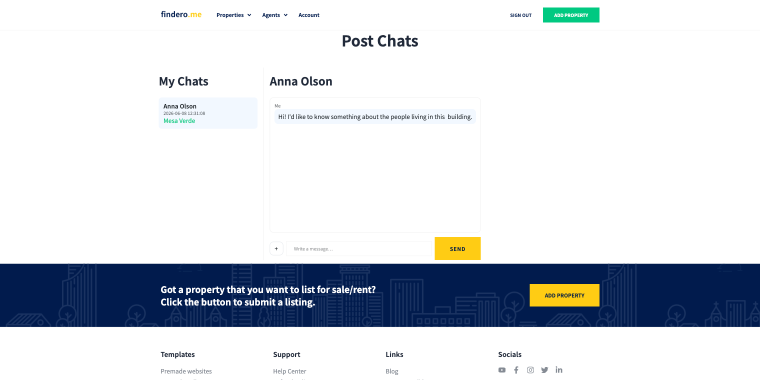
Now, when a user clicks the chat button on any property listing, the post author will make use of the contextual messaging WordPress plugin about the property the user was interested in.
Use case 2: Subscription-based marketing agency with multiple services
Let’s take a look at a digital agency that sells marketing packages that include many services.
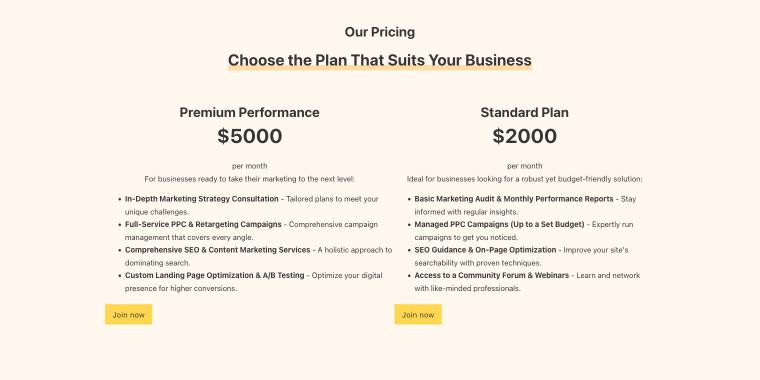
Even though the pricing is listed publicly, users may need additional information about the specifics of certain services. Without the portal messaging system, the setup may include a Contact Us form with a set of Select fields where clients can choose a service they’re interested in.
With JetMessenger, a “Get consultation” button can be placed directly on each service page of a website built with Bricks.
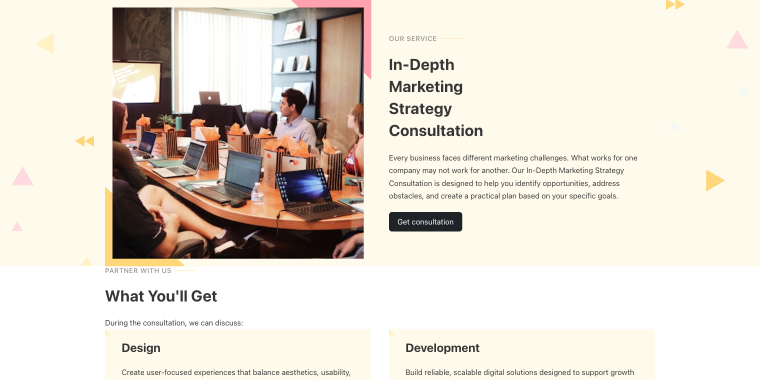
In the Elements/Components panel, find the element called Start New Chat and drop it onto the page.
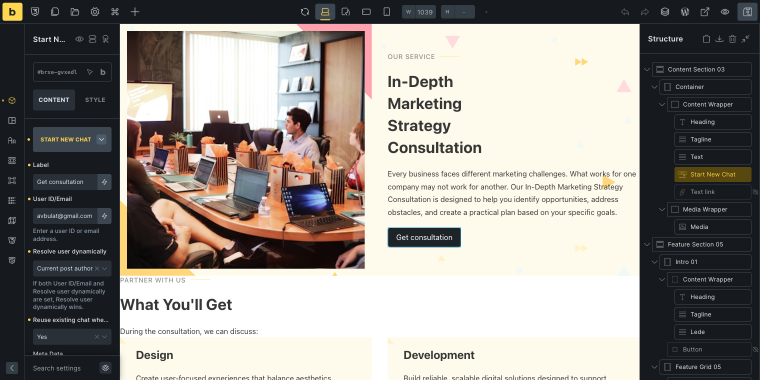
Clicking it opens a My Chats page where all threads will be managed going forward, each tied to a specific service page (or a CPT), not a WooCommerce product, just a landing page as a standard WordPress page describing the service.
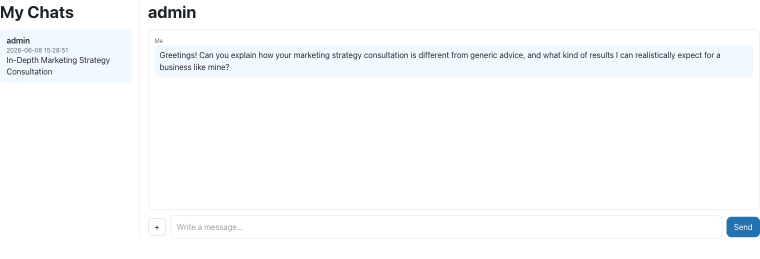
The sales rep will immediately see which service the prospect is asking about. If the site admin is online, the conversation can start right away, and the full negotiation stays on-site rather than fragmenting across email threads or messaging apps.
Use case 3: WooCommerce store chats
The WooCommerce capabilities of the portal messaging system built with JetMessenger are the most interesting. The plugin allows using various WooCommerce endpoints as entry points for chat conversations.
During the onboarding process, we can specify exactly where we’re going to use the chat functionality.
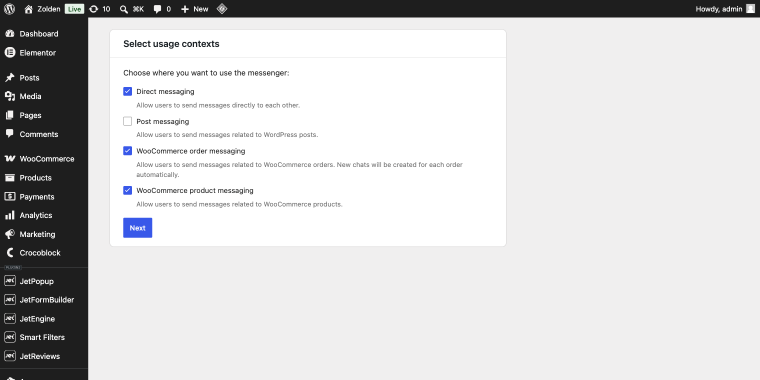
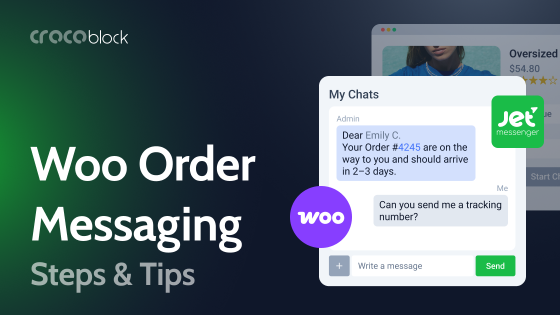
When the WooCommerce order messaging feature is enabled, we can use the “Chat About This Order” button located within the Order details section.
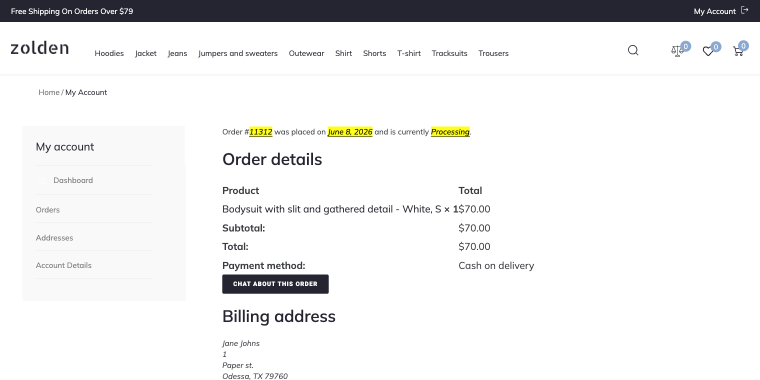
It allows users to ask additional questions regarding a specific order.
When clicked, it will return the user to the Orders page, where a new thread will be created with the context of a specific order, such as order #11312.
Also, after completing the order, the user can receive an automated message for their order #11312.
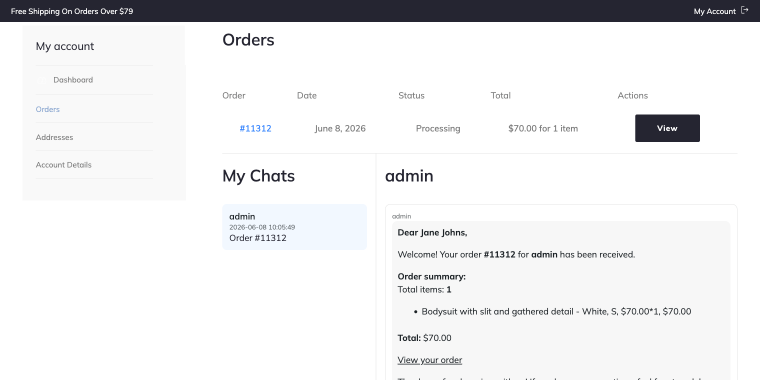
The same chat window will display the entire thread with the admin regarding other orders.
To enable automatic order messages, go to the WordPress Dashboard > Crocoblock > Messenger > Woo Orders.
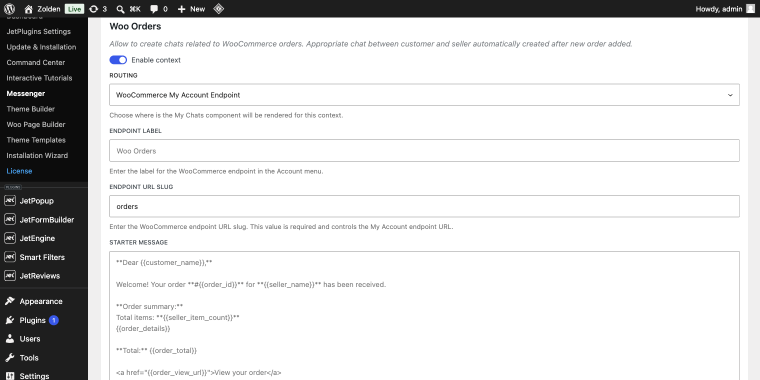
The message is pre-populated with the order summary, items, quantities, and order number, so the client receives it with full context.
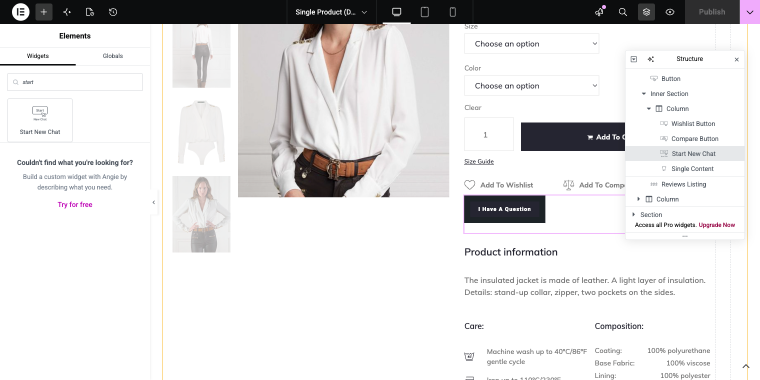
On the product page, adding the chat button takes just a few clicks. In the Elements panel, find the Start New Chat widget and drag it onto the page.
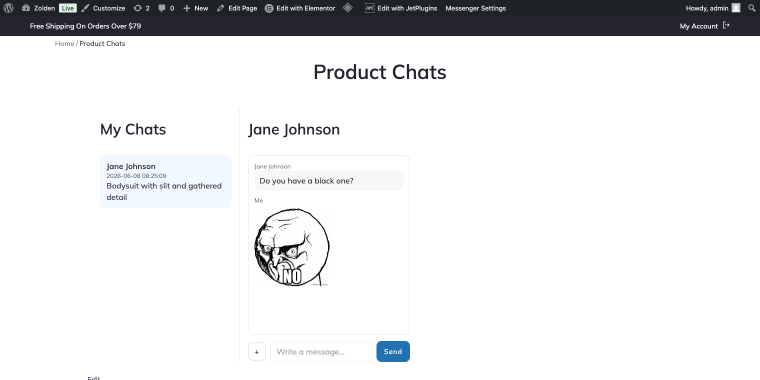
When a client clicks the chat button to ask a product-related question, the site admin will receive a message that includes the client’s name and the product as context.
When portal messaging and JetMessenger win
Portal messaging is built for what happens after someone logs in. The defining characteristic isn’t speed; it’s context. Every conversation is tied to something:
- an order;
- a product;
- a booking;
- or a listing.
Both parties enter the thread already knowing what it’s about. Portal messaging is the right choice when:
- The user is already registered and is navigating a journey with multiple steps.
- The question refers to a particular object, not simply “I have a question,” but specifically “I have a question about order #11312.“
- The conversation may take hours or days to resolve without losing a cue.
- You need a traceable thread: who said what, when, attached to which transaction.
FAQ
Live chat is a real-time, session-based widget for anonymous visitors. Portal messaging is a persistent, contextual messaging WordPress thread system for registered users, where each conversation is tied to a specific object, such as an order, listing, or booking.
Use live chat when you need to engage anonymous visitors before they leave, address pre-purchase questions, or handle SaaS onboarding, where the first few minutes matter. If speed and availability are the priority, live chat is the right tool.
Use portal messaging when your users are already logged in, and the conversation needs to reference something specific: an order, a service page, a property listing, or a booking. If the question is “about something,” portal messaging is better suited than live chat.
Live chat sits on top of WooCommerce as a generic layer and doesn’t know what’s in a customer’s cart or orders. Portal messaging integrates directly with WooCommerce data, so a thread about order #11312 already includes the order details when it opens. For after-sales communication, returns, or custom order queries, portal messaging is a more practical choice.
It depends on who you’re supporting. For anonymous visitors with quick questions, use live chat. For registered customers with account-specific issues, use portal messaging. Most long-established WordPress sites eventually need them both to handle different stages of the user journey.
They solve different problems, so removing live chat entirely isn’t always the right move. A visitor who hasn’t registered yet can’t use portal messaging and needs another channel. The practical approach is to use live chat for the pre-login layer and portal messaging for everything after.
In the End
Live chat and portal messaging are not competing products. They serve different layers of the user journey, and the sites that perform best often use both.
Live chat belongs at the top of the funnel, for anonymous visitors, pre-purchase hesitation, and situations where a two-minute response is the difference between a conversion and a closed tab.
Portal messaging belongs everywhere after login, for registered users in active workflows, where the conversation needs context, and the thread needs to persist beyond a single session.
If your WordPress site runs a marketplace, a booking platform, a membership portal, or any kind of WooCommerce store with recurring customers, portal messaging isn’t an optional upgrade. It’s the part of the communication layer that live chat was never designed to cover.