It’s widely known that visually engaging content is an effective way to attract readers, engage and encourage them to become loyal customers. Even the very best product needs a strong market position. In terms of web design, it involves both well-organized, smart text and attention-grabbing visual content.
A dynamic slider is a tool that automatically showcases up-to-date content (products, offers, testimonials, posts) in a visually engaging way without manual updates. From a marketing perspective, WordPress dynamic sliders help highlight relevant content, personalize user experience, and increase engagement and conversions by showing the right items at the right time.
Slider and Advanced Carousel Widgets from JetElements
JetElements is a Crocoblock plugin that offers 45 highly customizable widgets for Elementor. Here, you can choose the option that best suits your needs, whether you need to display static content or retrieve data dynamically from the Custom Post Type, options page, meta fields, or anywhere else on your site.
In combination with JetEngine’s Query Builder module, you can make the most of the JetElements’ widgets, which become more flexible and can fetch data dynamically. In this article, we will focus on two widgets: Slider and Advanced Carousel, which support Dynamic Tags and Query Builder source. I will discuss the features of these two widgets, explore when they are most effective, explain how to make them dynamic, and demonstrate realistic use cases.
What is the Slider widget?
The point of the Slider widget is not too difficult to guess from its name. It is an Elementor widget designed to create slide-based layouts, where each slide represents a separate visual section. It allows you to build full-width or full-screen sliders with layered content, such as images, text, buttons, and templates.
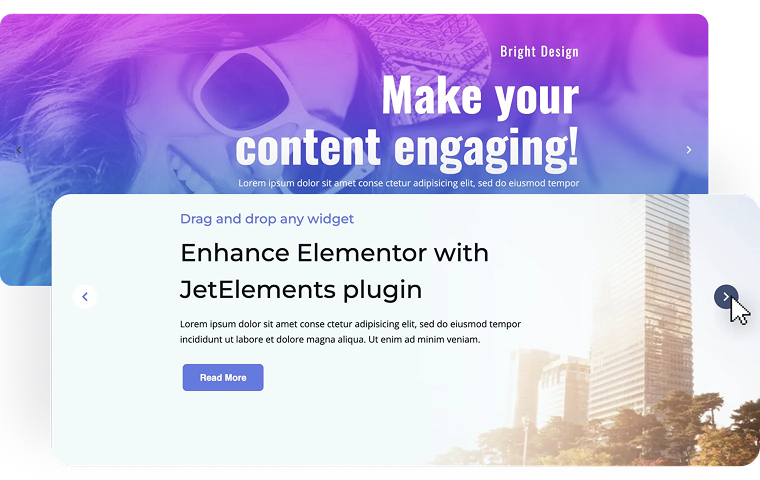
The Slider widget is designed to organize content in an attractive, easy-to-understand way. By its logic, the widget is similar to PowerPoint or Google Slides. You can either set one item (card) as a template or fill each card separately. You can add as many slides as needed. Here, you have predefined fields to fill in, but you can leave them empty.
You can put the content in the following fields:
- image — an image that will be used as a slide background;
- icon — an icon that will be displayed over the title. You can choose it from the library or use an SVG file stored on your PC;
- title;
- subtitle;
- description;
- link on whole slide — when activated, the whole slide becomes clickable and redirects to the URL specified in the Slide Link field;
- primary button URL;
- primary button text;
- secondary button URL;
- secondary button text.
The Slider widget also offers numerous customization options:
- sliders dimensions and alignment;
- image resolution;
- content motion effects;
- navigation, pagination, and autoplay use;
- slide duration.
When to use sliders?
The Slider widget is a good choice for cases when you need to focus the user’s attention on a particular piece of content. The widget is primarily used for promotional content, displaying slides one at a time and focusing on visual storytelling rather than item listings.
Talking about more specific examples, I couldn’t help but mention the following ones:
- Homepage hero slider — when you need to present several key messages in a prominent, full-width area.
- Promotional or campaign banners — when multiple promotions or seasonal campaigns must rotate in the same screen space.
- Feature highlights for a product or service — when you want to walk users through core features step by step.
- Landing page sections with strong visual focus — when visual impact and branding are more important than listing multiple items.
- Storytelling or narrative content blocks — when content needs to be consumed as a sequence (e.g., “Our process” or “How it works”).
What is the Advanced Carousel widget?
The JetElements Advanced Carousel widget is an Elementor widget that displays multiple items in a horizontally scrollable layout. It supports multi-item views, responsive breakpoints, and dynamic data sources, including JetEngine queries.
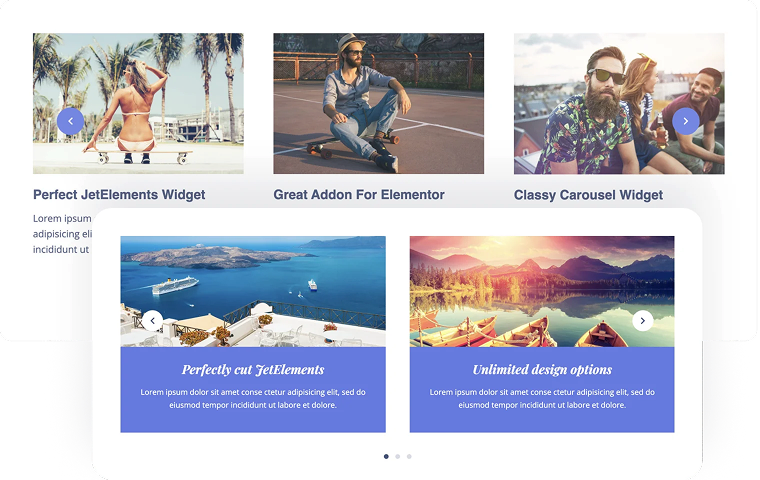
You can decide how many slides are visible at once, and how many of them are in the carousel in general. As well as in the Slider, you can build one template item and populate data dynamically or set up each card separately. You can set the following fields:
- image;
- item title;
- item description;
- item link;
- item button text.
In terms of layout, you can set up:
- column dimensions;
- image settings;
- autoplay and scrolling;
- animation speed.
When to use advanced carousels?
The widget is intended for presenting lists of content, such as posts, products, testimonials, or images, where each item follows a consistent structure and can be navigated using arrows, dots, or autoplay.
The most effective Advanced Carousel will show itself in the following scenarios:
- Posts or CPT listings — when you need to display multiple posts or custom post types in a compact, scrollable layout.
- WooCommerce product showcases — when several products should be visible at once and browsed horizontally.
- Testimonials or reviews — when social proof needs to be displayed in a space-efficient format.
- Logo or partner showcases — when you need to show many brands or partners without dominating the page layout.
- Image or media galleries — when a collection of images should be browsed interactively.
How to Create a Dynamic Slider with JetElements?
Since we already know what Slider and Advanced Carousel are and when to use them, let’s see how to make them dynamic. Many plugins and add-ons offer either static sliders or dynamic logic via custom code. Let’s see what can be done with no coding at all.
To build a dynamic slider with Crocoblock, you would need the JetElements plugin installed and activated. You can also use the JetEngine plugin, which offers powerful features and lets you build additional content entities, such as Custom Post Types, option pages, or any meta fields on your site. In this guide, I will use the JetEngine’s CPT.
Setting up the dynamic Slider
First, we need to retrieve data from a custom query. To do that, in the Query Builder, create a Posts Query for the required CPT. This query defines which posts will be displayed in the slider: posts from the dedicated taxonomy, posts with specified IDs, or posts with the defined meta field value.
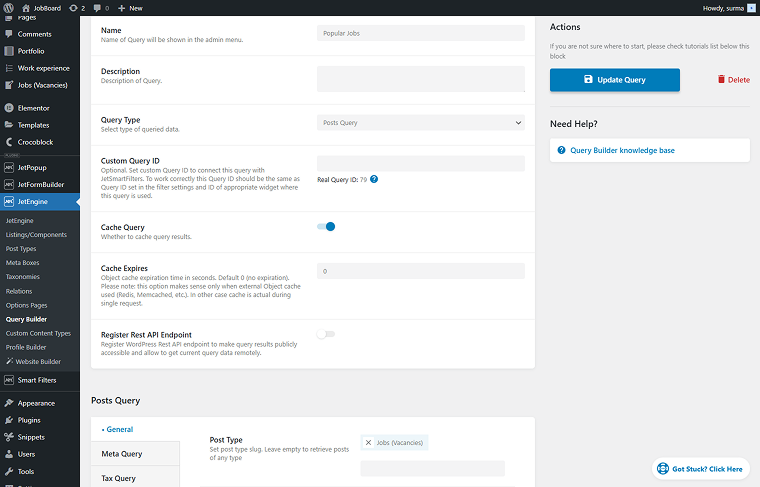
You can define any required configurations to control which posts are displayed in the dynamic slider. Here, I am listing the IDs of the specific posts I intend to display.
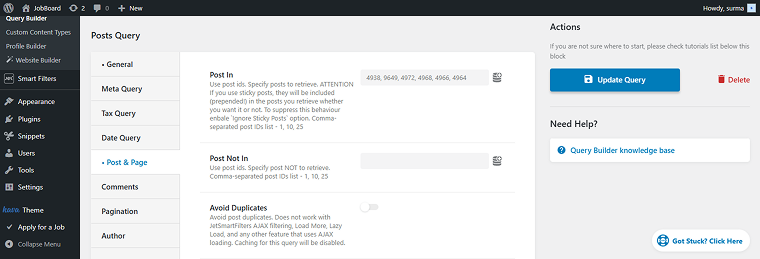
Don’t forget to save the query.
Now, move to the page where you need to display the dynamic Slider. Add the Slider widget to the page and enable the Use JetEngine query toggle, and in the Select Query field, choose the query you created.
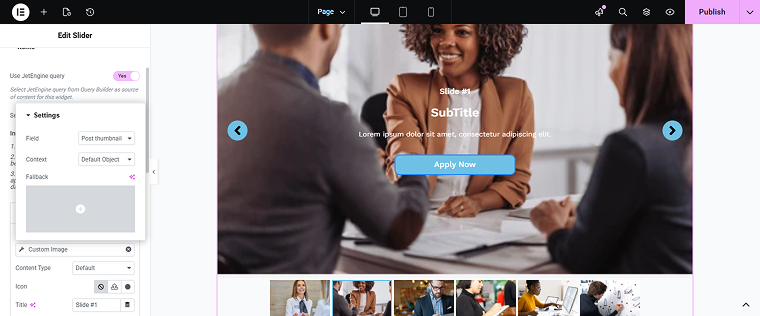
When the query is used as a source, we need to map the fields to a single Item. To display a post’s thumbnail as a background image for a slide, click the “Dynamic Tag” icon and select the “Custom Image” option. Then, choose the “Post thumbnail” option in the Field input.
For the Title, Subtitle, or Description, click the “Dynamic Tag” icon as well, select the “Current Object Field” option to display the required field, and choose the field – for example, I select the “Title” to be shown as a Subtitle.
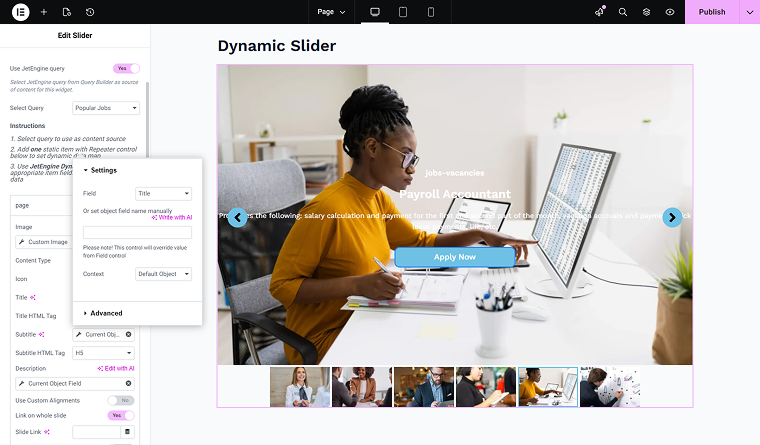
Map only one item, and the rest of the slider items will be created and populated dynamically.
Save the changes and check the front end.
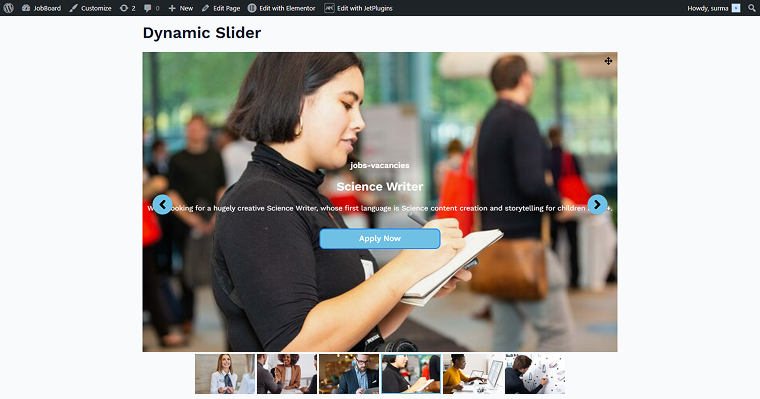
The selected six posts are displayed in a dynamic slider on the WordPress site. If I update the query or post content, the slider content will be updated automatically.
Setting up the dynamic Advanced Carousel
The approach to the dynamic Advanced Carousel is very similar to the slider. First, you create a query to define the posts that will be shown in the carousel. I will use the same Posts query to return the posts identified by their IDs.
You can specify posts by any required parameter.
On the required page, add the Advanced Carousel widget. In the settings tab, enable the Use JetEngine query toggle, and in the Select Query field, choose the query you created.
For the Image, select the “Custom Image” option and choose the “Post thumbnail” option in the Field input.
For the Item Title and Item Description, click the “Dynamic Tag” icon and select the “Current Object Field” option. In the newly opened pop-up, select the fields you need to display.
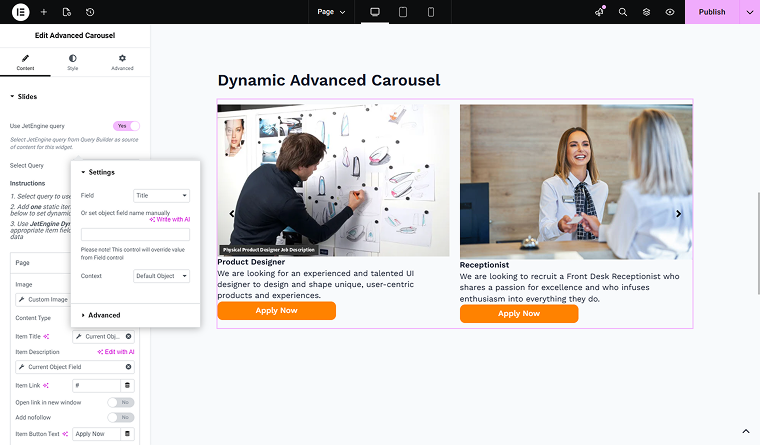
Save the changes and check the front end. Here, we get six posts that were selected in the query. Now, if I change the query or the post data, the changes will be reflected on the front end.

Best Practices for Dynamic Sliders
Once we stop thinking of sliders and carousels as simple presentations, we can see many interesting ways to use these elements effectively, showcasing their full potential on a WordPress site. Furthermore, I present realistic slider and carousel solutions that I hope will inspire and offer fresh ideas for your sites.
Use case 1: Context-aware content showcases
While we usually use listings or loops to display related posts on the page, a dynamic slider or advanced carousel can pull content related to the current page based on taxonomies, relationships, or meta queries.
Talking about the real examples when this approach can be used, pay attention to the following:
- “related courses” section on a lesson page;
- “similar properties” on a property single page;
- “more from this category” tab on blog posts;
- “compatible accessories” promoting section on a product page.
For a visual example, here is a single-page French lesson where, at the bottom, the dynamic advanced carousel displays related courses the user might be interested in.
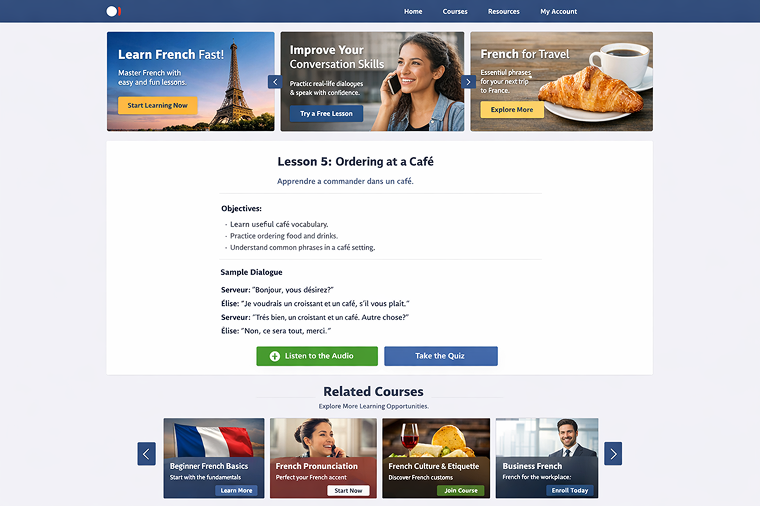
Consider the following advantages of the fast, purposeful, and focused WordPress dynamic sliders:
- keeps users engaged in context;
- encourages lateral navigation;
- reduces bounce rate.
Use case 2: Compact information centers for extensive content
Using a dynamic, advanced carousel, you can display complex or repetitive information in a space-efficient, user-friendly way. To be precise in the example, it could be:
- service breakdowns (one service per slide);
- feature explanations for a plugin, tool, or service;
- team member profiles with extended bios;
- course modules or lesson previews.
For instance, on the learning platform, you can see sliders with a short description of the learning plan.

Use case 3: Structured visual comparisons
I know, tables exist, and can be a working solution for the comparison tasks. Let me explain why a dynamic slider can be a better option for the comparison:
- one option per slide allows the reader to focus easily on the parameter and the compared options;
- clear CTA per parameter that could be lost in rigid columns and rows;
- visual hierarchy (highlighted plan, badges, icons).
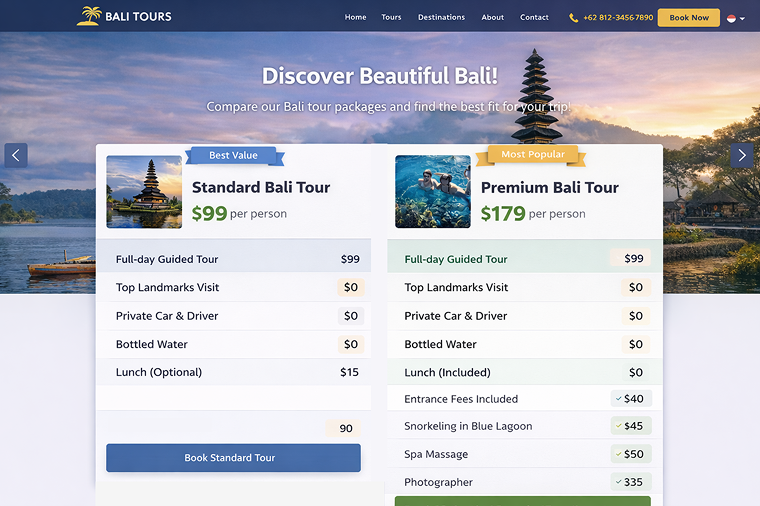
Obviously, someone still prefers common columns and rows, but if you are ready for a little experiment, here are a couple of real examples when a dynamic slider can become an effective solution for comparison:
For example, here the slider shows a price comparison between two tours. The user can compare prices and included services, open the next slide, and compare other tour details.
FAQ
A dynamic slider is a visual widget that automatically displays up-to-date content, such as posts, products, or testimonials, in a slide-based format. Unlike static sliders, dynamic sliders pull content from your WordPress database or Custom Post Types, ensuring your slides always reflect the latest updates without manual edits.
The Slider widget showcases one slide at a time, making it ideal for hero sections, storytelling, or step-by-step feature highlights.
The Advanced Carousel widget displays multiple items in a horizontally scrollable layout, perfect for listing posts, products, testimonials, or logos while keeping the layout compact and interactive.
Yes. By combining JetElements with JetEngine, you can create dynamic sliders and carousels using queries from Custom Post Types, meta fields, or taxonomies. Dynamic Tags allow you to map content such as images, titles, and descriptions without custom coding.
Conclusions
In this article, I discussed two JetElements widgets: Slider and Advanced Carousel. We investigated their default features and discovered how to upgrade them with the JetEngine’s Query Builder to support the dynamic content. Additionally, I showcased best practices and realistic use cases that demonstrate how WordPress dynamic sliders can deliver their full potential.
I hope this article gave you a fresh look at the dynamic sliders and shared ideas for making your site even more flexible and user-friendly.