When you’re building a WordPress highly dynamic website with custom post types, taxonomies, or even just a well-organized blog, archive pages play a key role in how your content is discovered and explored. But out of the box, most themes don’t give you much control over how these pages look or function.
If you want to showcase custom fields, add filters, or ensure the design aligns with the rest of your site, creating a custom archive page template is the ideal solution. The best part is that you can do this without having to write any code.
In this article, we’ll look at the most effective no-code methods to build archive templates using Crocoblock and other visual tools. Each method fits different workflows and goals, so you can pick the one that suits your setup best.
Archive vs. Single Post Templates: What’s the Difference?
WordPress has its template hierarchy, and, according to it, each type of content gets corresponding templates on the front end. Single and archive template types are the most fundamental, as they are used by posts, custom post types, categories, tags, archives by data, etc. Understanding the difference between these two types of templates is key to building a well-structured site.
Single post template is used to display the full content of one specific post, e.g., a blog article, a product page, a portfolio item, or any other custom post type. When you click on a post in an archive and land on its dedicated page, you’re viewing the single post template in action. This is where you control how the title, featured image, content, custom fields, and metadata appear for that individual item.
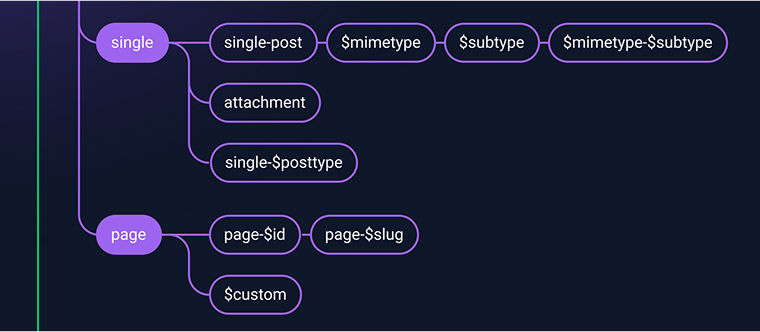
While in the classic WordPress template hierarchy, Single and Page templates are separate entities, to simplify, we can just talk about them as singulars, for just one content item. The difference here is that pages are hierarchical – they can have subpages, but can’t be organized into taxonomies (categories and tags), while posts are non-hierarchical – they can be organized into taxonomies, but can’t have “subposts.”
To boil it down, single templates = individual post templates.
An archive template is used to display a list of posts organized by certain criteria – category, post type, tag, dates, author, and even the results of custom queries (e.g., search results page). For example, if you visit a blog category like /category/tutorials/, WordPress uses the archive template to display a list of all posts assigned to that category. The same applies to pages listing all posts from a custom post type, like /portfolio/ or /properties/.
To boil it down, archive templates = collections of posts.

This article focuses specifically on archive templates — how to design and customize the layout that displays multiple posts or items in a list.
Why You Might Need a Custom Archive Page Template
If you’ve worked with WordPress for a while, you’ve probably noticed that archive pages – whether for blog posts, categories, tags, or custom post types – often look and feel like an afterthought. Most themes generate them automatically, using a standard layout that isn’t always ideal for your content or audience.
This might be fine for simple blogs, but if you’re building something more custom or content-heavy, the limitations become clear fast. That’s where custom archive page templates come in, and they’re far more important than many users initially realize. Here’s why.
1. To fully control the layout
By default, WordPress archive pages follow your theme’s styling and structure, often a simple list or grid. You get little control over how posts appear, how many are shown, or how content is grouped. If your site needs to present content in a way that supports readability, engagement, or your visual brand, this won’t cut it.
With a custom archive template, you can:
- display posts in custom grids, cards, or full-width layouts;
- show or hide elements like thumbnails, excerpts, dates, and authors;
- add intro text, banners, or dynamic headings above the listing;
- match the layout to your site’s design, fonts, and color palette.
So, it isn’t just about aesthetics; it directly impacts how visitors explore your site and how easy it is for them to find content.
2. To properly showcase custom post types
Many WordPress sites use custom post types (CPTs) — for example, Projects, Properties, Courses, or Events. Each of these post types has specific information that deserves its own structured layout.
Imagine a real estate site: a property archive shouldn’t just be a list of post titles – it needs to show prices, locations, images, and maybe a badge for “featured” listings. A default archive template won’t give you that.
Creating a WordPress template for custom post types allows you to:
- display relevant custom fields (like price, location, dates);
- customize taxonomy archives (e.g., “Apartment for Rent” or “Luxury Homes”);
- apply dynamic filters to help users find the exact content they need.
No matter which builder you use, a dedicated template for CPT archives is essential to make your content truly usable.
3. To add filtering, sorting, and better navigation
I’ve already mentioned filtering on the archive pages, and let’s talk more about the fact that most archive pages in WordPress offer no interactivity. If you’re running a blog with hundreds of posts, a product catalog, or a course library, users need better ways to explore your content.
By building a custom archive page and combining it with a tool like JetSmartFilters, you can:
- add real-time filters for categories, tags, price ranges, authors, etc.;
- enable search and sorting by popularity, date, or custom criteria;
- use AJAX to update results instantly without reloading the page.
This transforms your archive from a static list into a dynamic experience, which is critical for content-rich or eCommerce websites.
4. To optimize for SEO and content strategy
Default WordPress archive templates rarely offer room for strategic content elements like intro paragraphs, meta descriptions, or dynamic headings, which can hurt both SEO and user engagement.
Custom archive templates let you:
- add optimized H1 and H2 tags dynamically based on taxonomy terms;
- include custom descriptions and callouts for each archive page;
- insert schema markup where needed (e.g., for recipe or event listings).
For example, if you run a multilingual blog or a travel site, you might want each destination category archive to have its own intro content and title, to improve both user clarity and search engine visibility.
5. To deliver a consistent, branded experience
Even when a theme offers some styling options, archive pages often look disconnected from the rest of your website. This lack of visual consistency can make your site feel unpolished or hard to navigate.
With a custom archive page template, you can:
- align post listings with your homepage, landing, or product pages;
- use the same components (cards, buttons, fonts) site-wide.
6. To personalize content dynamically based on conditions
Using tools like JetEngine’s Dynamic Visibility, custom archive templates can also adapt based on user roles, post meta values, or more specific conditions. For example:
- show premium content listings only to logged-in users;
- display different messages or banners based on the archive taxonomy;
- modify the way specific WooCommerce categories look based on these categories;
- limit certain categories to users with specific membership levels.
This kind of personalization simply isn’t possible with default templates.
7. Advanced query logic
Standard archives rely on predefined queries (by date, category, etc.). But what if you want to use a combination of rules, e.g., certain archive pages should display only a particular author’s posts for only two selected topics, and the posts should be no more than two years old?
For example:
- a list of specific cases published by a law firm;
- a job board showing only verified and active listings in a “Jobs” archive;
- articles by a specific doctor on a selected range of topics for a clinic website.
Combining the power of the Query Builder tool by JetEngine with a theme builder, you can create and display even the most advanced queries without coding.
Top 3 Methods to Create a WordPress Archive Page Without Coding
It’s worth noting that building archive templates without coding doesn’t mean compromising on quality or performance. Moreover, it can be even more efficient, as it’s a more scalable, universal, and foolproof method.
1. Simple case: custom archive template using JetThemeCore
To create a custom archive template without coding, we will need a theme builder plugin – this is what these plugins are for. I choose JetThemeCore, as it works with Elementor and Block Editor and gives you freedom to dynamically modify every part of your website, set up conditional display for body, header, and footer areas. It offers a big choice of conditions, not only such as categories, tags, post types, but also advanced ones: based on the device, user roles, query strings, and has dedicated conditions for WooCommerce.
Let’s have a look at the simplest scenario, using just free tools that any WordPress build offers to add to the JetThemeCore. You can definitely mix and match with other builders or some custom code if they don’t overlap with each other.
Install JetThemeCore, go to Crocoblock > Theme Builder, and create a new item there, assigning your specific conditions. There you will see that it consists of Header, Body, and Footer – three main template sections of any WordPress post/page/archive. There, you can create templates for each of them, combine with existing ones, or make your own, depending on your goal. In the example on the short video below, I’ve made a very simple archive template using Block Editor resources. It definitely requires some extra styling and polishing, and you can use other plugins, such as JetEngine or Elementor, to populate the Body part (Header and Footer as well, though).
If you want to find out more advanced cases, check the following sections of this article.
2. Blog case: blog archive page with Elementor and JetBlog
If you are working on your blog archive in particular, there’s the JetBlog plugin to do it for you – and if you like to have fun dragging and dropping them while creating a cool custom grid, check out the free JetGridBuilder plugin.
With JetBlog, you will be able to create a modern blog layout, with four widgets to turn the blog into a custom layout to display posts as tiles, display them as slides, or video playlists.
3. Advanced case: JetEngine listing grid based on custom query + JetThemeCore theme builder and JetSmartFilters
I’ve used the Block Editor Query Loop in the previous example. But there’s a much better tool to display loop elements, where you have full control over the query and design. As you may have guessed, the answer is JetEngine. This (without exaggerating) beast plugin can not only create CPTs, meta fields, and much more, but also be responsible for loop elements – they are called Listing templates here.
So, create your website template, whichever builder you use: JetThemeCore, Elementor Pro, Bricks Builder, or with the Block Editor.
After that, go to JetEngine > Query Builder and use this huge selection of options to fetch exactly what you want to see on the front end.
Using the Query Builder tool by JetEngine, you can select anything you can even imagine, even some very complex SQL queries, and then display them on the front end.
So, let’s review the most efficient way to create a custom Archive template with Crocoblock:
- Go to Crocoblock > Theme Builder and choose Archive in the Conditions (if you want more specific categories, choose them).
- Go to JetEngine > Query Builder and create the query (list of posts, pages, etc., you want to see in your archive).
- Go to JetEngine > Listings/Components. Choose your freshly created query by the Query Builder as a source.
- Use dynamic widgets by JetEngine – Dynamic Field, Dynamic Image, and so on. They are super useful for creating a loop template for each listing element in your future archive page – listing template, speaking in terms of JetEngine.
- After that, you can modify your Archive page template – just add your freshly created listing templates using the Listing Grid widget (Block Editor block, Bricks element).
Congratulations, you are very much done! In case you want to incorporate some ads or promoted elements, don’t forget about the Listing Injections functionality here – it’s really powerful!
FAQ
You can use visual builders like Crocoblock’s JetThemeCore and JetEngine to create archive templates with dynamic layouts, filters, and custom fields; no PHP is required.
An archive template displays lists of posts (e.g., by category or post type), while a single post template is used to show the full content of one post or page.
Yes. With tools like JetEngine, you can design custom templates for CPT archives, display custom fields, and tailor the layout for each post type.
Absolutely. Custom archive templates let you control headings, add intro text, and include metadata, all of which help search engines understand and rank your content better.
To Wrap It Up
Creating custom archive templates in WordPress no longer requires writing code or building theme files from scratch. With the right tools, like JetEngine and JetThemeCore, you can design efficient, dynamic, and fully branded archive pages that improve both user experience and site performance.
Use your creativity and knowledge, and don’t forget to check the Crocoblock blog and the Knowledge Base. You can create even the most complex dynamic website, even if you are a beginner or not a seasoned web developer.