When you visit a website, the first thing you think about is how to find the information you are looking for. When it takes too long, you leave the site. This brief setup suggests that clear navigation is key to user interaction with content. A grid-based layout is one of the most effective ways to ensure your site is easy to navigate.
A grid system is the basis of a well-designed site. Grid-based layout provides a structured framework of columns and rows, essential for creating hierarchical, consistent, responsive, and user-friendly interfaces. Aside from aesthetic clarity, the grid allows you to place content so the hierarchy remains clear. Static grid is good, but a dynamic grid is even better! In this article, I will explore how to create a dynamic grid using Crocoblock tools, particularly JetElements.
What Is a Dynamic Grid in the Crocoblock Ecosystem?
Crocoblock offers several ways to create grids: building them block by block, filling the fields, or coding them from scratch. Crocoblock offers you a choice – the biggest achievement of the 21st century. With it, you decide how much control over the grid’s style and flexibility you want, what will be the source, and how to organize the data. So let’s have a look at what grids you can build with the Crocoblock ecosystem.
Static vs. dynamic grids
First of all, we need to distinguish between static and dynamic grids – what’s the difference?
A static grid is a layout structure in which content and settings are fixed and manually defined. Each grid item is added and configured individually, and its position, styling, and content do not change unless the site administrator edits it on the page. Static grids are usually used for showcasing predefined content, such as feature sections, service lists, or landing page layouts, where no dynamic data source or automation is required.
A dynamic grid is a layout that automatically updates and displays content based on data sources such as posts, Custom Post Types, taxonomies, or custom fields. The grid updates itself when the underlying data changes on the backend, without requiring manual layout edits on the page. Dynamic grids are commonly used for listings such as blogs, product catalogs, directories, and portfolios, where content needs to be scalable, filterable, and consistently structured.
Grid infrastructure in Crocoblock
With Crocoblock tools, you can build both static and dynamic grid layouts. Two main Crocoblock instruments for creating the grid layouts are JetEngine and JetElements. These plugins are about different approaches, so it depends on your requirements which one to choose. Here are the main features of JetEngine and JetElements as grid systems to help you determine which one best suits your particular case.
📚 Read also to learn about other ways to build a dynamic grid with Crocoblock: 5 Ways to Output a Dynamic Product Grid Using Crocoblock
JetEngine offers a powerful Listing feature. To be clear, it is a tool that lets you create a Listing Template using dynamic widgets or dynamic tags. From the widget names, you could understand that this element is completely dynamic: you define what widgets are used and how they are styled, you choose the source: default posts or pages, Custom Post Types, Custom Content Types, taxonomies, users, WooCommerce products, or even custom queries.
To display the grid on the needed page or template, you can use the Listing Grid widget, element, or block. Here, it becomes a bit less flexible: you can define which items are shown, in what order, how many items per row, and how many items per page, but it is still a classic grid. By “classic grid,” I mean there is no default option to showcase the hierarchy or to arrange items more creatively.
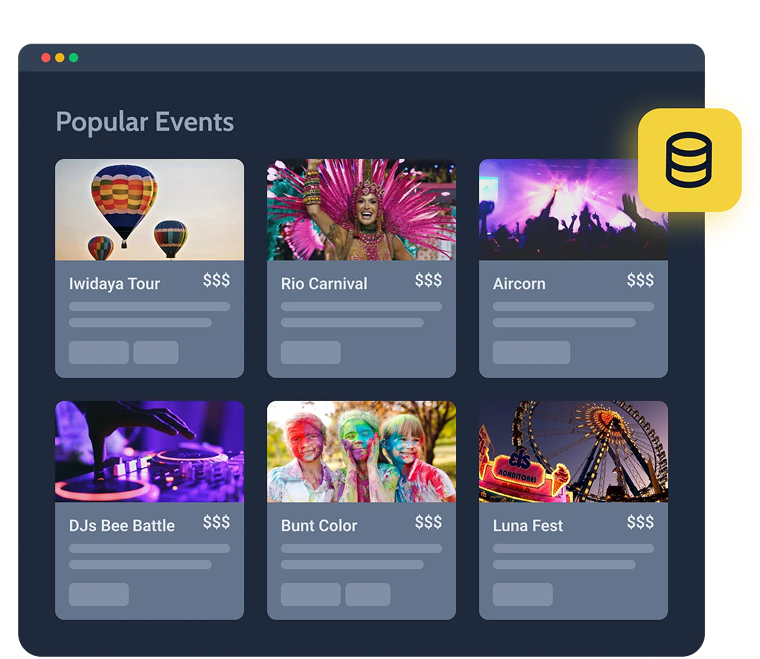
When it comes to JetElements, you’ll find more options here. JetElements offers ready-made widgets for grid visualization. That means you don’t have to build items manually; you get templates to visualize dynamic data in structured grids. That’s a good choice for non-technical users who need to fill in the fields rather than create the template from scratch.
At the same time, it doesn’t mean that the grid you create can be static only: you can select whether you need a static or dynamic grid. It is fair to say that not all JetElements widgets support dynamic sources. The main point of JetElements grids is to give you total creative freedom. Here, you can show the hierarchy between items and convert grids into boards, accordions, or sliders.

In a nutshell, the JetEngine’s Listings feature is a powerful option for displaying lists of posts, services, or products when all the items are equal. JetElements widgets are better suited to a more creative approach when you need to highlight items or simply make your site more authentic.
JetElements in the Context of Dynamic Grids
JetElements is a Crocoblock plugin that offers 45 highly customizable widgets for Elementor. Here, you can choose the option that best suits your needs, whether you need to display static content or retrieve data dynamically from the Custom Post Type, options page, meta fields, or anywhere else on your site.
In this article, I focus on the JetElements in terms of the grid systems builder, so let’s have a look at the plugin from this perspective.
What is JetElements?
JetElements is a UI-focused Elementor plugin that offers a collection of advanced widgets for building visually rich, interactive layouts in WordPress. It extends Elementor’s core functionality by adding ready-made design components that can be combined with dynamic data from other Crocoblock plugins.
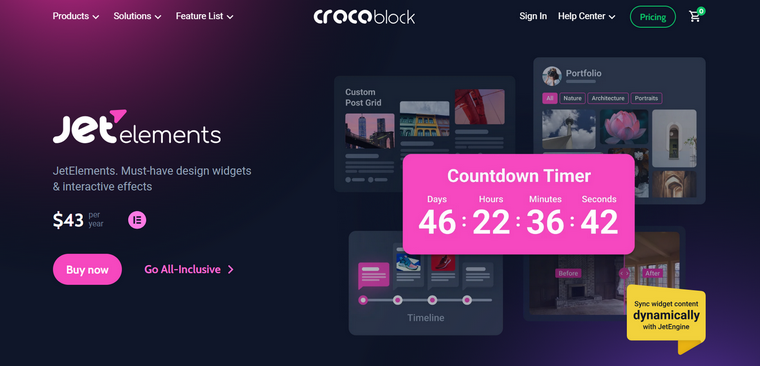
JetElements handles how content looks and behaves, while other plugins control what content is displayed. It means that JetElements can work both independently with Elementor, without any other Crocoblock plugins, and alongside other Crocoblock tools, such as JetEngine, JetThemeCore, etc. But it is essential to understand that JetElements focuses on presentation and layout, not data storage or logic.
The main purpose of the JetElements plugin is to create complex layouts without custom coding. JetElements allows you to build multi-column grids, carousels and sliders, advanced headings and containers, and interactive UI elements (tabs, accordions, charts) without writing HTML, CSS, or JavaScript. Layout complexity is achieved through advanced widget settings, including responsive controls, alignment, spacing, and visibility options. That lowers the entry barrier for non-developers and designers.
Another aim of the JetElements plugin is to enhance Elementor with advanced widgets. While Elementor provides basic building blocks (text, images, buttons), JetElements adds specialized widgets designed for real-world UI patterns, such as Advanced Carousel and Slider, dynamic-friendly grids, pricing tables, testimonials, timelines, visual navigation, and call-to-action blocks. JetElements fills the gap between basic page building and fully custom front-end development.
Grid-oriented widgets in JetElements
Among all JetElements widgets, we can highlight five focused on grid building. Let’s have a glance at each:
Posts widget
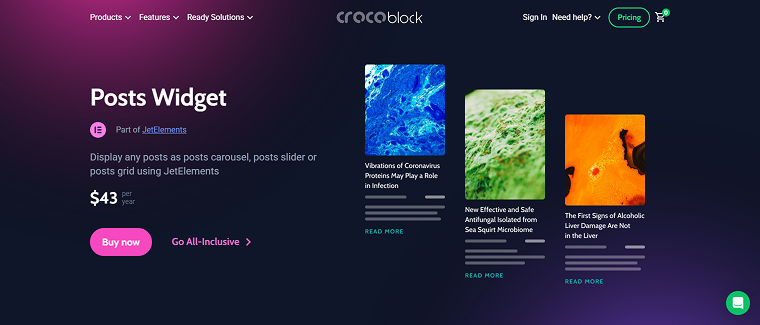
The Posts widget is the primary tool in JetElements for building dynamic grid layouts based on WordPress posts and Custom Post Types. It allows users to display content in structured card-based grids with full control over columns, spacing, metadata, and visual hierarchy. This widget is commonly used for blogs, news sections, directories, and archive-style layouts where content updates automatically as new posts are published.
Portfolio widget
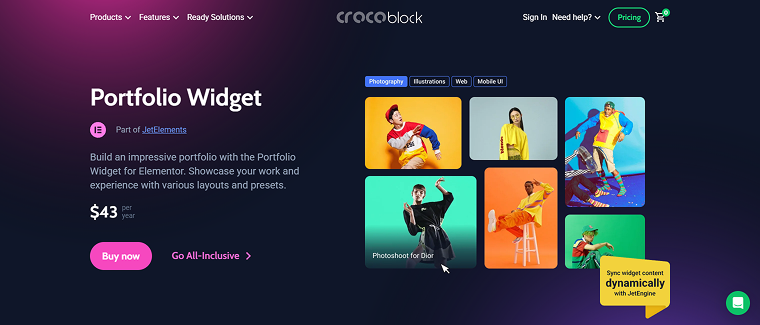
The Portfolio widget is designed for visually driven grids that emphasize images and hover interactions. It is well-suited for showcasing projects, case studies, or creative work in a clean, structured layout. With support for multiple layout types and hover effects, the Portfolio widget helps create engaging grid presentations where visual impact is more important than detailed metadata.
Services widget
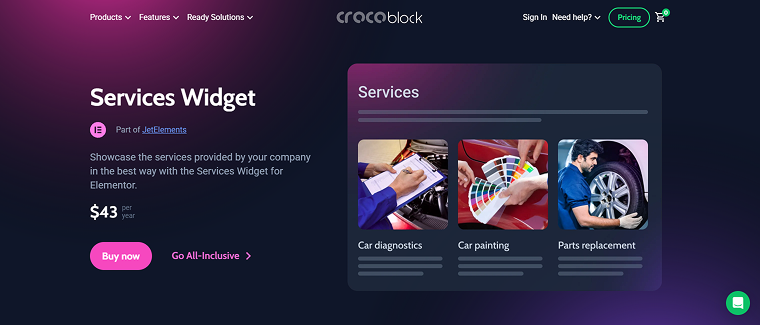
The Services widget focuses on presenting predefined content in a static or semi-static grid format. It is typically used for service listings, feature blocks, or value propositions, where each item is manually configured. This widget works best for landing pages and marketing sections that require consistent design rather than dynamically generated content.
WooCommerce Product widget
The Products widget integrates JetElements with WooCommerce, enabling the display of products in customizable grid layouts. It supports common eCommerce elements such as product images, prices, ratings, and call-to-action buttons. This widget is ideal for building product showcases, category sections, and promotional grids while maintaining full visual control within Elementor.

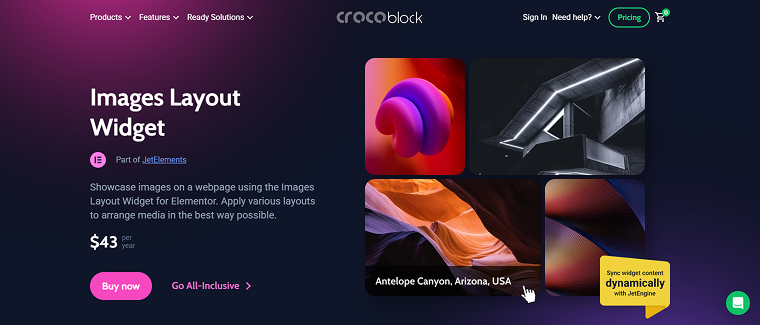
Images Layout widget
The Images Layout widget is used to create visual grids composed purely of media content. It is commonly used in galleries, brand showcases, logo grids, and image-based sections, where layout structure and spacing are key. This widget provides flexible alignment and responsive controls, making it a strong choice for decorative or branding-focused grid layouts.
Deep Dive: JetElements Posts Widget as a Grid Builder
The main hero of this discussion is the Posts widget. It is intended to display posts as a carousel, slider, or grid on a WordPress site. The main principle of work is template-based, allowing you to fill it in directly on the Elementor edit page without custom coding.
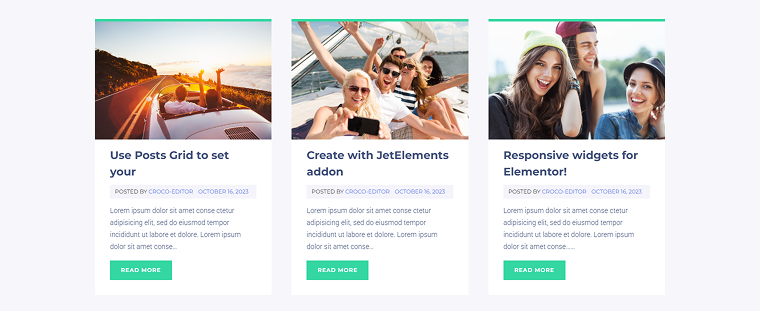
Apparently, the Posts widget combines the listing item template and query settings. You can decide the posts’ source, how many to display, the offset, and whether to query by publication date, category, specific IDs, or relationships.
You can also use a separate, completely custom query for the posts. Check the guide on WP Query Generator to learn more about the settings process.
Out of the available elements, you can set the following:
- post’s title and its word trim;
- posts featured image, its size, and whether you want it to be a background for the item or a simple image block;
- posts excerpt and its length;
- post terms, available categories, and the max number of terms shown;
- posts meta;
- posts author;
- posts date;
- posts modified date;
- posts comments;
- Read More button, its text, and icon.
You can also use the Custom Fields – there is a separate tab for them. Additionally, there is a section for converting the grid into a slider, where you can set the following options:
- slides minimal height;
- sliders to scroll;
- show arrows navigation;
- dots navigation;
- pause on hover;
- autoplay and its speed;
- infinite loop;
- animation speed.
These settings are intended to design the options of the Posts widget. Here, you can set Typography, Background, Text and Icon Color, Padding, Margin, Border Type, Width, and more.
💡 It’s also important to note that whether you use the custom query as a source or set the Post Type manually in the default settings of the Posts widget, the data in the widget will still be updated dynamically when you make changes to the displayed posts on the backend or add new posts. That means that the source in your grid is fully flexible.
Practical Use Case: Travel Blog Destination Grid
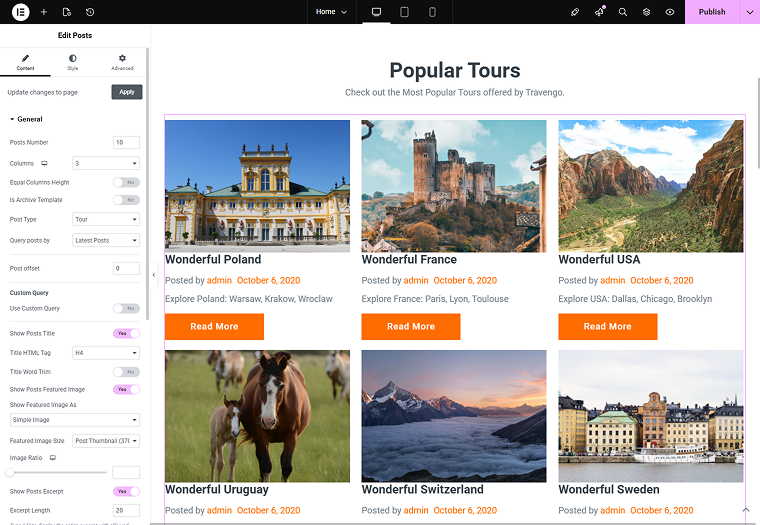
Now, let’s go through the step-by-step guide on setting up the dynamic grid using the Posts widget. For example, on the front page of the Tours site, I want to display the list of the most popular tours. To begin, we go to the edit page and add the Posts widget.
💡 In this case, I use the Travengo Dynamic template. Read this article to learn more about the available 13 dynamic templates by Crocoblock.
Here, you can decide whether you prefer to set the source, content, and posts to show inside the widget or if you want to use the custom query as a source. Let’s find out how each approach works.
If I want to set everything on the editing page, I set the desired number of posts, the Post Type from which the posts should be taken, and whether the posts should be queried by any offered parameter.
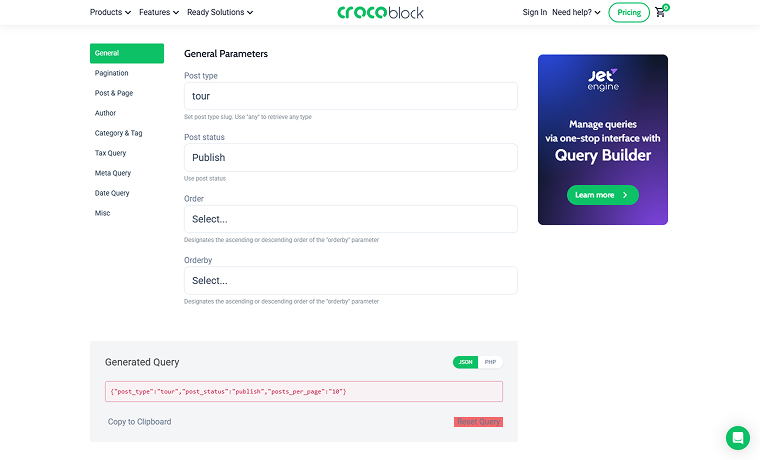
When you need a bit more advanced query rules, use the WP Query Generator to set the desired query. Copy the Generated Query you get.
On the edit page, enable the Use Custom Query toggle and paste the generated query into the newly appeared text input.
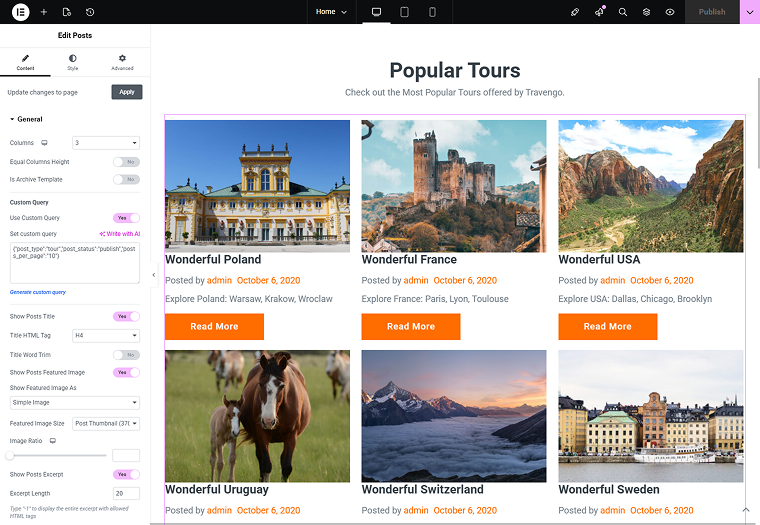
Then, whichever way you used, select what elements you want to be shown in each item, such as terms, comments, author, publish dates, and other fields.
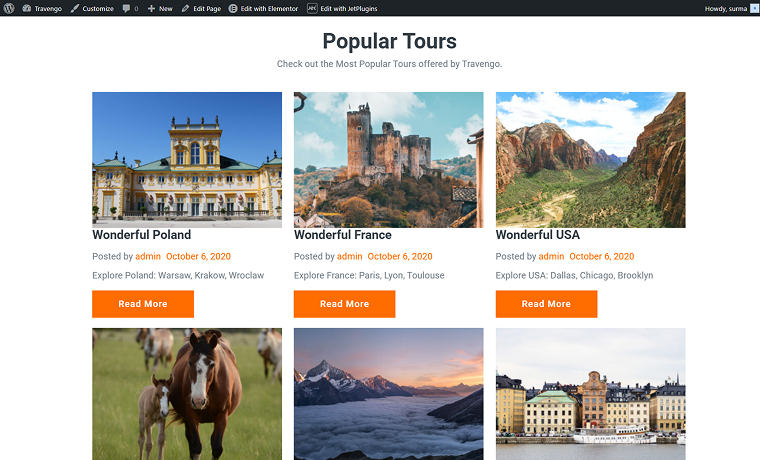
Don’t forget to save the changes and check the front end. Here we get the grid of the most popular posts.
FAQ
Yes, JetElements can create dynamic grids without JetEngine. JetElements widgets, such as Posts, Portfolio, or Products, can dynamically pull content directly from WordPress core sources (posts, pages, categories, WooCommerce products). This allows you to build functional and visually rich grids using Elementor alone.
The key difference lies in purpose and flexibility. JetElements grids are widget-driven and focused on ready-made layouts. They are ideal when you want to quickly display posts, products, or services using predefined design controls and minimal setup.
JetEngine Listing Grid is a template-based solution designed for highly customized and data-driven layouts. It allows you to build a reusable listing item using dynamic widgets, conditions, and relationships, then render it as a grid.
Yes, the JetElements Posts widget is suitable for large content websites, provided it is configured correctly. It supports query controls to limit and sort posts, pagination, and responsive layouts for different screen sizes.
Yes, JetElements integrates seamlessly with WooCommerce. The Products widgets allow you to create dynamic product grids that display product images, titles, prices, ratings, and Add to Cart buttons. You can control the number of columns, product queries (categories, tags, featured products), and grid spacing and styling. This makes JetElements an effective solution for building custom WooCommerce shop layouts, landing pages, and promotional sections without relying on default WooCommerce templates.
Conclusions
After reading this article, you know about the most effective ways to create a dynamic grid for a WordPress website. In particular, we can conclude that JetElements is where data becomes design. JetElements is not a standalone plugin, but a visual execution layer that translates structured data into clean, responsive, and engaging grids.
It works perfectly on its own with Elementor and becomes even more powerful when combined with other Crocoblock plugins. When JetEngine defines what the content is (CPTs, fields, relationships, queries), JetElements defines how the content looks (grids, cards, sliders, visual hierarchy). This modular approach ensures better performance, easier maintenance, and long-term flexibility as your project evolves.
So briefly, JetElements is about:
- visual presentation of content;
- flexible layout control;
- design-friendliness;
- ready-made Elementor widgets;
- seamless ecosystem integration.